
ARCHINET PROJECTS · PROJECT INBOX
Everything that
needs you, first.
The Project Inbox puts the uploads, requests and replies from all your projects in one place, sorted by what needs you. Read a post, download its files, reply or respond, and post new documents, without leaving the page.
Each post (the screen calls it a thread) is the files someone uploaded together, the message that came with them, who was asked to download or respond, and the comments since. The Inbox shows the same posts, files and access rules as each project’s page.
Open the Inbox Select Inbox at the top of any page, beside My Projects.Why use the Inbox
On a project’s page you see one project at a time, by category. The Inbox looks across all your projects at once and asks one question first: what is waiting on you?
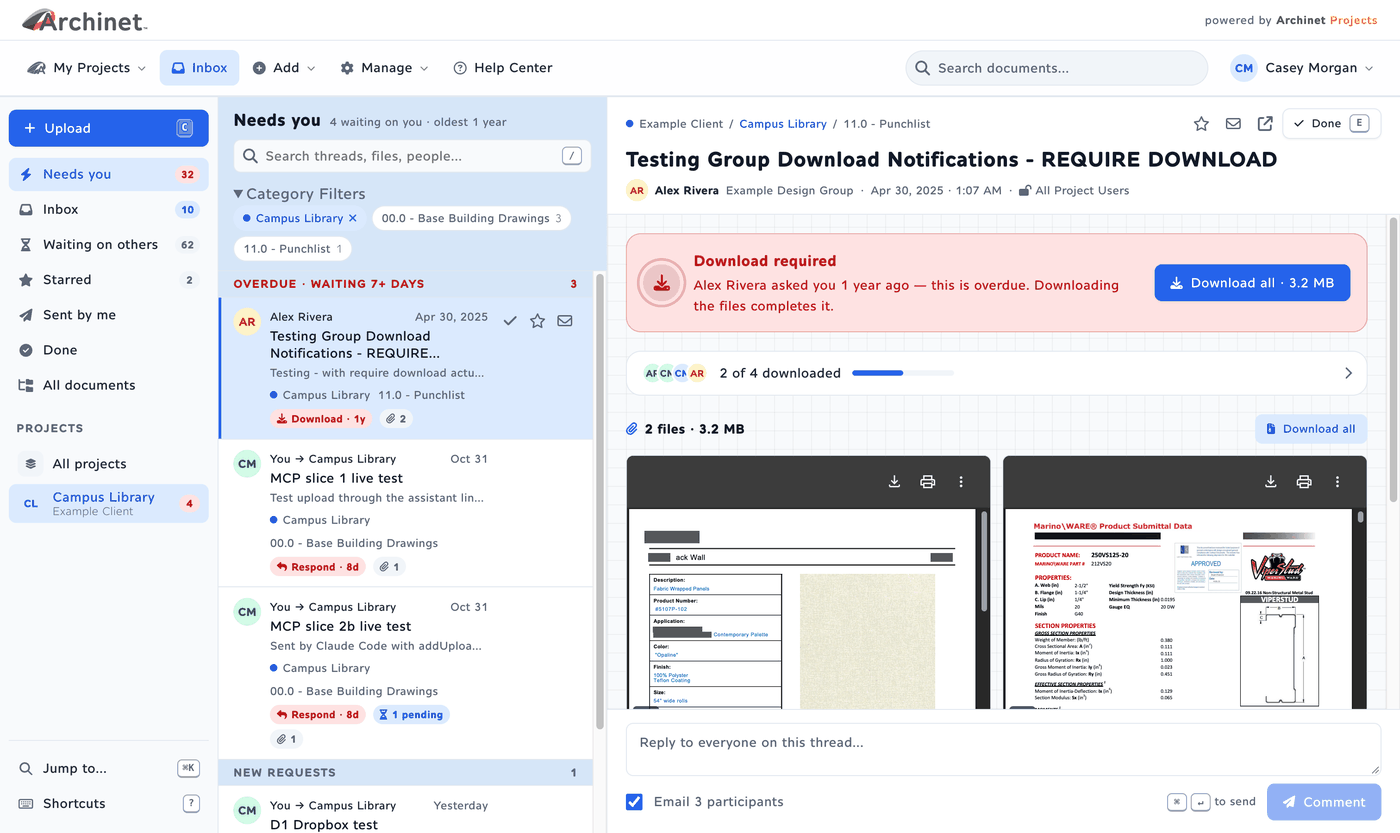
- See what you owe: Needs you lists every post where you were asked to download or respond and haven’t yet, on every project, oldest request first, and flags those waiting three days or more.
- Less e-mail digging: the upload notice e-mails still arrive, but you no longer need them to find the files. The post, its files and its comments are in one place.
- Follow up on what you sent: Waiting on others shows your own posts that someone still has to download or answer, with who has and who hasn’t, and a Remind button.
- Keep your own order: mark posts Done when you have dealt with them, Star the ones to come back to, and mark one unread again. These marks are yours alone; nobody else sees them.
- Quick to get through: files show as previews in the post, and the keyboard moves through the list (shortcuts).
- Post from where you work: Upload sends new documents to a project with the same notify, download and response choices as the upload page.
Views & projects
The left column has seven views. Needs you, Waiting on others and Starred show how many posts they hold; Inbox shows how many are unread.
- Needs you
- Posts where you still owe a download or a response
- Inbox
- Every post you have not marked Done
- Waiting on others
- Your posts that someone still has to download or respond to
- Starred
- Posts you starred
- Sent by me
- Posts you uploaded
- Done
- Posts you marked Done
- All documents
- Every post you can see
Needs you lists the oldest request first, grouped as Overdue · waiting 7+ days, Aging · 3–6 days and New requests. When nothing is waiting it says You’re all caught up. The other views list the newest activity first, grouped by Today, Yesterday, Past 7 days, Past 30 days and then by month: a new post or a new comment brings a post to the top.
A post you have not opened is shown in bold. Everything posted before your first visit to the Inbox counts as read, so you do not start with years of bold posts; requests still show in Needs you.
Narrow the list
- Projects: under the views, your 12 busiest projects: those with requests for you first, then unread posts, then the latest activity. Each shows how many requests it has for you, or else how many unread posts. Select one to see only its posts; select All projects to go back. The rest are counted at the bottom (“… more in Jump to…”): reach them with Jump to….
- Category Filters: above the list, up to eight chips for the largest categories in the current view, with counts. Select chips to show only those categories.
- Search: type in Search threads, files, people… (or press /). It matches post subjects and messages, file names, uploader names and comment text.
- Jump to… (⌘K or Ctrl+K): type to jump to a project, a post or an action such as New post or Go to Starred.
The list shows 30 posts at a time; Load older at the bottom brings the next 30. It refreshes by itself every few minutes, and when you come back to the tab after a while.
Read a post
Select a post to open it on the right. At the top you see its client, project and category, its subject, who posted it and when, and its access: All Project Users or Limited Access.
- What is asked of you: when you owe something, a box says Download required, Your response is required or Download and response required, who asked and how long ago. Download file downloads a single file; with several files, Download all opens the post’s page, where the zip download takes them all. Write response takes you to the reply box. Once done it says Request completed.
- Receipts: a line such as “4 of 6 downloaded · 1 of 2 responded”. Open it to see each recipient as Downloaded, Download pending, Responded, Response pending or Notified.
- Files: each file as a card, with a preview when your browser can show it (images, PDFs, video, audio and plain text), its size and how many times it was downloaded. The eye opens the document’s page, the arrow downloads the file, and a PDF has Mark up PDF to open it in Markback.
- Comments: the post’s message, the comments, and events such as who downloaded, in order.
Reply or respond
Type in the box at the bottom and select Comment, or press ⌘ or Ctrl with Enter. When a response is required of you, the box asks for your response and the button says Send response: sending it completes the request. The Email … participants switch, on by default, e-mails the other people on the post about your comment.
Remind people
On a post you sent, the receipts line has Remind with the number of people who still owe a download or response. It e-mails only those people, and you can send it once a day per post; after that it says Reminder sent.
The arrow icon at the top (Open group page) opens the post’s page in a new tab, where you can edit or delete it as before.
Done, star & shortcuts
- Done takes a post out of your Inbox view and into Done; Move to inbox brings it back. Done does not complete a request: a post you still owe something on stays in Needs you.
- Star keeps a post in Starred. Mark unread (the envelope) makes it bold again.
- Several at once: tick the boxes on the rows, or press X, then use Done, Star or Read in the bar above the list.
Done, Star and read marks are yours only. They are kept with your account, so they follow you to another computer.
Keyboard shortcuts
Select Shortcuts at the bottom of the left column, or press ?, to see them on screen.
- J / K
- Next / previous thread
- E
- Done / back to inbox
- S
- Star
- U
- Mark unread
- X
- Select for bulk actions
- R
- Reply or respond
- C
- Upload (if you can upload)
- /
- Search this list
- ⌘K or Ctrl+K
- Jump to anything
- 1 to 7
- Switch view
- ?
- This sheet
The address bar follows what you do, so the browser’s Back and Forward buttons move between views, projects, searches and posts, and you can bookmark or share a view. On a phone the list and the post take turns on the screen; the arrow at the top of a post goes back to the list.
Upload & post
If you can upload to projects, Upload is at the top of the left column (or press C). It posts new documents to a project, as the upload page does.
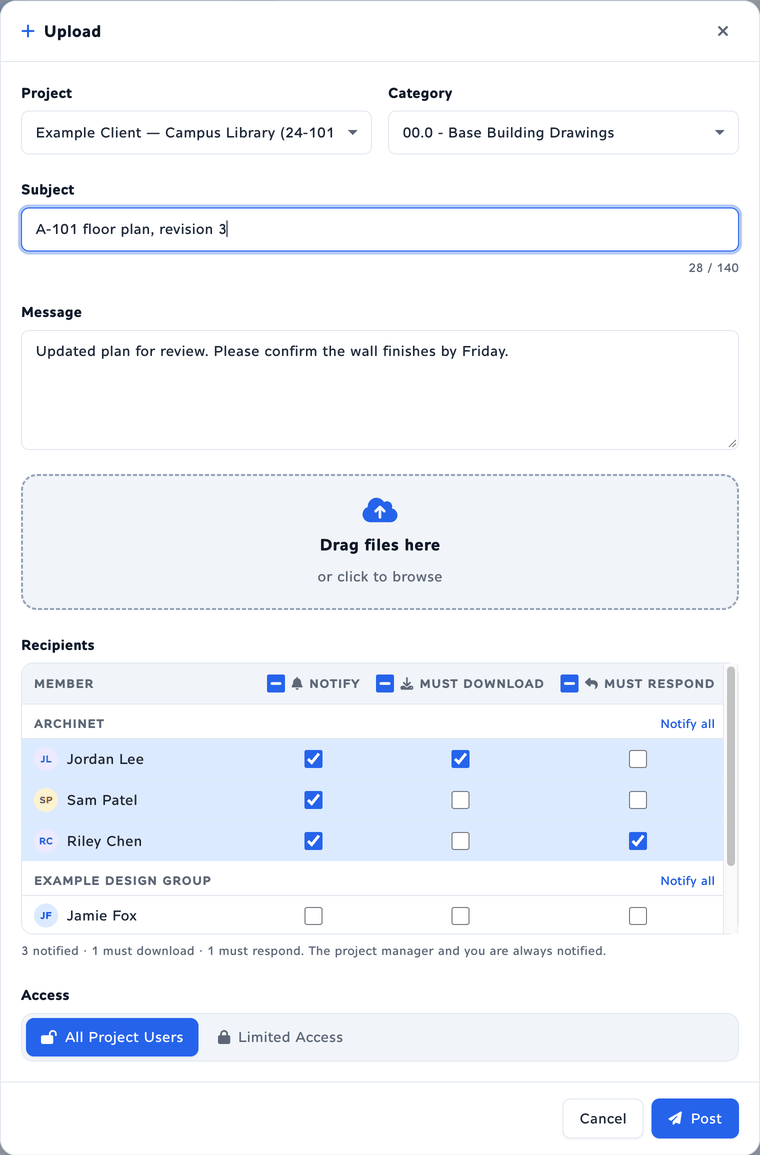
- Choose the Project and the Category.
- Type a Subject (up to 140 characters) and, if you like, a Message.
- Drag files onto Drag files here, or click it to browse. Each file starts uploading as soon as you add it, with its own progress. Remove one with the × on its row.
- Under Recipients, the project’s members are listed by company. Tick Notify, Must download or Must respond for each person, or use a column’s top box or a company’s Notify all. A requirement also notifies. The project manager and you are always notified.
- Choose Access: All Project Users, or Limited Access for only the recipients.
- Select Post. If files are still uploading, the post waits for them and goes out by itself.
Post sends the standard upload e-mail to the people you chose, the same as the upload page, and the post appears in the Inbox, on the project page and in search. Files over 3 GB, empty files and a few file types that could run on a web server cannot be uploaded; the file’s row says why.
Start over
Start over asks first, then drops the draft and its files from the post. The files themselves are kept on the server but never shared. If the post had already gone out when Start over reached the server (you had pressed Post, or Leave it to finish), Start over comes too late: the dialog says who was notified, and offers Delete it if you may delete the post, or Open the post. Delete removes the post from the project and e-mails the project’s address that it was deleted; its files are kept.
If the connection drops or you are signed out
- A dropped connection pauses the upload, and it carries on by itself when the connection is back, from where it stopped.
- If your session ends, the dialog says so with Continue. Sign in again in another tab, then select Continue: the upload goes on from where it stopped.
- If you press Post while a file cannot get through, the dialog offers Leave it to finish. Leaving stops the upload of any file that has not finished: a few minutes later the server posts the files that did arrive, e-mails the recipients, and e-mails you (“Post finished: …”) what was posted and which files were left out. If no file had arrived, nothing is posted; when the server gives up on it, you get an “Upload not posted: …” e-mail instead. The same happens if you close the page after pressing Post. To post every file, keep the page open until the post is sent.
Uploads not posted
Closing the dialog before Post is a cancel: nothing is e-mailed and nobody sees the files. They are not forgotten, though:
- On every page: the Inbox link at the top shows a count, and a line says how many uploads are not posted. Select it to open the list.
- In the Upload dialog: a list says, for example, “3 files uploaded to Campus Library (Nov 8) were never posted.” Select Post them to bring the files back into the dialog, already uploaded; type the subject again and press Post. Or select Discard. Discard all unposted clears the whole list. Uploads you started on the upload page are listed too; their Post them opens that page.
- By e-mail: about an hour after the last file of an unposted upload landed, you get one reminder, “Not posted yet: … uploaded to …”.
- Still being posted: a post you pressed Post on that the server is still finishing shows as “Being posted: … The server is finishing it; you will get an e-mail.”
You can have up to 100 unposted uploads from the last day. Past that, a new upload or Post waits and the dialog lists your unposted uploads: post or discard some, and it goes on by itself.
Discarded files are kept on the server, as every file on Archinet is, but they are never shown or shared.
Who sees what
The Inbox follows the same rules as each project’s page.
- Projects: the active projects you are on. Completed projects show too if you have archive access.
- Files: files shared with all project users, and Limited Access files you were sent. A post shows only the files you may see.
- Your marks: Done, Star and read marks are yours only.
- Comments on a post are seen by everyone who can see the post, as on its page.
- Upload appears only if your account can upload, and lists the projects you are on.
Looking for documents by what is written in them? Use Search and Ask: the Inbox search matches names, messages and comments, not the words on a document’s pages.
If something doesn’t work
A post I expected is not in the Inbox.
Check the view and the project in the left column, clear the category chips and the search box, and try All documents. Posts you marked Done are in Done. A Limited Access file shows only to the people it was shared with. If the project page doesn’t show it either, ask the project’s manager for access.
I marked a post Done, but it is still in Needs you.
Done is your own mark; it does not complete a request. Download the files, or send your response, and the post leaves Needs you.
I downloaded the files, but the request is still open.
A download requirement is per file. On a post with several files, download each file with its arrow, or use the zip on the post’s page. Opening a preview or the document’s page does not count. The list catches up within a few minutes, or when you reload.
I don’t see Upload.
Upload appears only for accounts that can upload documents. Ask your project’s administrator if you need to.
My reply says my account cannot post comments.
Replying needs the comment permission on your account, as commenting on a project page does. Ask your project’s administrator.
Remind is greyed out.
A post’s reminder can be sent once a day; it says Reminder sent until then. If nobody still owes a download or response, sending one says so and nothing is sent.
The Inbox link shows a number.
You have uploads that were never posted. Select the … uploads not posted line next to it to open the list, then post or discard them (Uploads not posted).
The upload stopped or says I am signed out.
Keep the dialog open. A dropped connection resumes by itself. If you were signed out, sign in in another tab and select Continue. If a file failed, its row has Retry.
Still need help?
Tell us the project, the post’s subject and the message you saw.