
ARCHINET PROJECTS · SEARCH & ASK
Find the drawing.
Then the page.
Search every document you can open on your projects, by its name, its details and the words on its pages. Open the page that matched, follow a sheet’s history or an RFI’s thread, and ask questions about a project.
Search reads the words on a document’s pages, including scanned pages, and the sheet numbers in its title blocks. You only ever find documents you could open on the website.
Open the search page Sign in with your existing Archinet account.Search
There are two places to search. Both open the same results page.
- The box at the top of every page: type in Search documents… and press Enter. On a project’s pages, a folder switch beside the box (Search this project only) is on, so the search covers that project. Turn it off to search all your projects.
- The search page: in the Search Documents panel, choose a Project or keep All Projects, type in Search and select Submit.
What you can type
- Words: from a document’s name, description, category, project, client or uploader, from the file names inside a ZIP, and from the words on its pages once they have been read. Capitals do not matter.
- Sheet numbers: A-101 and A101 find the same sheet, and documents carrying that sheet number come first.
- RFI and project numbers: type them as they appear in document names; documents carrying that exact number come first.
- Exact phrases and exclusions: put words in quotes to find them together, and use AND, OR and NOT in capitals. Drawing stamps such as NOT FOR CONSTRUCTION are read as words, not as an exclusion.
- One field only: start a word with
project:(the project’s name),company:(the project’s client),document:(the document’s name) orperson:(the uploader’s name), for exampleperson:morgan. - A question: you can type a question such as Where is the fire alarm riser? A question mark at the end is ignored.
With one or two words, every result has all of them. With three to five words, a result can miss one of them, and with more words, a few. When nothing matches even then, search looks for any of your words and says No document has every word; these have some of them.
Suggestions as you type
In the search page’s Search box, suggestions appear after two characters: sheet numbers on documents you can open, the names of your own projects, and common building terms. Choose one to put it in the box, then press Enter or select Submit. The box at the top of the page does not show suggestions.
Read the results
The best match comes first. Each result shows the document’s thumbnail, name and project, who uploaded it, from which company and when, the project’s client and the document’s category.
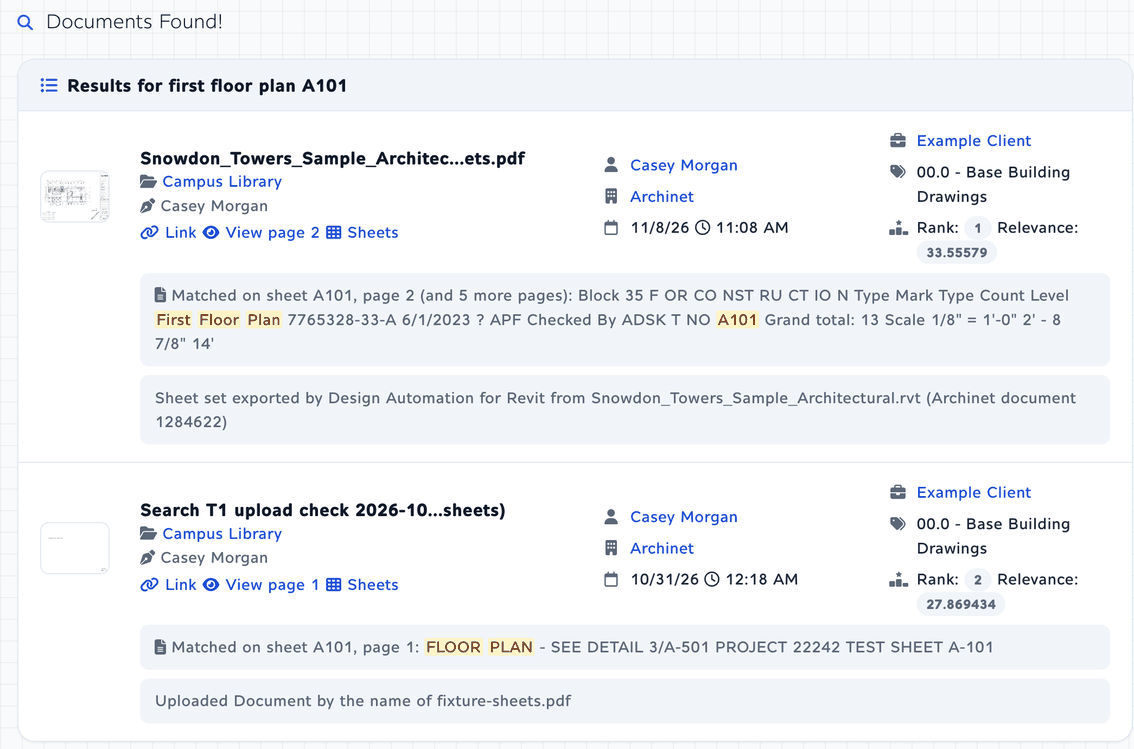
- Matched on sheet A101, page 2 (and 5 more pages): the page whose words matched, its sheet number when it is known, and the words around the match, with your words marked. When a sheet number was read from the title block by AI, it says (read by AI).
- 12 more in this set: you see one result per upload set. Select the link to list every matching document of that set; Show all results takes you back.
- Newer upload of A101: 2026-10-05: a later upload of the same drawing, added on that date, exists that you can open. Select Sheet history beside it; see Sheet history.
- RFI 12: 2 more documents: other documents of the project carry the same RFI number. Select it to see the RFI’s thread.
- Rank and Relevance: the result’s place and its score for this search.
The panels beside the results
- Result Info says how many results there are and how many documents were searched. A search can show up to 1,000 results, 30 to a page, with Previous and Next; when more documents match, it says “the best 1,000 of …” and Refine narrows them.
- Order: choose Best match or Newest first.
- Narrow it: when your search names a year, a month, a discipline or a floor, one click limits the results to it, or spells the floor every way drawings write it.
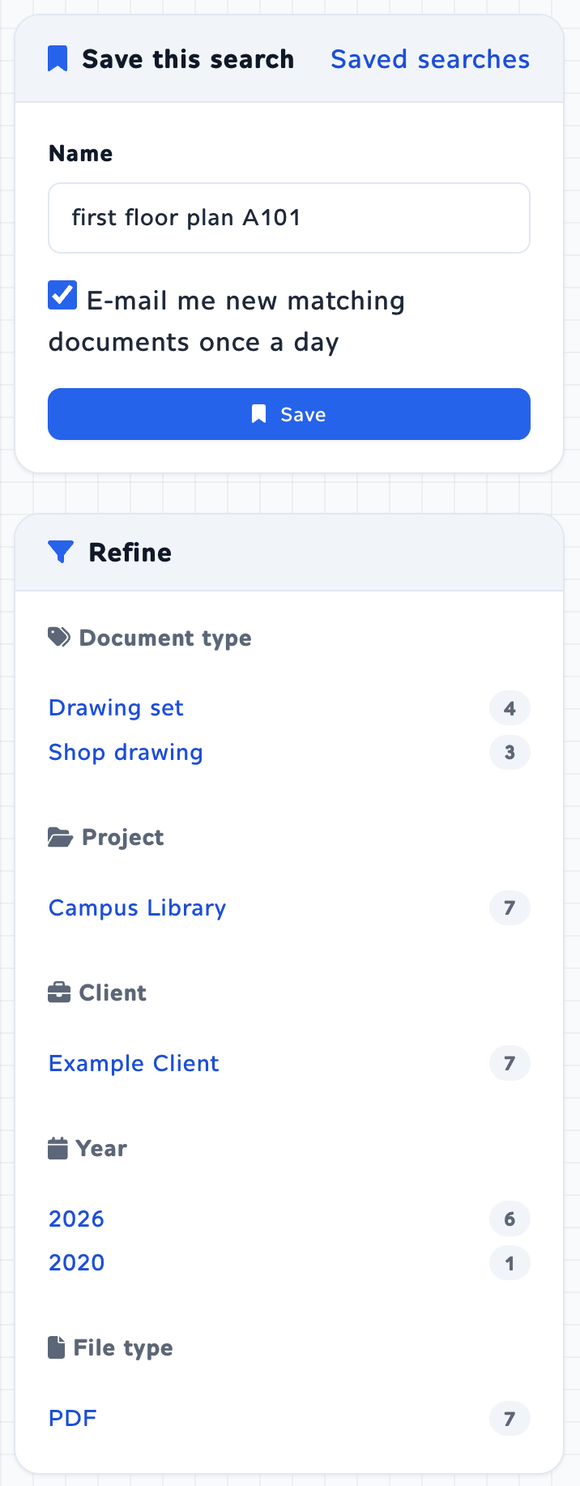
- Refine lists the Document type, Discipline, Project, Client, Year and File type of your results, with counts. Choose one to narrow the results; choose it again, or Clear all, to undo.
- Did you mean …? above the results (when your site has it on, for a search that finds few documents) and You might try a search for … below Result Info offer a corrected spelling that finds more of your documents. Your results stay as they are.
Help from AI on the results page
Three extras can appear after the results are shown. The results never wait for them and never change because of them. They depend on your site’s settings and on the AI switch (see AI features & limits), and appear only when they have something to add in time.
- AI suggests: for a plain search of three or more words, a line in Result Info offers to narrow your search with choices AI read from your words, such as a project, a discipline or a year, and names them. Select it to run that search.
- Best matches for your question: when your search is a question (three or more words that end with a question mark or start with a word such as what, where, which or does) and finds at least three results, a panel above the results lists up to five of them in the order AI thinks answers the question best.
- Pages that match by meaning: below the results, up to six drawing pages, from documents not already in the results, whose text is about what you searched for though not in your words, each marked Match by meaning. Selecting one opens it in the viewer.
Open & view
Each result offers the ways in that suit its file:
- The name or Link: the document’s page on the website, with its details, comments and download button.
- View page 2: for a PDF, the viewer opens at the page that matched (View when no page matched).
- Sheets: for a drawing set whose page thumbnails have been made, every sheet as a tile.
- View in Autodesk: for a drawing or model such as DWG, RVT or IFC, the Autodesk Viewer; see the Autodesk guide.
The viewer
The viewer shows the PDF in your browser and opens at the matched page. It looks for your words in the PDF’s text, marks them, and says on which page they first appear, for example Your words are on page 2. Use the arrows to move between pages and the magnifiers to zoom. Document page opens the document’s page, and Download saves the file.
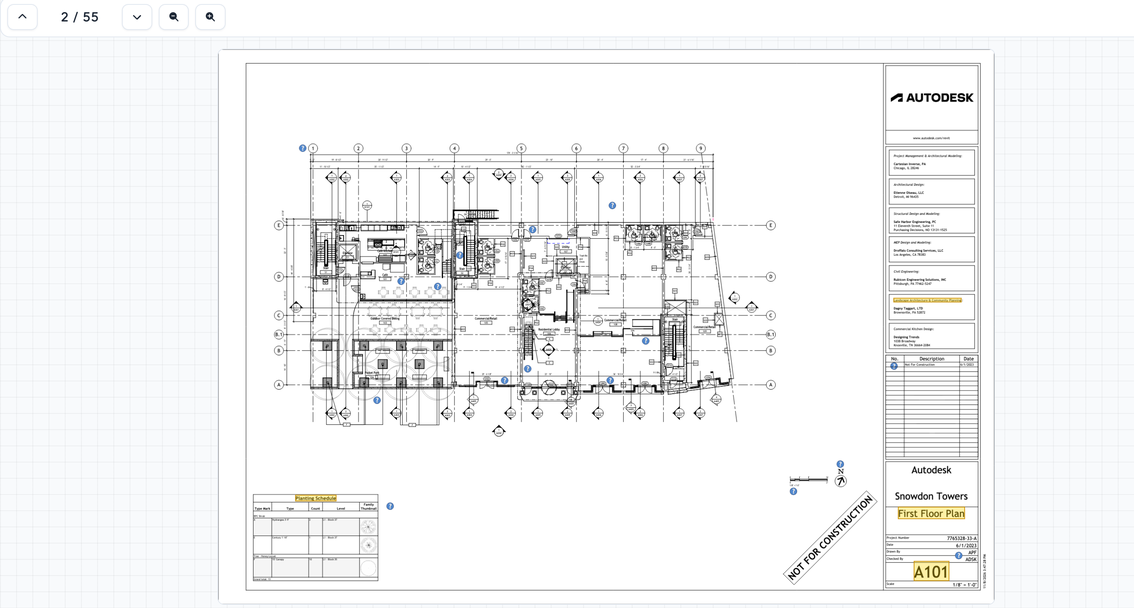
When the words on a scanned page were read from its scan, the viewer says so, and marks your words on it when it can. When your words are only in the document’s details, it says Your words are not in the PDF text (they may be in its details). In a very long PDF it looks through the first 400 pages. Only PDFs stored on this site open in the viewer; for other files, use the document page or download them.
The search workbench
Select Open in the workbench in Result Info to see the list, a preview and the viewer side by side. Results update as you type. Use the up and down arrow keys, Home and End to move through them: the Preview shows the document’s details and the words that matched, and records nothing. Press Enter or select Open to load the viewer in the preview pane, which records a download; a file that is not a PDF stored on this site shows a note with links instead. Press / to go back to the search box and Escape to go back to the list.
Sheets, history & RFIs
These pages show what search knows about a drawing set and its sheets. They show thumbnails and details and record no download; a sheet or document is recorded as downloaded when you open it in the viewer or select Download.
Sheets Every sheet of a drawing set
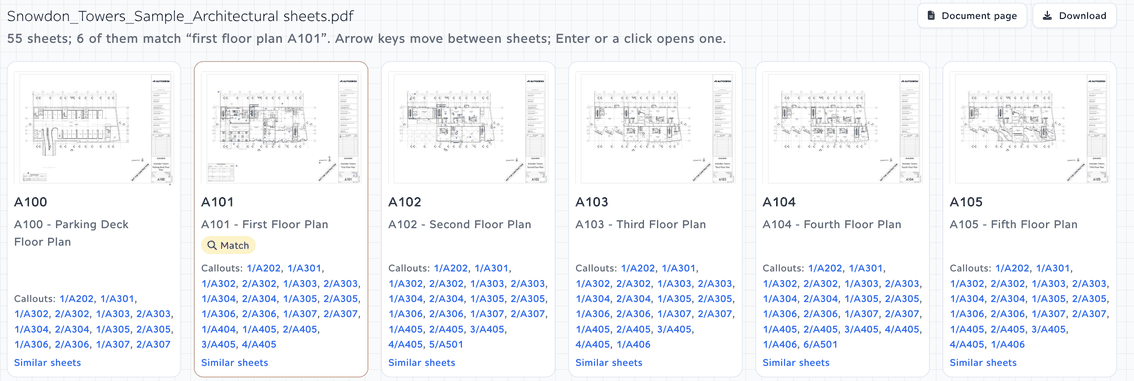
Select Sheets on a result to see each page of the set as a tile, with its sheet number and title. Tiles that match your search are outlined and marked Match. Use the arrow keys to move between tiles; press Enter or select a tile to open that sheet in the viewer.
- Callouts: the detail and section bubbles on the sheet, such as 1/A301. Select one to move to that sheet’s tile.
- Called out on: the sheets whose bubbles point to this one.
- Similar sheets: sheets from your other documents that look like this one (below).
If the set has not been read yet, the page says The sheets of this document have not been read yet and offers to open it in the viewer.
Sheet history Every upload of a sheet number
When a result carries the badge Newer upload of A101, select Sheet history beside it. The page lists every upload of that sheet number in the project that you can open (the newest ones, when there are very many), newest first, with its date, name and file, and View for PDFs.
Uploads whose names share the drawing’s distinctive words are listed under The same drawing. The others are listed under Other drawings with sheet number A101: they carry the same number but are named differently, for example another building’s drawing. A document without a single sheet number in its name has no sheet history.
An RFI’s thread Documents with one RFI number
Select a result’s RFI 12: 2 more documents link to list every document of the project with that RFI number in its name that you can open, oldest first (when there are very many, the oldest ones and the one you came from). A document is marked Response only when its name says so (response, reply or answered); the others show Same RFI number.
RFIs in this project A project’s RFI log
On a project whose RFI documents have been read, the project page has an RFIs button, and the search page shows RFIs in this project when that project is chosen. The page lists the RFIs from the project’s RFI categories that you can open, by RFI number, with their subject, the sheets they name, their status and their documents.
- Filter by Sheet (for example A-201) and by Status: All, No answer found, Answered or Closed. Then select Show.
- Subjects, questions, sheets and answers read by AI are shown only when their words were found in the document, with those words in quotes and a note that AI read them. A document not read yet says not read by AI yet.
- An RFI is answered when a document you can open is named as its response, holds the answer, or prints a stamp read as answered. Otherwise it shows that there is no answer among the documents you can open: an answer may still be in a document you cannot open.
The page can be limited to site administrators; then it shows This page is not available.
Similar sheets Sheets that look alike
Select Similar sheets under a tile to see sheets from your other documents that look most like it, by how the drawings look rather than their words. Each is marked Visual match, the most alike first, one per document; copies of the same sheet in other uploads are left out. Under each, Its set opens that set’s sheets and Sheets like it starts again from that sheet. Back to the set returns to the set you came from.
The link appears only for projects whose page images have been made. A sheet whose image has not been made yet shows This sheet has no page image yet. Images are made in the background; try again later.
Ask this project
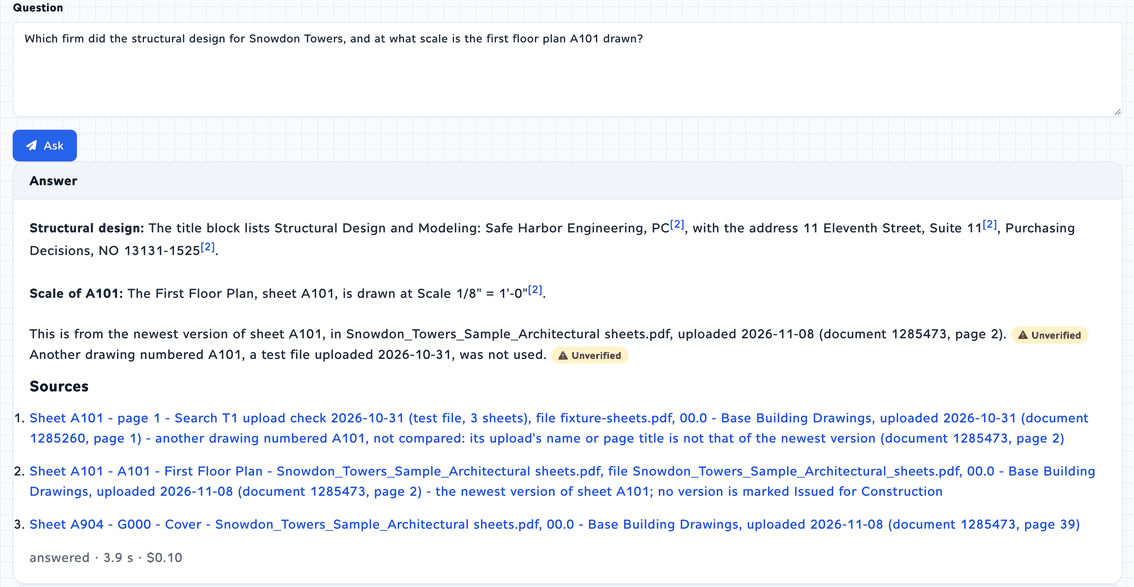
Ask this project is a button on a project’s page. AI answers your question from that project’s documents and drawing pages that you may open, and cites them. You can use it on the projects you are on; site administrators can use it on any project.
- Open the project and select Ask this project.
- Type your Question (up to 1,000 characters) and select Ask.
- Read the Answer. Each statement carries numbered citations such as [2]; select one to jump to that item in Sources.
- Select a source to check it. A drawing page opens in the viewer at that page, which records a download; a document opens its document page.
- What it reads: the pages the search finds for your question, not the whole project: up to 15 drawing pages, up to 6 versions of a sheet your question names, up to 5 pages one link away (a callout or a newer upload), and the details of up to 12 documents. Restricted documents count only if you can open them.
- Unverified: a sentence that cites nothing, adds more than a few words of its own, or has numbers, dates, sheet numbers or quoted words that are not in what it cites is marked Unverified. Whether the cited text really says what the sentence says is not checked: open the sources before relying on an answer.
- No answer found: the answer starts with I could not find the answer in the documents I searched. and may point to the closest material it found. The answer may still be in the project. When nothing you can open matches at all, it says Nothing in this project that you may open matches the question.
- Comparing versions of a sheet: Ask compares the words printed on each version: notes, dimensions written as text, dates, stamps and revision rows. Changes that are only drawn, such as moved walls or revision clouds, are not in that text. An answer that compares versions shows This compares text, not drawings. above it.
- Under the answer: whether it was answered, the seconds it took and what it cost.
- Your earlier questions: your last 10 questions on the project, with their outcome and time. Your questions and answers are kept with your name; only you and site administrators see them.
Saved searches & the daily e-mail
Save a search to run it again later, and to get an e-mail when new documents match it.
- Run the search, with any project, order and Refine choices you want to keep.
- In Save this search, beside the results, edit the Name if you like.
- Keep E-mail me new matching documents once a day ticked for the daily e-mail, or untick it, then select Save.
The Saved searches link opens your list. Select a search’s name to run it. Use E-mail me daily or Stop the daily e-mail to turn its e-mail on or off, and Remove to delete it. You can keep up to 50 saved searches.

- When: the e-mail comes from Archinet Projects at about 7:00 a.m. Eastern time, and only on days when a saved search has new matching documents. The first one covers documents added after you saved the search.
- What it lists: for each search, up to 20 new documents with their project and date, each linked to its document page, and See them all in search. It lists only documents you may open on the day it is sent.
- To stop it: follow Change or stop it at the bottom of the e-mail, or open Saved searches, and select Stop the daily e-mail or Remove.
What you can find
Search, Ask and every page in this guide follow the website’s own access rules. Search checks every result, tile and sheet against those rules again before it is shown. Ask uses only documents and pages you could open when it gathers its sources for your question; opening a source checks your access again.
- Projects: active projects you are on, and completed projects if you have archive access. Project administrators find every document of their projects. Cancelled projects are not searched.
- Restricted documents: only the ones you were given access to, unless you administer the project.
- Deleted documents are never found.
- Your searches are logged with your name, for the site’s administrators to improve search. The website has no page that lists your own past searches; use saved searches to keep one.
- Recent changes: after a document’s access or project changes, search hides it for a minute or so while it catches up. Result Info may say Search is catching up with recent changes; please try again in a minute.
Which documents have page text
Every document can be found by its name and details. Archinet also reads every PDF automatically, newest first: the words on its pages, including scanned pages, and sheet numbers from title blocks. Nobody needs to open a document for it to be read. Until a document’s pages are read, it is found by its name and details only.
Your AI assistant can search and read pages through Archinet’s MCP connection with the same rules; see Search and read drawings in the AI assistants guide.
AI features & limits
Ask this project and Best matches for your question send document text to AI services; AI suggests sends your search and the names of your projects; Pages that match by meaning sends your search. The plain search, the viewer and the Sheets, Sheet history and RFI pages work without them.
- The AI switch: AI can be turned off for a client, a firm or one project. Their documents are then never sent: Ask says The AI switch keeps this project’s documents from AI services., and the AI extras on the results page leave those documents out or do not appear. When your own company is turned off, or AI is paused for the site, AI suggests, Best matches and Pages that match by meaning do not appear for your searches.
- Your daily allowance: AI suggests and Best matches each have a small daily allowance per person. When it is used, you see Your daily allowance for search suggestions is used; it starts again at midnight. or Your daily allowance for Best matches is used; it starts again at midnight. (midnight Eastern time). Searching itself is never limited.
- Ask’s budgets: Ask has a daily budget for the whole site and one for each client’s projects. When one is spent, Ask says so and starts again the next day.
For administrators
On the Search index page, site administrators set the search options (for example Did you mean and Best matches for your question), the site’s daily AI budgets, the default budgets for clients and people, and the reading of pages. On the AI processing page they set the AI switch for clients, firms and projects, a client’s own budgets and a person’s own allowances. Site administrators can also read every question asked on Ask.
If something doesn’t work
A document I know is there does not come up.
Check the project choice: on a project’s pages the top search stays in that project, and the search page may have one chosen. Clear any Refine choices. Try fewer words, or the sheet number on its own. If the words are on a drawing that has not been read yet, search by its name instead. Check that you can open the document on the website; if not, ask the project’s manager for access.
The results page says “Search is not answering”.
Search could not answer just then. The problem is logged and the site team is alerted; your documents are all still there. Try again in a minute.
Why is this result here? I can’t see my words in it.
The words may be in the document’s details, its category, the uploader’s name or a page you have not looked at. The Matched on line names the page. With three or more words, a result can miss one of them.
The viewer says the page was read from its scan.
That page is a scan without a text layer, so search used the words read from the scan. The viewer marks your words on it when it can; otherwise look for them on the page yourself.
I don’t see AI suggests, Best matches or Pages that match by meaning.
They appear only for some searches (a plain search of three or more words, a question with at least three results, a search with a word of three or more letters), only when your site’s settings and the AI switch allow them, and only when they answer in time. They never hold up your results.
Opening a page counted as a download.
Yes: the viewer, a sheet tile, a Pages that match by meaning tile and an Ask source that names a page open the file, so they record a download and complete a Download Required, as the website’s other opens do. The results, the document page, the workbench preview and the Sheets, Sheet history, RFI and Similar sheets pages do not.
I don’t see Ask this project or the RFIs button.
Ask this project shows on the projects you are on. RFIs shows only on projects whose RFI documents have been read, and only when the RFI page is open to you.
I’m not getting the daily e-mail.
Open Saved searches and check that the search shows Daily e-mail: on. The e-mail is sent only on days with new matching documents that you may open. Check your spam folder for mail from Archinet Projects.
Still need help?
Tell us what you searched for or asked, the project, and the message you saw.