
AUTODESK + ARCHINET · PROOF OF CONCEPT
Your drawings and models.
In Autodesk.
Open project drawings and models in the Autodesk Viewer, move files between Archinet and Autodesk Construction Cloud (ACC), and bring Revit sheets, model data and ACC issues back to your project.
The Autodesk Viewer works in your browser and needs no Autodesk seat. You reach ACC in one of two ways, always labelled on screen: as your firm, to look and copy, or as yourself, with your own Autodesk sign-in, to send files and raise issues that ACC records under your name.
Open the Autodesk integration Sign in to Archinet with your own account. Your usual project and document access still applies.Open. View. Share.
- Open a drawing or model on its Document Details page.
- Choose View in Autodesk and wait while Autodesk prepares it the first time.
- Turn, zoom and measure in the Autodesk Viewer.
- To share it with the wider team in ACC, choose Send to Autodesk Construction Cloud, sign in with Autodesk, open a folder and choose Send here.
What it does
The integration works on your existing Archinet documents. You never upload a file twice: each action starts from a document already in a project, or from a file already in ACC.
- View PDF drawings, CAD files and models such as Revit in the Autodesk Viewer, in your browser.
- Browse ACC one folder at a time, view its files, and copy them into an Archinet project.
- Send an Archinet document into an ACC folder.
- Watch an ACC folder, so new files there become announcements on an Archinet project.
- For Revit models, read the model data (levels, rooms, areas and materials) and issue a sheet set as one PDF.
- Link an Archinet project to an ACC project, see its ACC issues and raise an issue from a document comment.
You find it in three places:
- Document Details page: beside Download File you may see View in Autodesk, Send to Autodesk Construction Cloud and, for Revit models (.rvt), Issue sheet set and Model data. On a smaller screen, these buttons sit above the details.
- Project page: Autodesk™ Viewer & Transfer opens the Autodesk start page for that project, and the ACC Issues panel shows the linked ACC project’s newest open issues.
- The Autodesk start page (/autodesk/): your two ways into ACC and the project’s documents with their Autodesk status.
Two ways in
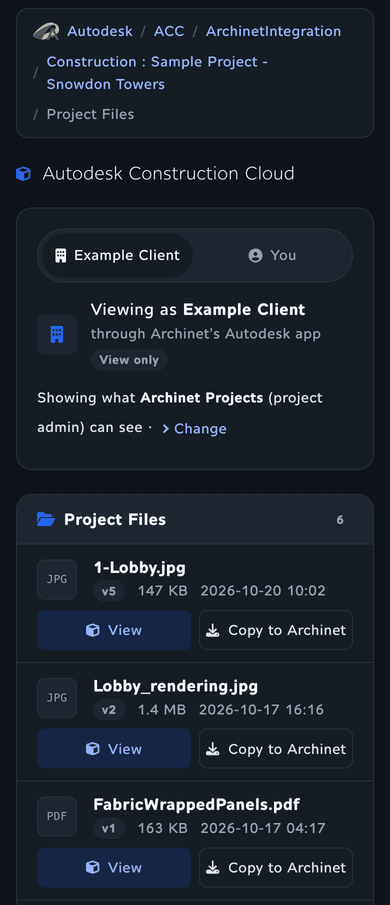
Whenever a page reads from ACC, it says whose eyes you are looking through, in words and with an icon. There are two:
| Your firm’s Autodesk (building icon) | Your Autodesk account (person icon) | |
|---|---|---|
| Shown as | “Viewing as your firm”, through Archinet’s Autodesk app or the firm’s own, with a View only badge | “Viewing as your name”, your own Autodesk sign-in, with a Can send to ACC badge when you may upload |
| Who has it | People with the administrator or autodesk role, when their firm has an Autodesk app | Anyone who signs in with Autodesk |
| What it can do | See the firm’s ACC projects and files, view them, and copy them into Archinet | Everything your Autodesk account can reach, plus sending documents into ACC and raising issues, recorded as you |
| What it cannot do | Send anything into ACC or raise issues | Reach hubs and projects your Autodesk account is not a member of |
Your firm is the client your Archinet account belongs to. In the firm’s view, ACC shows what one member of the ACC project may see: the member whose email matches yours, otherwise a project administrator. A line in the access card names that member; choose Change to pick another.
The switch, and what it remembers
When both ways are open to you, the ACC browser shows a switch at the top: your firm’s name, and You. The first time, it opens on your firm’s view. After that, it opens on the view you last picked with the switch or with a Browse button on the start page; that choice is kept in this browser for about six months. Following other links, such as Send to ACC from a document, does not change what is remembered.
Signing in and out with Autodesk
Your own sign-in is always available, to everyone, whether or not your firm has an Autodesk app.
- Choose Sign in with Autodesk on the start page, in the ACC browser, on the ACC issues page, or wherever a page asks for it.
- Sign in on Autodesk’s page and approve the access Archinet asks for. Your Autodesk password stays with Autodesk.
- You return to Archinet, now Viewing as your name.
Archinet keeps your Autodesk session while you use Archinet and renews it as needed. Sign out of Autodesk ends Archinet’s use of your Autodesk account; it does not sign you out of Autodesk’s own websites.
View drawings and models
Anyone who can open a document in Archinet can view it in the Autodesk Viewer, including 2D sheets and 3D models. No Autodesk account is needed.
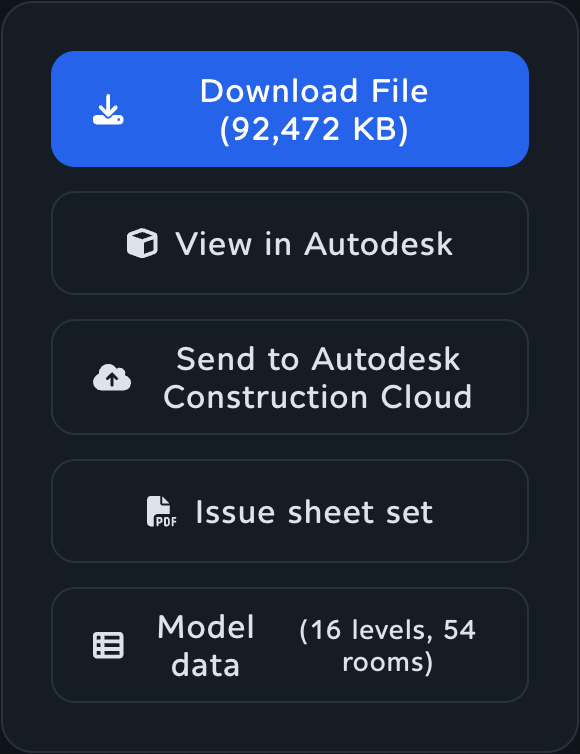
- On the Document Details page, choose View in Autodesk. On the start page, choose View beside the document.
- The first time, Archinet copies the file to Autodesk and asks Autodesk to prepare it. The Viewer page says Autodesk is preparing this file for viewing and checks again every 10 seconds. Leave it open; a large model can take several minutes.
- When the model appears, use the toolbar at the bottom of the Viewer to orbit, pan, zoom, measure, section and browse the model. Back to the document returns you to where you started.
If you arrive from a link instead, for example View in Autodesk on the Model data page, and the document has not been prepared yet, a short card shows the file and its state and asks you to choose Prepare and view first.
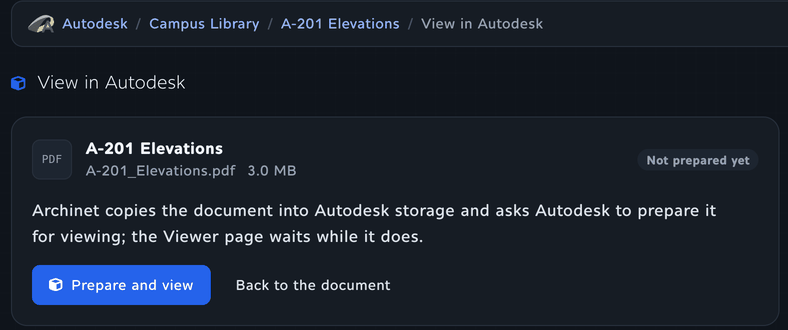
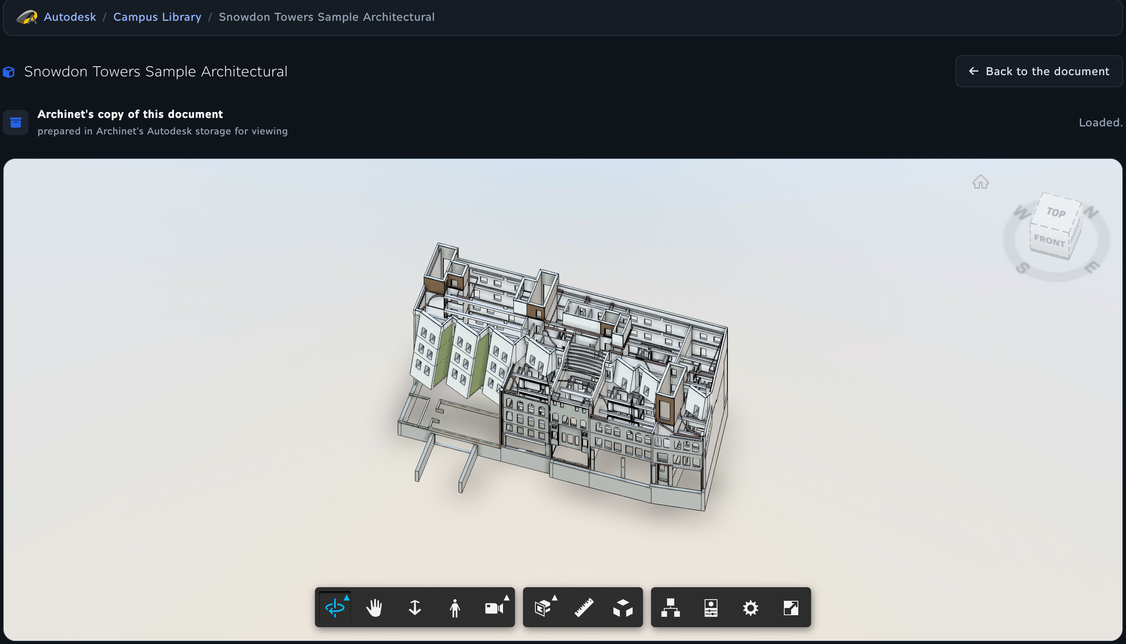
Under the title, a line says what you are looking at: Archinet’s copy of this document for an Archinet document, or Viewing as your firm or your name for a file opened from ACC. Next time, the prepared copy opens straight away. If the document changes, the start page shows Changed since prepared and View prepares the new version.
The start page
The Autodesk start page has two parts.
- How you reach Autodesk: one panel per way in. Your firm’s Autodesk (only for the administrator and autodesk roles) has Browse as your firm. Your Autodesk account has Browse your Autodesk and Sign out once you are signed in, or Sign in with Autodesk. Each panel lists what that way can do.
- Project documents: choose a Client and a Project from the projects you are assigned to. The table lists the project’s documents with their Autodesk status, View for files the Viewer can show and, if you can upload, Send to ACC.
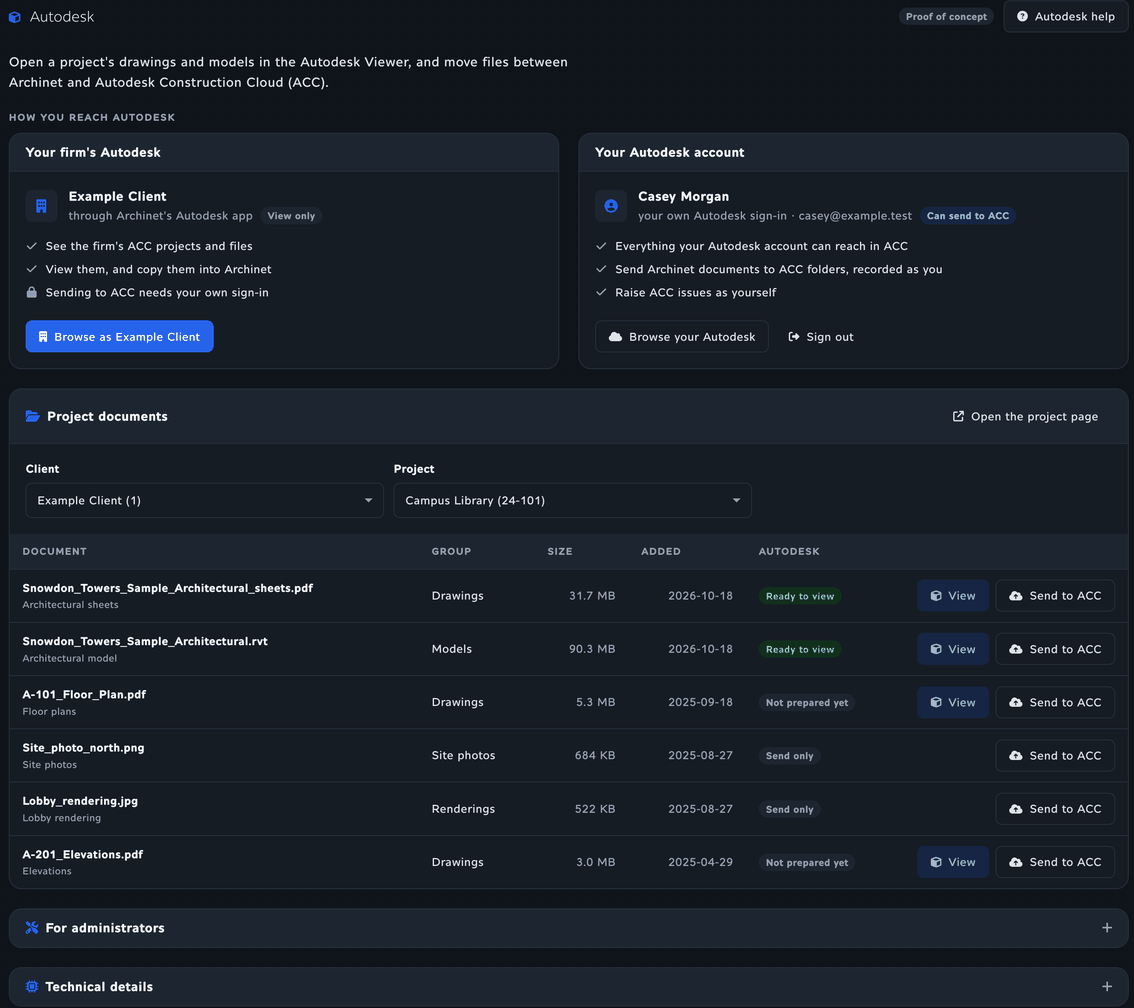
| Badge | What it means |
|---|---|
| Ready to view | The prepared copy is current. View opens it at once. |
| Not prepared yet | Nobody has viewed it yet. The first View prepares it. |
| Preparing | Autodesk is working on it, with its progress. Choose Refresh to check again. |
| Copied, not prepared yet | The file is with Autodesk but not prepared. View prepares it. |
| Changed since prepared | The document changed. View prepares the current version. |
| Could not be prepared | Autodesk could not read the file. The reason it gave is shown under the badge. |
| Send only | The Autodesk Viewer does not show this file type. You can still send it to ACC. |
| Sent to ACC | Someone sent this document into ACC from Archinet. Point at the badge to see the folder, the ACC project, the date and who sent it. It appears beside the Viewer status, or in place of Send only. |
| Not checked | The page checks the first 10 prepared files each time it loads. View still works, or reload the page later. |
The table shows 200 documents at a time; use Next 200 for the rest. Open the project page returns to the project. Administrators also see a collapsed For administrators section, and everyone has a collapsed Technical details section; you can ignore both.
Browse Autodesk Construction Cloud
- On the start page, choose Browse as your firm or Browse your Autodesk.
- The ACC browser shows one level at a time: your hubs, then a hub’s projects, then a project’s top folders, then a folder’s contents. Choose a name to go one level down.
- The breadcrumbs at the top (Autodesk › ACC › hub › project › folder) take you back up. A hub with many projects has a Filter projects box; type part of a name to narrow the list.
- In a folder, subfolders come first, then files. Each file shows its type, version (for example v5), size and date. Choose View to open it in the Autodesk Viewer; files Autodesk has not prepared yet read Not viewable yet.
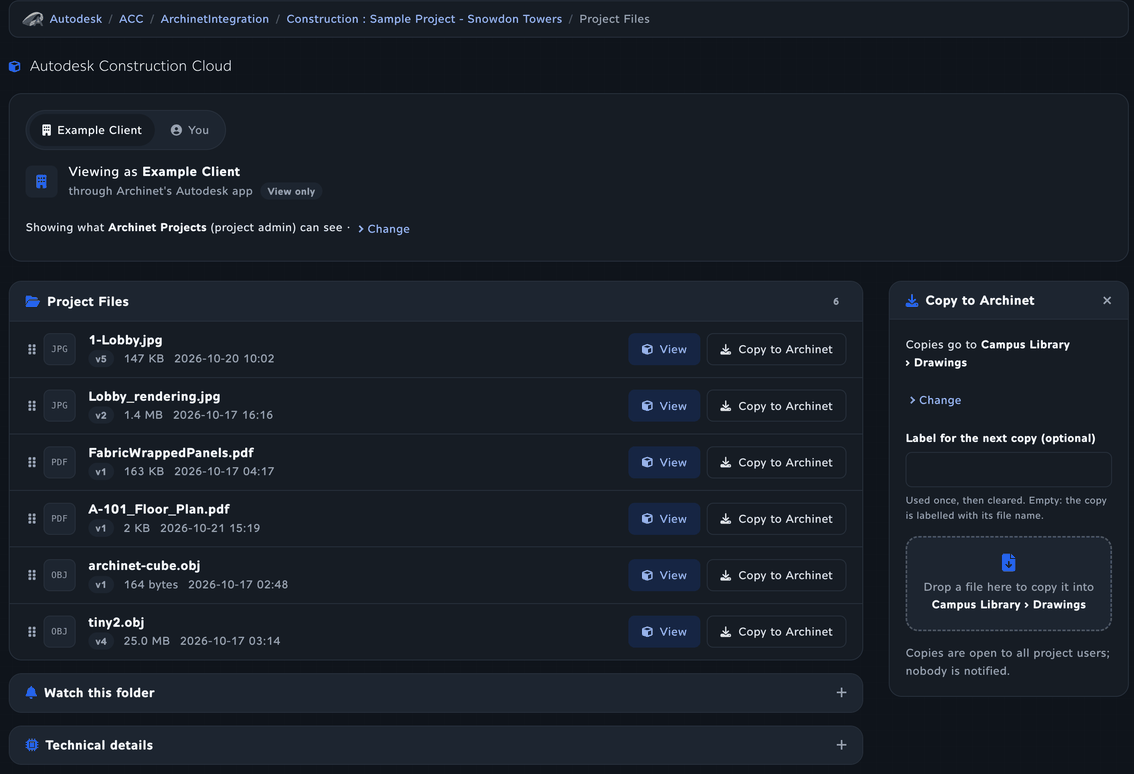
When the Viewer opens a file from ACC, its title is the file’s name and Back to the folder returns you to the same folder and view.
An empty folder says This folder is empty. If a page says Autodesk refused the app, the ACC account has not added that app under Custom Integrations; tell your administrator.
Copy ACC files into Archinet
Copying works in both views and needs upload permission. You choose where copies go once, then copy as many files as you like.
- Open an ACC folder. In the Copy to Archinet panel, choose the Client, the Project and the Category. The panel then reads Copies go to project › category; choose Change to pick another.
- Optionally type a Label for the next copy. It is used once, then cleared; without one, the copy is labelled with its file name.
- Choose Copy to Archinet on a file’s row. On a computer with a mouse or trackpad you can also drag a file’s row (by its grip) onto the panel’s drop area.
- A progress bar shows each copy. Several copies can queue. When one finishes, it reads Added as document number (open it).
If you press Copy before choosing a destination, the panel opens and says Choose where copies go first. A copy becomes an ordinary Archinet document through the usual upload, with its group, thumbnail and search index. It is open to all project users and nobody is notified. Copying works for files up to 512 MB.
Send an Archinet document to ACC
Sending always happens as you, with your own Autodesk sign-in, so ACC records who uploaded the file. It needs upload permission in Archinet and permission to upload into the folder in ACC.
- On the Document Details page, choose Send to Autodesk Construction Cloud, or Send to ACC on the start page. The ACC browser opens in your own view, with the document waiting in a tray at the top.
- Sign in with Autodesk if you have not already. In the firm’s view, the tray says sending needs your own sign-in and offers Browse as you or Sign in with Autodesk.
- Go to the hub, project and destination folder.
- Choose Send here. On a computer with a mouse or trackpad you can instead drag the document from the tray onto a folder in the list; the drop sends it into that folder straight away.
- Leave the page open; a large file takes a while. Afterwards the folder shows file added to this folder, or New version of file sent to this folder, and the tray reads Sent file to folder. Choose Done to keep browsing that folder, or Send it again.
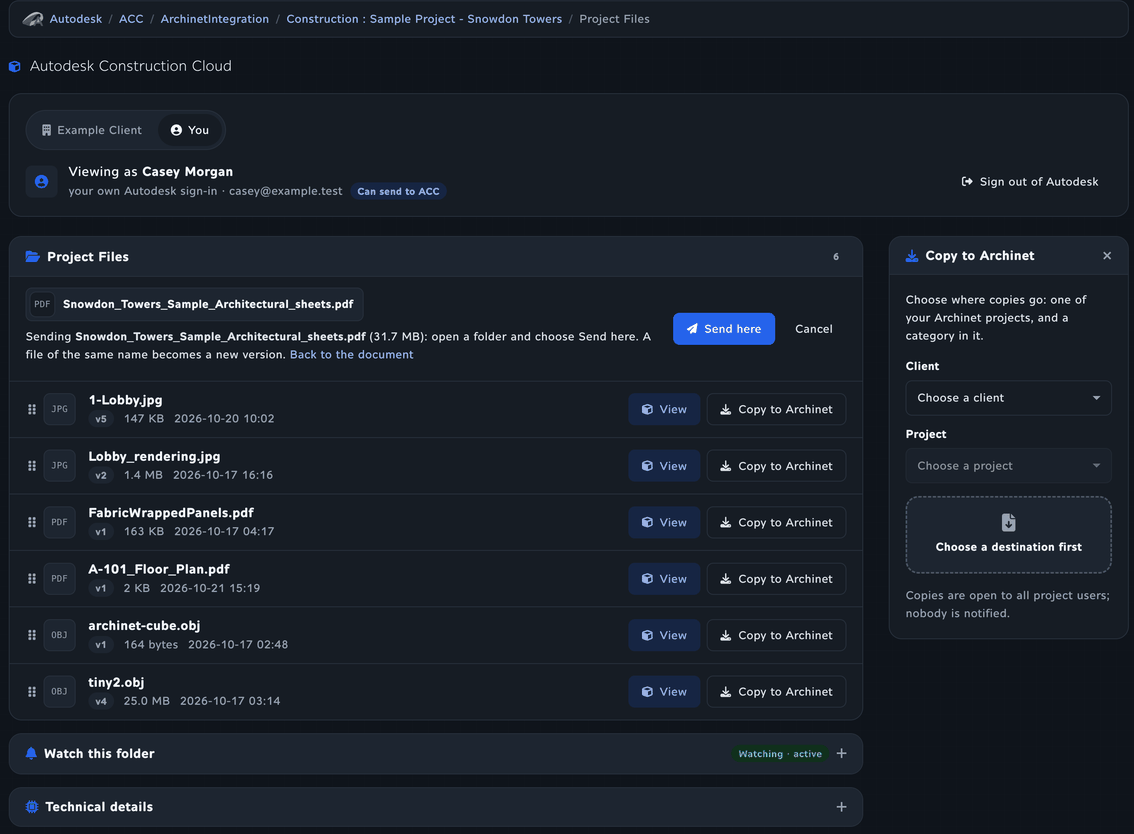
Cancel drops the document and keeps you in the folder. The Archinet document stays as it was, and its row on the start page gains a Sent to ACC badge. Later changes on either side are not synchronized; send again to add a new version.
Watch an ACC folder
Administrators can ask Autodesk to tell Archinet whenever a file, or a new version of one, is added to an ACC folder or its subfolders.
- Sign in with Autodesk and browse as you to the folder. (In the firm’s view, the panel offers a switch.)
- Open Watch this folder below the file list. Its badge reads Not watched, Watching · active, Watching · inactive or Watching · missing at Autodesk.
- Choose the Client and the Archinet project that should hear about it, then Watch for new files and versions.
Each new file or version becomes an announcement on the Archinet project, and the project manager and the person who set up the watch receive an email with a link to the folder. The watch belongs to the firm’s Autodesk service account, so it keeps working after you sign out. That account must be a member of the ACC project; if it is not, the panel says to seat it first (see Link or create an ACC project).
Choose Stop watching to end it. If it is inactive, Autodesk has paused it; fix the cause, then choose Reactivate (once per 24 hours). If it is missing at Autodesk, stop watching and watch again.
Read model data
For a Revit model, Archinet can list its levels, rooms, areas and materials, read from the copy prepared for the Viewer. Nothing is sent anywhere else.
- On the model’s Document Details page, choose Model data.
- The model’s card shows the prepared copy’s state as a badge. If it is not Ready, choose View in Autodesk first, then come back.
- Choose Read model data. It takes up to a minute for a large model. Later, Read again refreshes it.
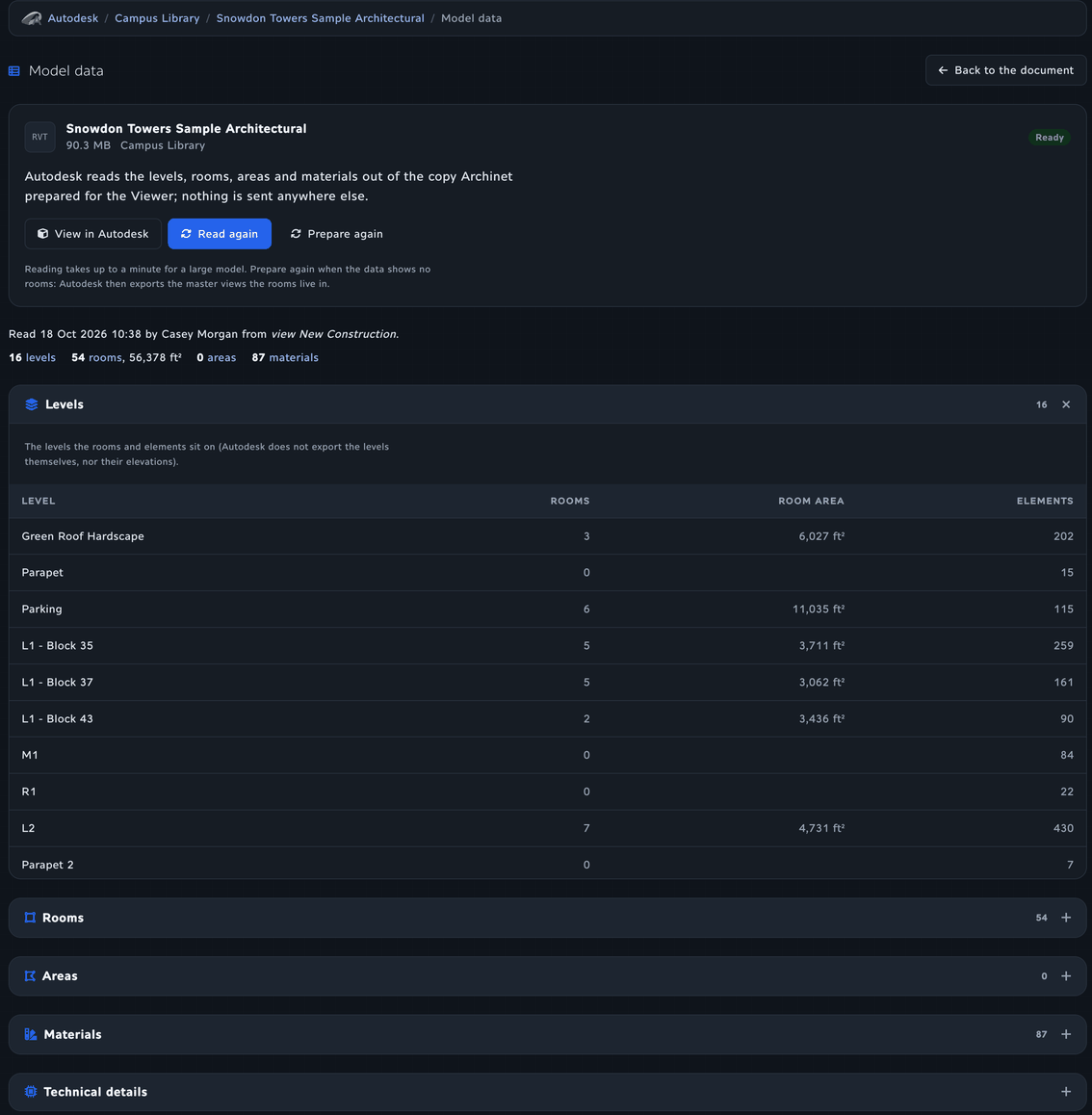
The summary line says when and by whom the data was read, with counts that jump to their tables. Each table (Levels, Rooms, Areas, Materials) opens and closes on its own; wide tables scroll sideways. A Changed since read badge means the document changed: choose Read again.
Anyone who can see the document can see data already read; reading it from Autodesk needs upload permission. The Model data button on the document page shows the counts once they are read, with earlier version when the document has changed since. If no rooms appear, choose Prepare again, then Read again. Autodesk does not export level elevations.
Issue a Revit sheet set
For a Revit model (.rvt), Autodesk can open the model in Revit in its cloud and export every printable sheet to one PDF, which you then add to the project as a new document.
- On the model’s Document Details page, choose Issue sheet set. The page shows four steps: Copy the model, Export sheets, Ready and Added to the project, with the current one marked.
- Choose Export all sheets to PDF. The page reloads every 10 seconds while the run works; a run usually takes a few minutes.
- When it says the PDF is ready, choose a Category, check the Label and choose Add to the project. A progress bar shows the upload, and the last step is checked when it is done.
Issuing a sheet set needs upload permission. The PDF stays in Autodesk’s temporary storage for 24 hours, so add it to the project the same day; PDFs larger than 512 MB cannot be added from here. The new document is open to all project users and nobody is notified. An administrator sets up the export once; until then the page says sheet sets are not set up yet.
ACC issues
When an Archinet project is linked to an ACC project, you can see its ACC issues in Archinet and turn a document comment into an ACC issue. Open the issues page from the project page’s ACC Issues panel: All issues, raise from comments, or Link or create an ACC project when there is no link yet.
Who reads and who raises
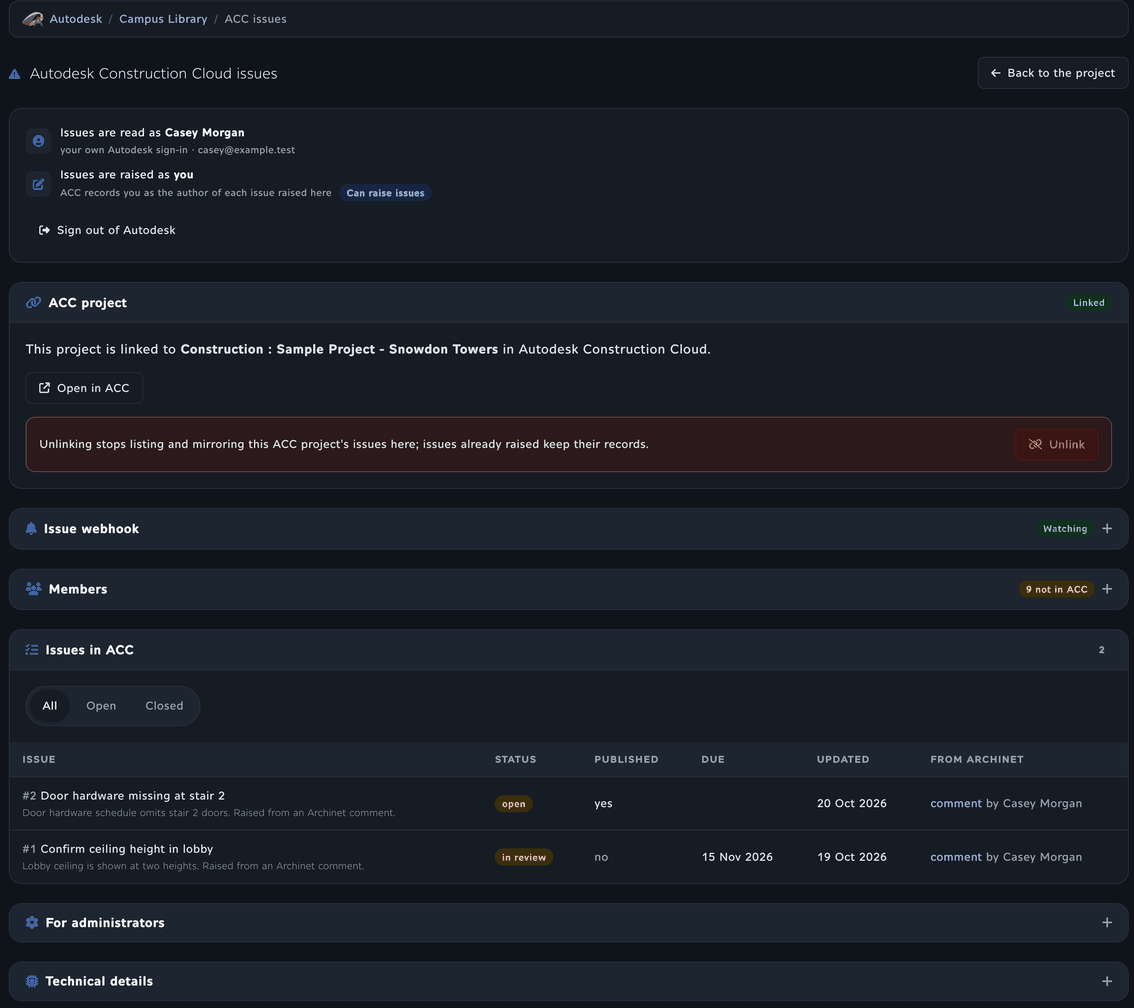
The first card on the issues page says both. Issues are read as you when you are signed in with Autodesk, or as the firm’s service account (view only) when you are not. Issues are raised as you, always: ACC records you as the author.
See the project’s issues
Issues in ACC lists the issues with their number, title, status, whether they are published, due date, last update and, for issues raised here, the comment they came from. Use All, Open or Closed to filter them, and Open in ACC to go to the project in ACC.
Raise an issue from a comment
- On a document in a linked, active project, find a top-level comment and choose Raise ACC issue.
- Sign in with Autodesk if asked. The issue is created as you, with your ACC permissions.
- The page quotes the comment. Check the Title (up to 100 characters), Description, Type and optional Due date, then choose Raise the issue in ACC.
The comment then shows ACC issue #number with its status. When the issue’s status changes in ACC, Archinet adds a reply to the comment saying so. Raising needs comment permission (or project administration) and an ACC role that may create issues; if ACC does not let your role publish issues or set a field, the page says so before you raise it.
Link or create an ACC project
Project administrators and people who can upload set up the link on the issues page; the project must be active. The ACC project panel offers two tabs:
- Link an existing ACC project: sign in with Autodesk, choose the Hub and the ACC project, then Link this project. Only ACC and BIM 360 hubs are listed.
- Create a new ACC project: choose the hub, a Type and an optional Template, then Create and link. The name, job number and address come from the Archinet project. The firm’s service account joins as a project administrator and watches its issues.
Once linked, Unlink removes the link without changing either project. Two more panels open by themselves when they need attention:
- Issue webhook (badge Watching or Not watching): with it, ACC tells Archinet the moment an issue changes. Watch issues with the service account turns it on.
- Members (badge All in ACC or N not in ACC): the Archinet project’s members, each marked In ACC or Not in ACC, matched by email. Check the people to add and choose Add the checked members to the ACC project; tick Send Autodesk’s invitation emails if they should hear from Autodesk. Archinet project administrators become ACC administrators; everyone else joins as a collaborator. Nobody is removed. BIM 360 projects are managed in BIM 360 instead.
On a phone or tablet
The Autodesk pages work on a small screen. Wide tables, such as the rooms in model data, scroll sideways inside their own panel.
- The start page’s two panels stack, and document rows become cards with full-width buttons.
- In the ACC browser, each file’s View and Copy to Archinet buttons sit under its name. The Copy to Archinet panel follows the file list and stays folded until you choose a destination or press Copy.
- Dragging needs a mouse or trackpad. On a touch screen the buttons do the same thing: Copy to Archinet on a file, and Send here in an open folder.
- The Viewer runs edge to edge; use touch gestures to turn and zoom.
For administrators
Two pages are for site administrators only. Each starts with what it is for. Actions that cannot be undone ask first in a pop-up, where Cancel is selected; nothing happens until you confirm.
Firm Autodesk apps
The Firm Autodesk apps page decides which Autodesk app each firm’s people browse with when they choose their firm’s view. A firm can use Archinet’s Autodesk app or this firm’s own Autodesk app. A firm with no entry cannot browse as the firm; its people can still sign in with their own Autodesk accounts.
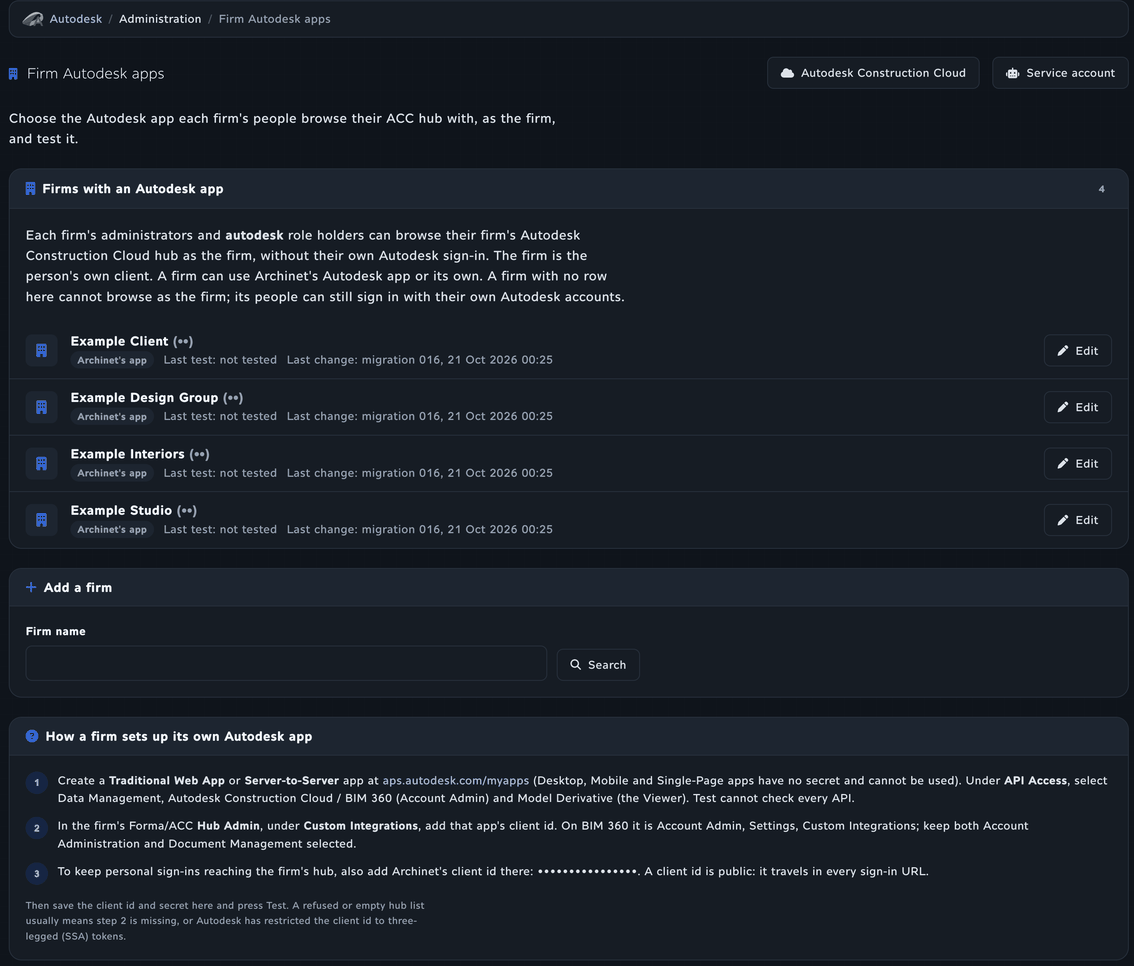
- Add a firm: search by the firm’s name, then Set up (or Edit for a firm already listed).
- Edit: choose the app. For the firm’s own app, enter its Client ID and Client secret; the secret is stored encrypted and never shown again. Save also runs Test.
- Test checks that the app can list the firm’s hubs and a project’s members, and records the result in the list.
- Remove asks first; the firm’s people lose the firm’s view on their next page.
To use its own app, a firm:
- Creates a Traditional Web App or Server-to-Server app at aps.autodesk.com/myapps and, under API Access, selects Data Management, Autodesk Construction Cloud / BIM 360 (Account Admin) and Model Derivative. Desktop, Mobile and Single-Page apps cannot be used.
- Adds that app’s client id in its ACC Hub Admin, under Custom Integrations (on BIM 360: Account Admin, Settings, Custom Integrations).
- Also adds Archinet’s client id, shown on the page, under Custom Integrations, so its people’s own Autodesk sign-ins keep reaching the firm’s hub.
A firm’s own app is used only for the firm’s view. Personal sign-ins, viewing Archinet documents, sheet sets, issues and watches keep using Archinet’s app and service account.
Autodesk service account
The Autodesk service account page manages the Autodesk identity that keeps folder watches, issue updates and project setup working when nobody is signed in. Its summary card shows the account, its state and the age of its key (flagged from 60 days, urgent from 90). Test checks it. Rotate key now, Disable the previous key now, Retire here and Refresh hook tokens each ask for confirmation first. The page also lists the steps for the ACC account administrator and the webhooks the account owns.
Technical details and other admin sections
Most Autodesk pages end with a collapsed Technical details section holding identifiers and raw responses used while the integration is finished, and some have a collapsed For administrators section: the connection check on the start page, the sheet-set setup on the sheet set page, and Run now and Reactivate the issue webhook on the issues page. A scheduled check runs every 10 minutes; it copies issue status changes back to comments and reports members who differ between Archinet and ACC.
Things to know
- Access follows Archinet. You see only projects and documents you can already open; restricted documents stay restricted in the Viewer too.
- Copies, not sync. Viewing, sending and copying make copies. Nothing is kept in step between Archinet and ACC except issue statuses on issues raised from comments.
- Paging: the start page shows 200 documents at a time. The issues page shows the first page of issues; open the rest in ACC.
- Sizes: Copy to Archinet and sheet sets handle files up to 512 MB. A send to ACC has no fixed limit, but a very large file can take many minutes.
- Watching reports new files and new versions only, not renames, moves or deletions.
- Not supported yet: keeping files in step between Archinet and ACC, adding members to BIM 360 projects from Archinet, and a firm’s own Autodesk app for anything but the firm’s view.
When something needs attention
I do not see my firm’s view, or it says my firm has not connected an Autodesk account
The firm’s view is for people with the administrator or autodesk role, and only when an administrator has given the firm an Autodesk app on the Firm Autodesk apps page. Without it, sign in with your own Autodesk account instead.
The Viewer keeps saying Autodesk is preparing the file
Large models can take several minutes; the page checks every 10 seconds. If it says Autodesk could not prepare the file, the file may be damaged, password-protected or saved in a version Autodesk cannot read. If the page says Autodesk did not say whether the file is ready, choose Try again.
The ACC browser shows no hubs, or an empty folder
Your Autodesk account sees only the hubs and projects it belongs to, in ACC accounts that have added Archinet’s app under Custom Integrations. Check that you signed in with the right Autodesk account. In the firm’s view, folders look empty if the member it shows cannot see them; choose Change in the access card and pick another member.
Copy to Archinet says to choose where copies go first
Choose the client, project and category in the Copy to Archinet panel, then press Copy again or drop the file. If a project has no document categories, choose another project: Archinet’s upload needs one.
I cannot drag files or documents
Dragging works only with a mouse or trackpad. On a touch screen, use Copy to Archinet on a file or Send here in an open folder. Sending by drag also needs your own view and sign-in, and a copy by drag needs a destination.
I cannot send to ACC; the tray asks me to sign in
Sending always happens as you. Sign in with Autodesk, or choose Browse as you, then open the folder again. If ACC refuses the upload, ask the ACC project administrator for upload permission in that folder.
The page says my Autodesk session ended
Autodesk sign-ins expire after a period without use, or when they are ended on Autodesk’s side. Choose Sign in with Autodesk again and repeat the step.
Watch says the service account is not a member of the ACC project
The watch runs as the firm’s service account, which must be in the ACC project. On the issues page of the Archinet project linked to that ACC project, open the Members panel and choose Add it as a project administrator, then watch again.
The sheet set did not produce a PDF
The page links to Autodesk’s report when one is available. A model with no printable sheets, or one Revit cannot open, produces no PDF. Contact support with the document before starting another run, since each run uses cloud credits.
Model data shows no rooms
Choose Prepare again, wait until the badge reads Ready, then Read again. A model without placed rooms shows none.
I cannot raise an ACC issue
The project must be active and linked, the comment must be a top-level comment, and you must be signed in with Autodesk. If the form is disabled, your ACC role may not create issues in that project; an ACC project administrator can change your issue permissions.
Still need help?
Include the project, document or ACC folder, the exact message and what you were doing. Do not send your Archinet or Autodesk password.