
ARCHINET MARKBACK · PDF MARKUP
Turn a PDF into
clear feedback.
Review drawings and documents in your browser. Add notes, clouds, stamps and measurements, then bring a marked-up copy back to your project.
Archinet Markback works with PDFs from your computer and project documents your Archinet account can access. Your working markups stay with your own Markback copy until you export or save a copy to a project.
Open Archinet Markback Sign in with your existing Archinet account.Open a PDF
Sign in to Archinet Projects first. Choose the starting point that matches where your PDF is stored.
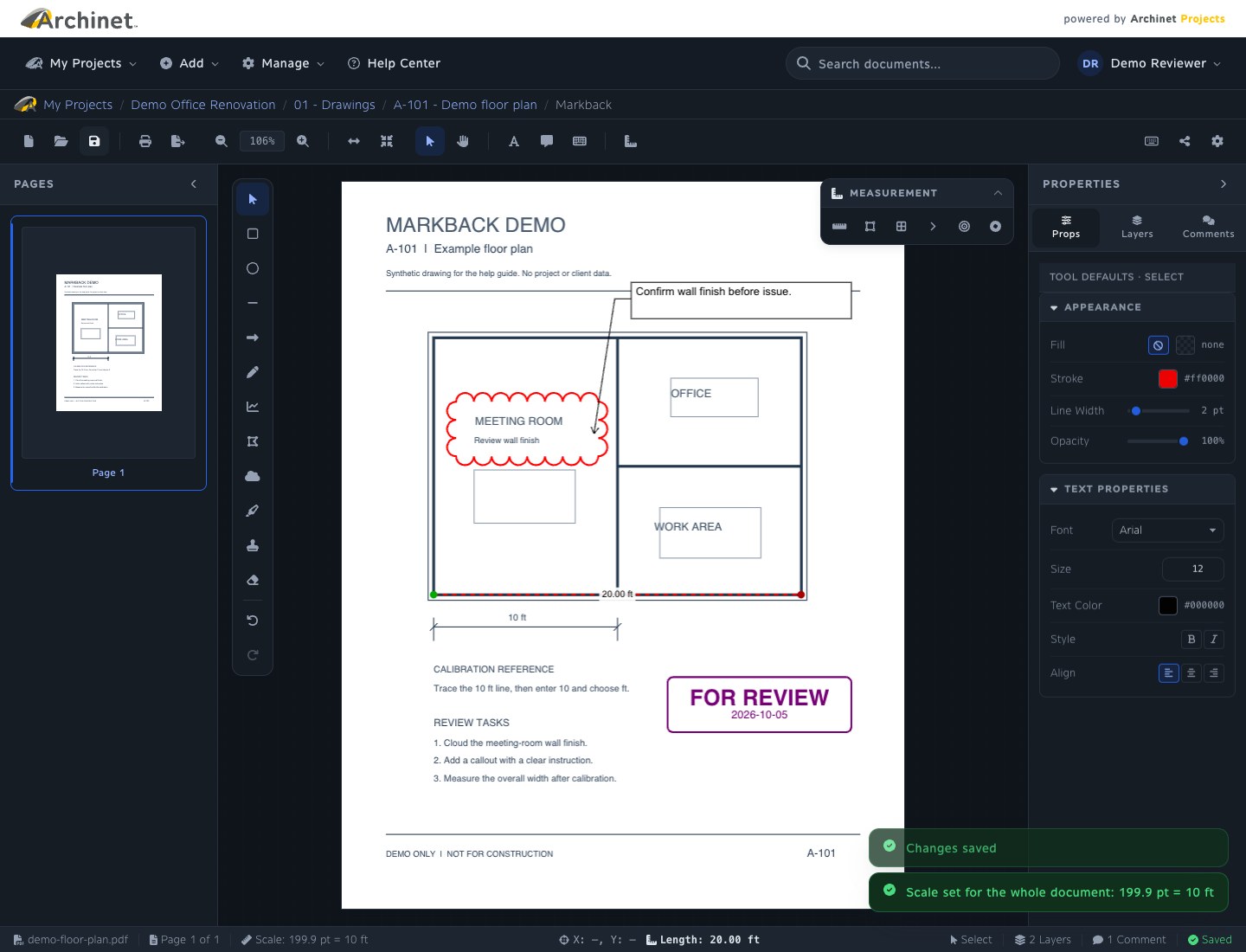
Follow the screenshots through an example review. They use a demonstration account, projects and drawing; save confirmations are illustrative examples. Select any image for a larger view.
From a document page Already in your project
- Open your project and select the PDF to see its Document Details page.
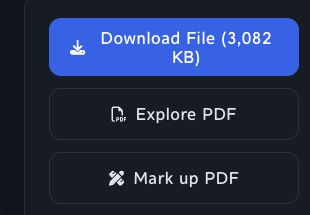
- Select Mark up PDF. On a desktop, it is in the download card alongside Download File and Explore PDF. On a smaller screen, look near the download button above the details.
- Markback opens your working copy of that PDF. If you have marked up this project document before, it reopens your existing Markback copy.
- When you are finished, save any changes, then use Return to document beside the breadcrumbs to go back to the document page you started from.
The button appears for PDF documents only. Your usual project and document access rules still apply.
From inside Markback Browse your projects
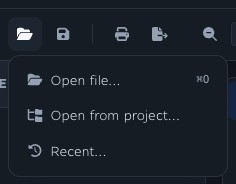
- Open Markback and choose Open → Open from project….
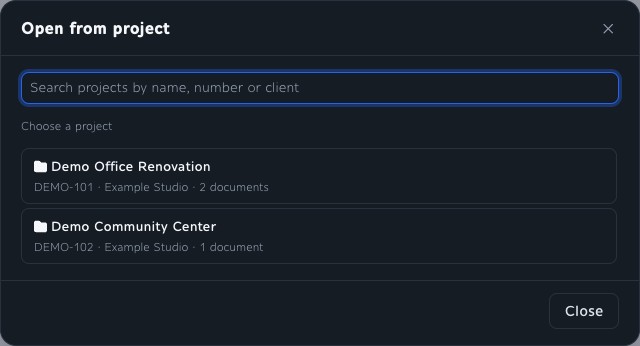
- Search by project name, number or client, then choose a project.
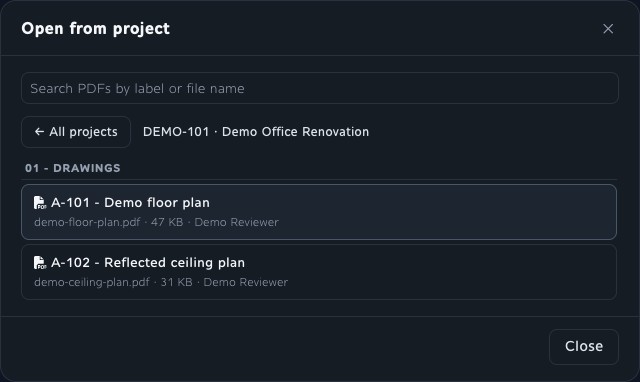
- Choose a PDF from the list, grouped by category. Use the search field to filter by label or file name.
Use ← All projects to return to the project list. You can browse only the projects and PDFs your account can access.
From your computer A local PDF
Choose Open → Open file… and select a PDF, or drag a PDF into the workspace. Markback uploads a working copy to its server so you can save and export it. This does not add it to a project’s document list.
Wait for the upload to finish before exporting. If the file exceeds the server’s upload limit or the upload fails, Markback shows a warning: you may still be able to mark it up in this browser, but server saving, PDF export and Save to project are unavailable for that local-only copy.
To continue earlier work, pick a file under Recent Documents on the empty workspace or choose Open → Recent….
Find your way around
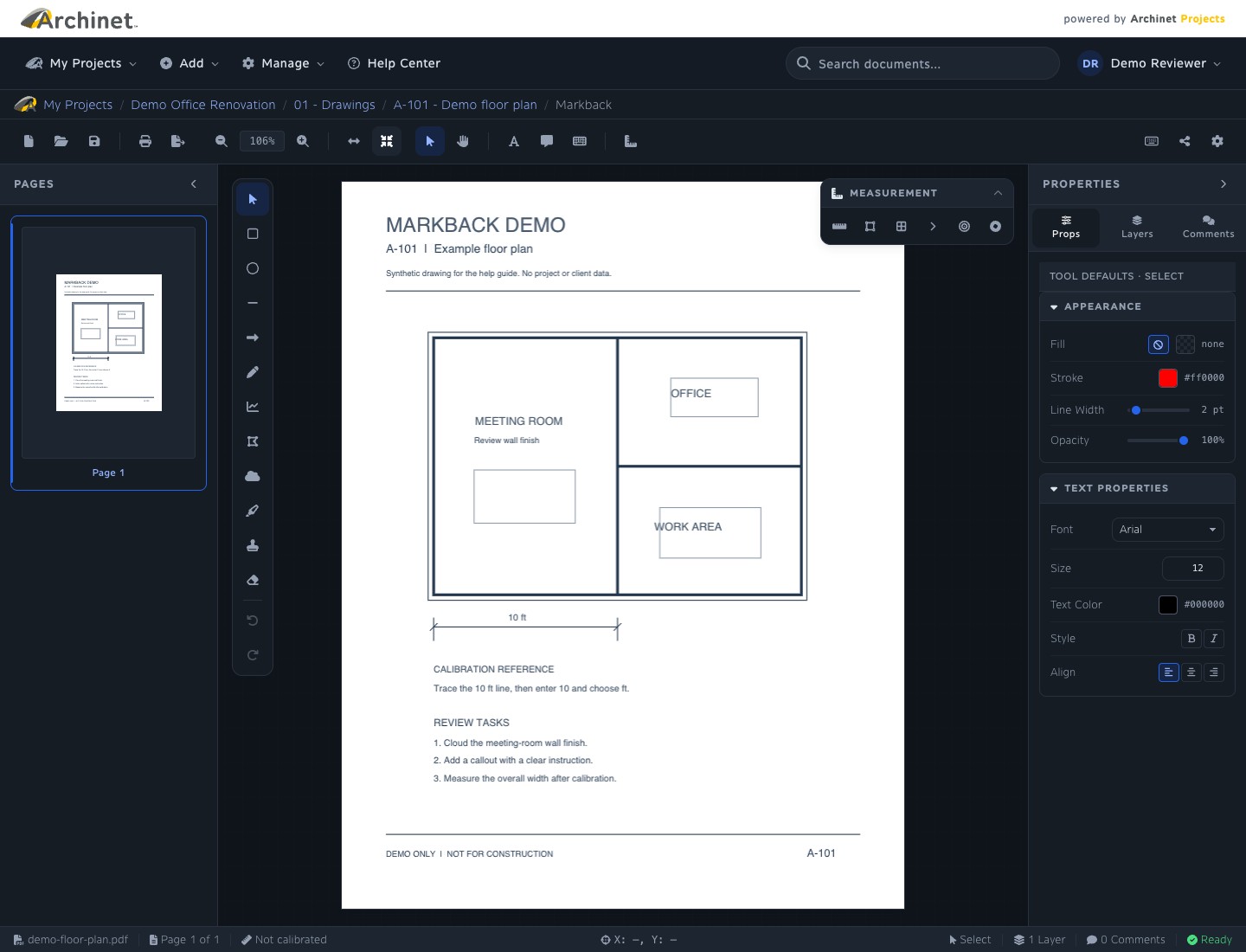
Markback now sits inside Archinet Projects. The familiar site header stays above your drawing, with My Projects, Add, Manage (where available), Help Center, document search and your account menu.
The breadcrumbs below the header show where the current PDF came from: My Projects → project → category → document → Markback. Select the document link to open its details, or the project or category link to return to the project. For a PDF from your computer, the trail shows My Projects → Markback → file name.
Choose light or dark mode
Open your account menu at the top right (your name or initials), then choose Auto, Light or Dark. Auto follows your device setting. Markback uses this same site theme; its Settings button controls markup preferences such as measurement units and autosave. The screenshots in this guide use Dark.

Locate your markup tools
- Markup toolbar: the icon row below the breadcrumbs contains Open, Save, Print and Export, followed by zoom controls, Select, Pan, text tools and Calibrate Scale. Keyboard Shortcuts, Share and Settings are at the right. Hover over an icon to see its tool name.
- Pages: use the thumbnails on the left to jump between pages. The sidebar can be collapsed to give the drawing more room.
- Drawing tools: the floating vertical toolbar contains shapes, Pen, Highlight, Stamp, Eraser, Undo and Redo.
- Measurement: the floating measurement toolbar contains Length, Area, Perimeter, Angle, Radius and Diameter.
- Right sidebar: switch between Props, Layers and Comments.
- Bottom status bar: check the current file, page, scale, active tool and save status.
Use Fit Page to see the whole sheet or Fit Width to fill the available width. Choose Pan to move around a zoomed drawing without selecting a markup.
On smaller windows, sidebars may be hidden and the drawing palette may move along the bottom. In a short window, scroll within the drawing palette to reach its remaining tools. For measurements and both sidebars together, use a wider desktop window.
Useful keyboard shortcuts
Use ⌘ on Mac or Ctrl on Windows/Linux for the commands below. Select Keyboard Shortcuts in the markup toolbar, or press ?, for the full list.
- ⌘/Ctrl + S: save now. ⌘/Ctrl + O: open a local PDF.
- ⌘/Ctrl + Z: undo. ⌘/Ctrl + Shift + Z: redo.
- V: Select. T: Text Box. P: Pen. H: Highlight.
- Page Up / Page Down: previous or next page. Home / End: first or last page.
- ⌘/Ctrl + B: toggle the Properties sidebar. ⌘/Ctrl + Shift + B: toggle page thumbnails.
- Delete / Backspace: delete selected markups. Escape: deselect or cancel the current action.
Tool shortcuts are suspended while you are typing in a field or editing text.
Add & edit markups
Choose a tool, set its appearance in Props, then draw on the PDF. With nothing selected, Props changes the defaults for new markups. With a markup selected, it changes that markup.
Draw attention to a detail Shapes, lines & highlights
- Rectangle, Circle, Line and Arrow: click and drag, then release to place the markup.
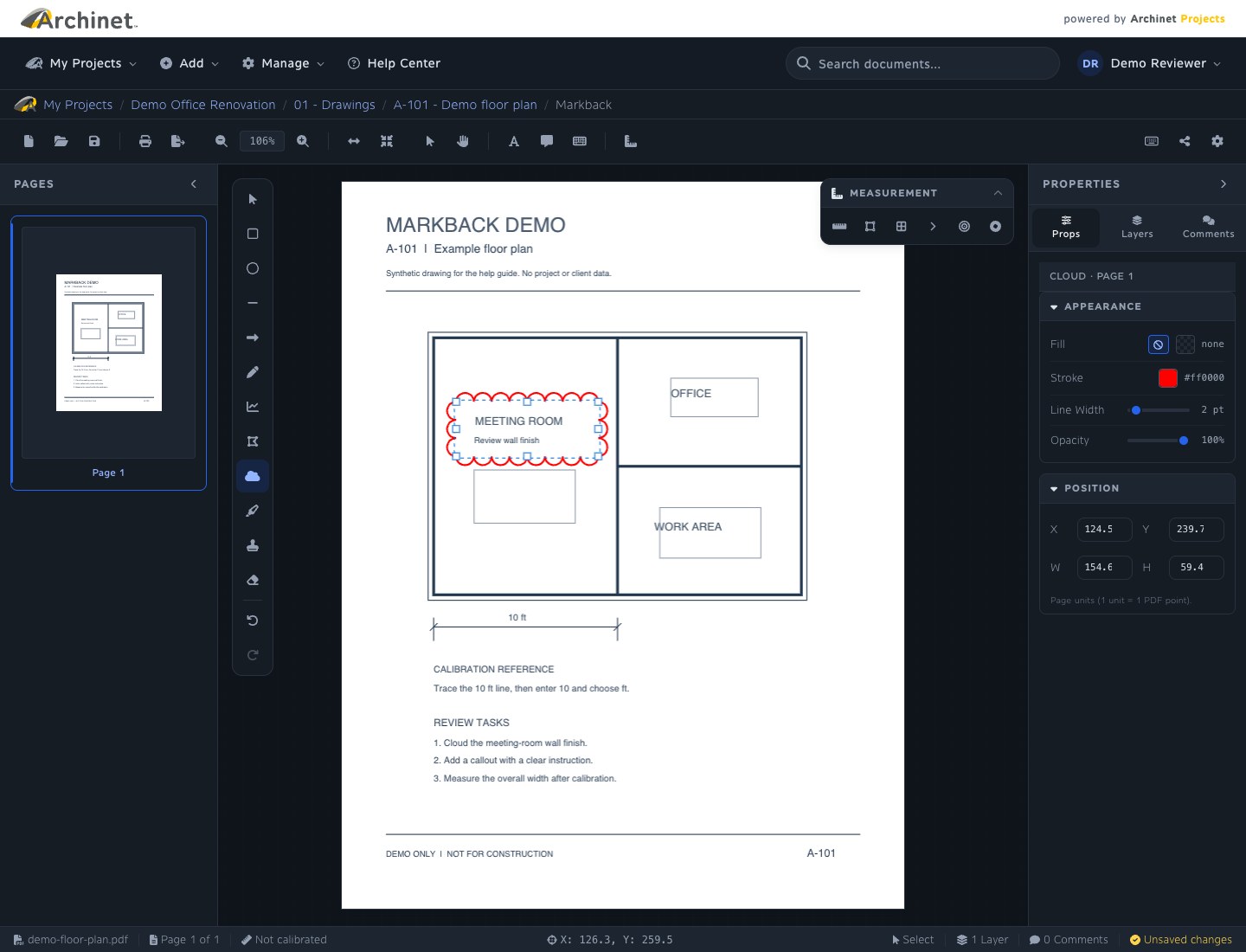
- Cloud: drag a box around the area to create a revision cloud.
- Polygon: drag outward from its center to size a regular polygon.
- Polyline: click each point along a path, then double-click or press Enter to finish.
- Pen and Highlight: drag to make a freehand stroke. Highlight paints over the page; it does not require selectable PDF text.
Adjust Stroke, Line Width and Opacity in Props. For filled shapes, choose a Fill color or No fill.
Add a note Text Box, Callout & Typewriter
- Text Box: drag a rectangle, then type your note.
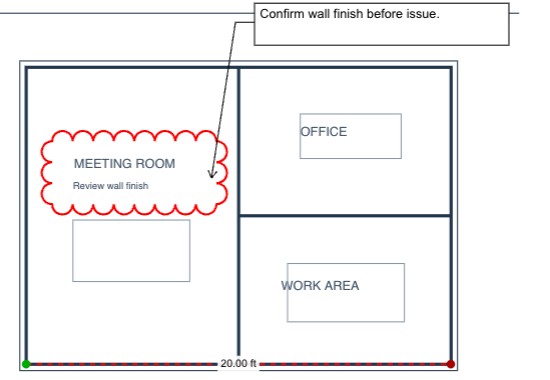
- Callout: drag from the detail you want to point at to create the leader, then drag the text box and type.
- Typewriter: click where a single line of text should begin, then type.
Click outside the text or press ⌘/Ctrl + Enter to finish. Typewriter also accepts Enter. Use Select and double-click an existing text markup to edit it. Set the font, size, text color, bold, italic and alignment in Props.
Place a stamp Review status & custom stamps
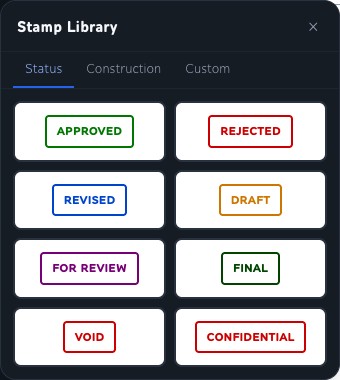
Select Stamp, choose a built-in stamp such as APPROVED, DRAFT or FOR REVIEW, then click the page to place it. The stamp picker also offers custom text and image stamps.
Use Select to move or resize a placed stamp. Double-click a stamp to change its stamp choice.

Adjust or remove a markup
Choose Select and click a markup to show its handles. Drag it to move it, or drag a handle to resize it. Use Delete to remove the selection or Eraser to remove markups you touch. Undo and Redo let you correct markup edits; Eraser does not remove the PDF’s original content.
Keep work organized with Layers
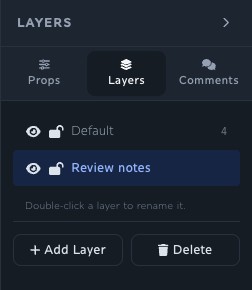
Use the Layers tab to add or rename layers, choose the active layer for new markups, hide a layer, or lock it against editing. If a markup cannot be selected, check its layer’s visibility and lock.
Keep review notes in Comments
The Comments tab stores notes and replies with your Markback working document. You can change a comment’s status or priority. These notes are separate from the text markups drawn on the PDF and from the project document page’s comments.
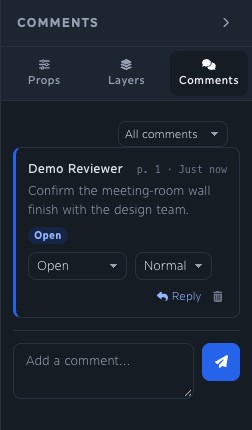
To include feedback in the exported PDF, put it on the page using a text markup or callout. Markback’s Comments sidebar is not a shared live review room or an exported comment report.
Calibrate & measure
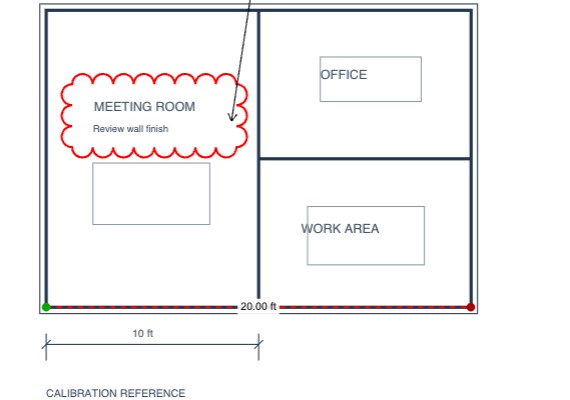
Set the drawing scale from a known dimension before using length, area or other distance measurements.
- Choose Calibrate Scale in the markup toolbar.
- Click the two ends of a known dimension on the drawing, or drag between them.
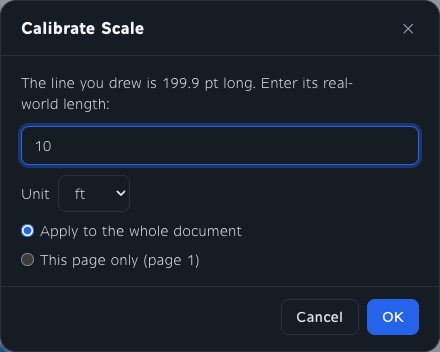
- Enter the dimension’s real-world length and choose the unit: feet, inches, meters, millimeters, centimeters or yards.
- Choose Apply to the whole document for sheets with a shared scale, or This page only for a sheet with a different scale, then confirm.
- Check the scale in the bottom status bar and measure a known dimension to confirm the result.
For example, if the line you traced represents 10 feet, enter 10 and choose ft. Recalibrate pages that use a different drawing scale.
- Length: click the points along a line or path; double-click or press Enter to finish.
- Area / Perimeter: click the boundary’s corners, then double-click or press Enter to finish a closed shape.
- Angle: click the first point, the vertex, then the last point.
- Radius / Diameter: click the center and a point on the circle’s edge, or drag from center to edge.
Open Settings to choose default measurement units and precision for your work.
Save, export & print
Save your working markups
Markback automatically saves after you pause editing. Choose Save or press ⌘/Ctrl + S to save immediately. Watch the bottom status bar move from Unsaved changes through Saving… to Saved. You can adjust the autosave delay in Settings.
Save preserves the editable markups in your Markback working copy. It does not download a PDF, update the original project file, or publish your changes to the team. Reopen the same document from Recent to continue.
Download a marked-up PDF
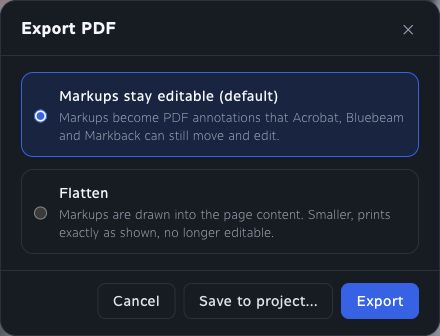
- Choose Export in the markup toolbar.
- Select the format that fits the next step in your review.
- Select Export in the dialog to download the PDF. Markback saves the latest markups before generating it.
Print with your markups
Choose Print or press ⌘/Ctrl + P. Markback prepares a flattened PDF in a new browser tab for printing. If the browser blocks the tab, use the link offered in the Pop-up blocked dialog.
Save to a project & share
Use Save to project when the team should receive your marked-up PDF as an Archinet project document. You need an active destination project and permission to upload to it.
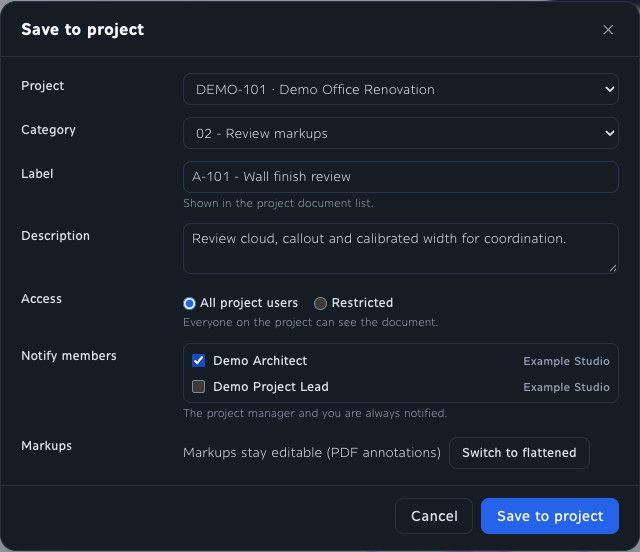
- Choose Export, select editable or flattened output, then choose Save to project….
- Review the Project and Category. When the PDF came from a project, Markback prefers its original project and category. You can choose another available destination.
- Enter a clear Label and optional Description. The suggested label includes “markup” and the date.
- Review Access. All project users is the default. Choose Restricted if access should follow the restricted-document rules, and select the appropriate people under Notify members.
- Check the Markups setting; you can still switch between editable and flattened output here.
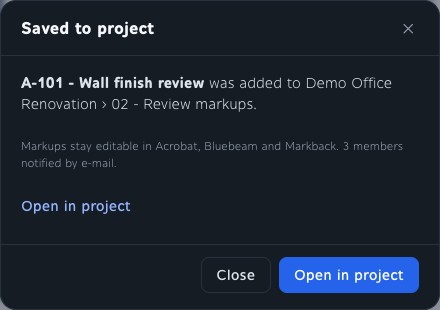
- Select Save to project. After the Saved to project confirmation, choose Open in project to inspect the new document.
Share the right version
After saving to a project, select Share in Markback’s markup toolbar to copy a link to the most recently saved project copy. Recipients still need permission to open that document.
If you opened a project PDF but have not saved a marked-up copy back to a project, Share links to the source PDF; each recipient opens their own Markback working copy. It does not send your private working markups. A PDF opened from your computer must first be saved to a project before it has a team share link.
When a shared source link opens the Open in Markback page, check the project and document shown, then select Open in Markback to start your working copy. Use Return to document there to view the source document’s details instead. If you already have a working copy, the shared link opens it directly.
A save can succeed even if its notification email fails. If you see “Saved, but the notification e-mail was not sent,” use Open in project to check the saved document before trying again. Saving again would create another copy.
If something doesn’t work
Where do I change the theme or return to my project?
Open the site account menu at the top right for Auto, Light and Dark. Use the breadcrumbs below the site header to return to the current PDF’s project or document. Return to document appears when you enter through Mark up PDF on a document page; when reopening from Recent, use the document breadcrumb instead. Save your work before leaving.
I cannot see Mark up PDF on the document page.
The button is shown only for PDF documents. Check the file type and that you can open the document’s details. On smaller screens, look near Download File above the details; on a desktop, look in the download card.
A project or PDF is missing from Open from project.
Clear the search filter and check that you are signed in with the expected Archinet account. Markback follows project membership, archive access and restricted-document permissions. Check the same project or document on the main website; ask your project administrator if you cannot access it there either.
I cannot export or save to a project.
Wait for the PDF upload to finish and check for an upload warning. A local-only PDF cannot use server export. If Save to project is disabled, choose an active project you can upload to, select a category and enter a label. A project you can read is not necessarily one you can upload to.
My PDF asks for a password or cannot be processed.
A password may let the browser display a PDF without making it usable by the server’s export tools. If Markback reports that a password is required for processing, obtain an unlocked copy from the document owner. For a damaged or unsupported file, try a fresh PDF copy and give support the exact error if it continues.
Saving failed, or I was signed out.
Keep the working tab open and check your connection. Sign back in to Archinet in another tab, then return and try Save again. Do not assume that seeing your marks on screen means they reached the server, especially after an upload warning. Markback keeps a browser-local recovery copy where available, but it is not a substitute for a successful server save.
Markback says saving is turned off for this document.
This happens when the stored markups could not be read. Saving is blocked to protect them. Reload to try loading the document again; if the message persists, contact support with the document and error instead of trying to overwrite the saved work.
Markback says this document was changed in another tab or on another device.
The same document was saved somewhere else after this tab opened it, for example in a second browser tab or on another computer. To protect that newer copy, this tab stops saving and the changes you made here since then are not saved. Select Download my unsaved markups to keep a copy of this tab’s markups as a file, then select Reload to load the saved version. To bring those markups back, choose Open → Import markups… and select the downloaded file: Markback adds the markups that are not on the page yet and leaves the others as they are, then saves them like any other change. Work on one document in one tab at a time to avoid this.
I cannot select a mark, or the measurement is wrong.
Choose Select and check whether its layer is hidden or locked. Marks flattened into the original PDF are not separate editable annotations. For measurements, check the current page’s calibration, units and known dimension; another sheet may use a different scale.
My teammate cannot see my latest changes.
Save in Markback updates your own working copy. Use Export → Save to project to create a project PDF containing the latest changes, then share that saved document. Check its access setting. Sidebar comments and another person’s private Markback copy do not become a shared live session.
Still need help?
Tell us the file name, browser, exact message and the step where you got stuck.