
ARCHINET PROJECTS · MILESTONES
The schedule,
with the project.
Milestones keeps a project’s schedule in Archinet, beside its documents. Bring in a schedule file from Microsoft Project or Primavera P6, read its activities, dates and links, change it with every effect shown before you save, and write a file to open in Project or P6 again.
Milestones reads and writes three file formats: Microsoft Project XML, Primavera P6 XML and Primavera P6 XER. Every save is a new revision, and the earlier revisions stay in the schedule’s history.
Open Milestones Or select Milestones on a project’s page.What Milestones does
A schedule in Milestones starts in one of two ways: you import a file that came out of Microsoft Project or Primavera P6, or you create the schedule in Archinet. Milestones shows it as a list of activities beside a timeline, and keeps every saved version.
- Import: bring in a schedule file that is already a document of the project. A preview shows what the file holds before anything is saved.
- Read: the activities with their durations, dates and progress, the links between them, the calendars, and the outline (the WBS in P6).
- Edit: rename an activity, change its duration, add, move, delete and link activities, record progress, set a constraint, change a calendar. A preview lists every change, and every date Archinet recalculated, before you save.
- Create: start a schedule from scratch in Archinet.
- Update: compare a newer file with the schedule. Every difference is listed, you choose where both sides changed, and what was changed only in Archinet is kept.
- Export: write a file in the schedule’s own format, to open in Project or P6.
- History: every saved revision, the files made from it, and who downloaded them.
Get a file from Project or P6
Milestones imports a file that is already a document of the project. It reads three formats, and tells them apart by what is in the file, not by the file’s name.
- Microsoft Project XML
- A file ending in .xml, saved from Microsoft Project
- Primavera P6 XML
- A file ending in .xml, exported from P6
- Primavera P6 XER
- A file ending in .xer, exported from P6
From Microsoft Project
- Open the schedule in Microsoft Project.
- Choose File, then Save As, and pick where to save it.
- In Save as type, choose XML Format (*.xml), then Save.
Project’s own .mpp file cannot be imported. If you choose one, Milestones says Archinet can’t read Microsoft Project .mpp files yet. In Microsoft Project, use Save As and choose XML, then upload that file.
From Primavera P6
- In P6 Professional, choose File, then Export.
- As the export format, choose Primavera P6 - (XML) or Primavera PM - (XER).
- Export one project. A file that holds more than one project is refused.
Put the file in the project
Upload the file to the project like any other document, with Upload Files on the project’s page or from the Inbox. Milestones lists a file once its upload has been posted. A file can be up to 25 MB and can hold up to 50,000 activities, links and assignments together (a Primavera P6 XER file: up to 75,000; very large P6 XER schedules, roughly 10,000 activities or more depending on their content, can be too large to import) (see Limits today).
Open Milestones
On a project where Milestones is on, the project’s page has a Milestones button among its actions, for everyone on the project. You can also open the Milestones page itself: under Your projects it lists your projects where Milestones is on. There is no entry for Milestones in the top menu.
A project’s Milestones page lists its Schedules. Each row shows the schedule’s name, its Current revision, its Format and its Last change: who imported, updated, edited or created it, and when.
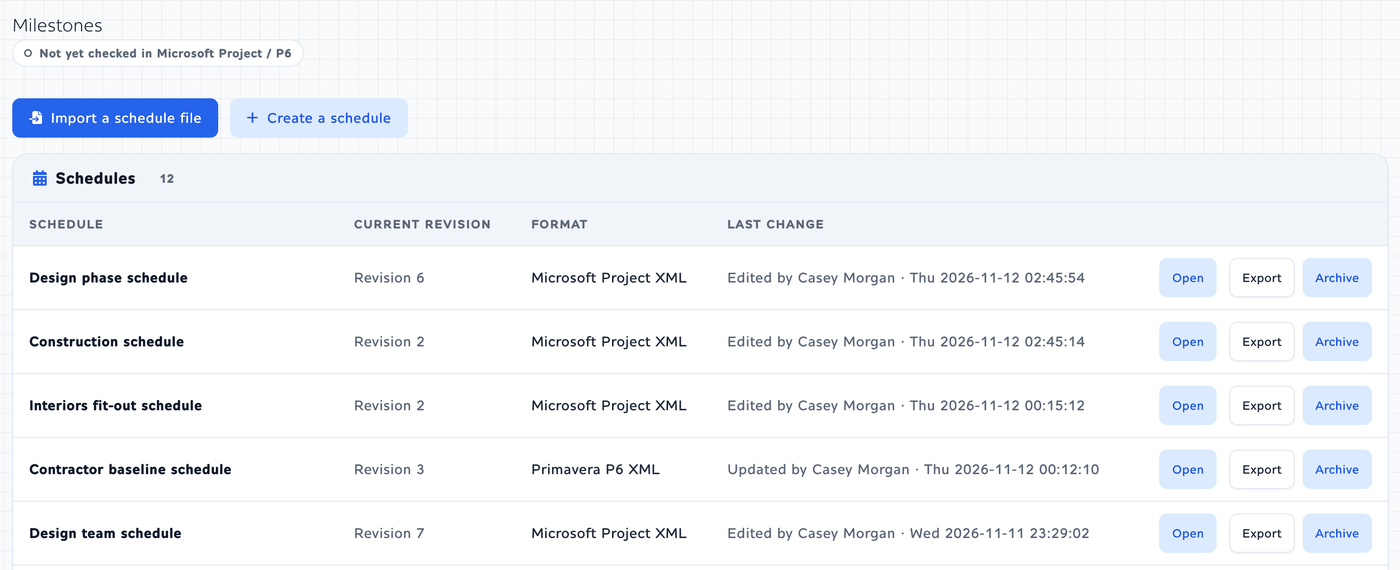
- Open opens the schedule.
- Export goes straight to the schedule’s Export tab. It shows for project administrators and Milestones editors.
- Archive puts a schedule away, also for project administrators and Milestones editors. An archived schedule is read-only: you can still view it, see its history, export it and download its files. It moves under Show archived, where Unarchive brings it back. A schedule is never deleted.
- Import a schedule file and Create a schedule, above the list, show for people who can import.
- Return to it: when you started something and did not finish it, such as an import that waits for your review, a line at the top of the page names it, with Return to it.
Before the first schedule is saved, the page says No schedules yet. Where Milestones is off for a project, the project’s page has no Milestones button and the Milestones page says Milestones isn’t turned on for this project.
Import a schedule
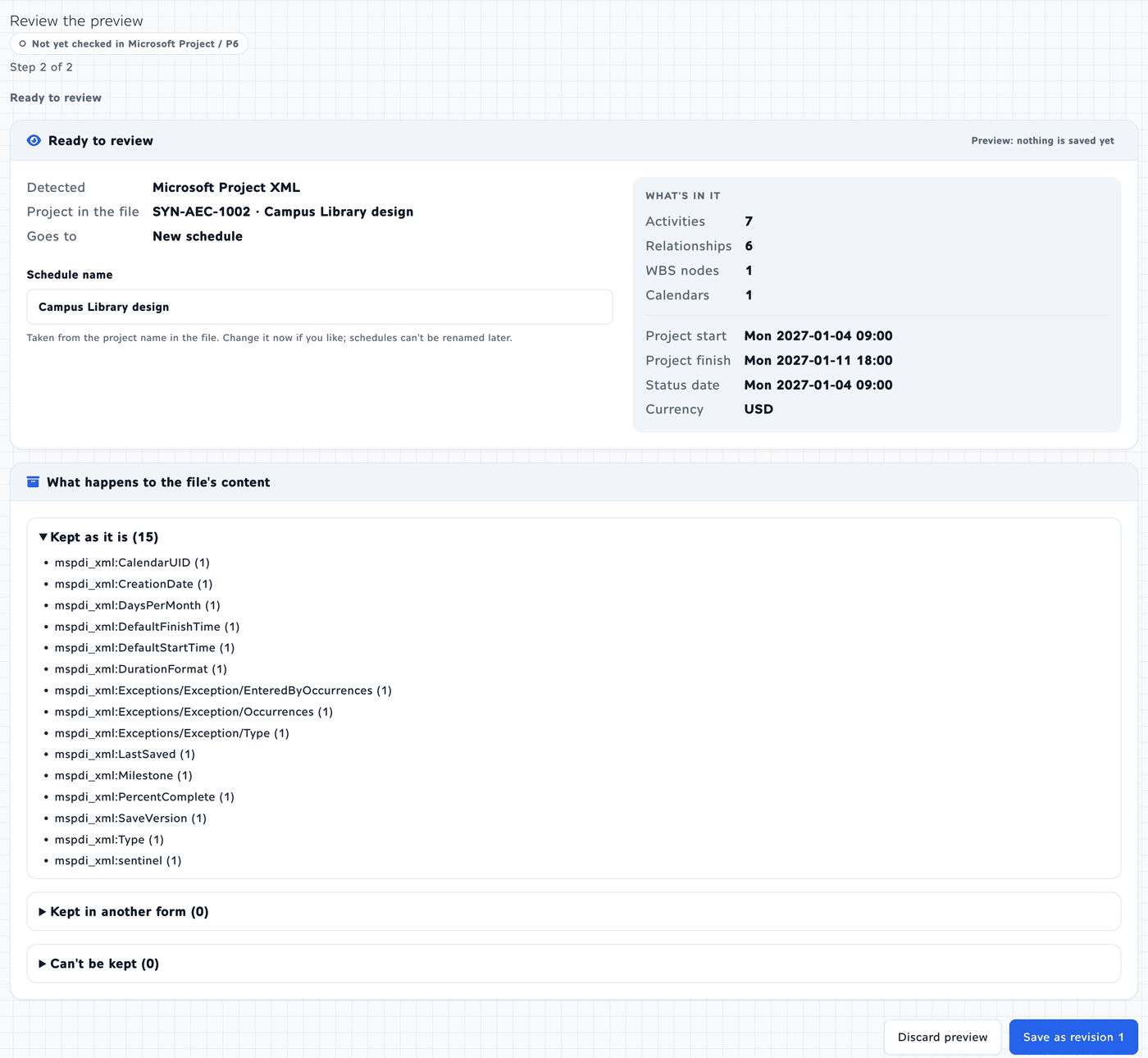
An import has two steps: choose the file, then review a preview of it. Nothing is saved until you select Save as revision 1.
- On the project’s Milestones page, select Import a schedule file.
- Under 1. Choose a file from this project, choose the file. The list shows the project’s files that you can see and whose names end in .xml, .xer, .mpp or .pp, the newest first. Tick Show all files in this project to list every file.
- Under 2. Where should it go?, keep New schedule.
- Select Check file. Archinet reads the file; the page says Checking the file… and Nothing is saved by a check. Cancel import stops it.
- When the check is done, the File check panel names the File, the format it Detected, the Project in the file and where it Goes to. Select Review the preview.
- Read the preview. What’s in it counts the Activities, Relationships, WBS nodes and Calendars, and gives the Project start, the Project finish and the Status date (the Data date in a P6 file). What happens to the file’s content has three lists you can open: Kept as it is, Kept in another form and Can’t be kept.
- Check the Schedule name. It is taken from the project name in the file. Change it now if you like: a schedule cannot be renamed later.
- Select Save as revision 1. The schedule opens. Discard preview leaves without saving anything.
What the file check can tell you
- Still being filed: a file you uploaded but have not posted yet is listed with this badge and cannot be chosen. Open the upload page to finish posting takes you there. The list brings itself up to date, and the file can be chosen as soon as it is posted.
- 1 schedule here already came from this file’s project. The project already has a schedule made from the same Project or P6 project. You can Continue as a new schedule (a second schedule from the same project is allowed), or select Update “…” instead to bring the file into that schedule (see Update from a newer file).
- Can’t import this file, with the reason: the file is not one of the three formats, holds more than one project, is too large, or cannot be read. The reasons are listed under Troubleshooting.
- Can’t be kept: when the file holds something Milestones cannot keep, the preview lists it and Save as revision 1 is off: This file can’t be imported yet. Milestones can’t keep everything in it, so importing it now could lose content without telling you. Nothing was saved.
A preview is kept for 24 hours; after that, check the file again. Saving a very large schedule can take a few minutes. The page then says Saving is taking longer than usual; this page will open the schedule when it is done. Keep it open.
Read the schedule
Opening a schedule shows its name, its format and the file it came from, and three tabs: Schedule, Export and History. A View only badge means you can read the schedule but not change it.
The Schedule tab has a list on the left and a timeline on the right, row for row.
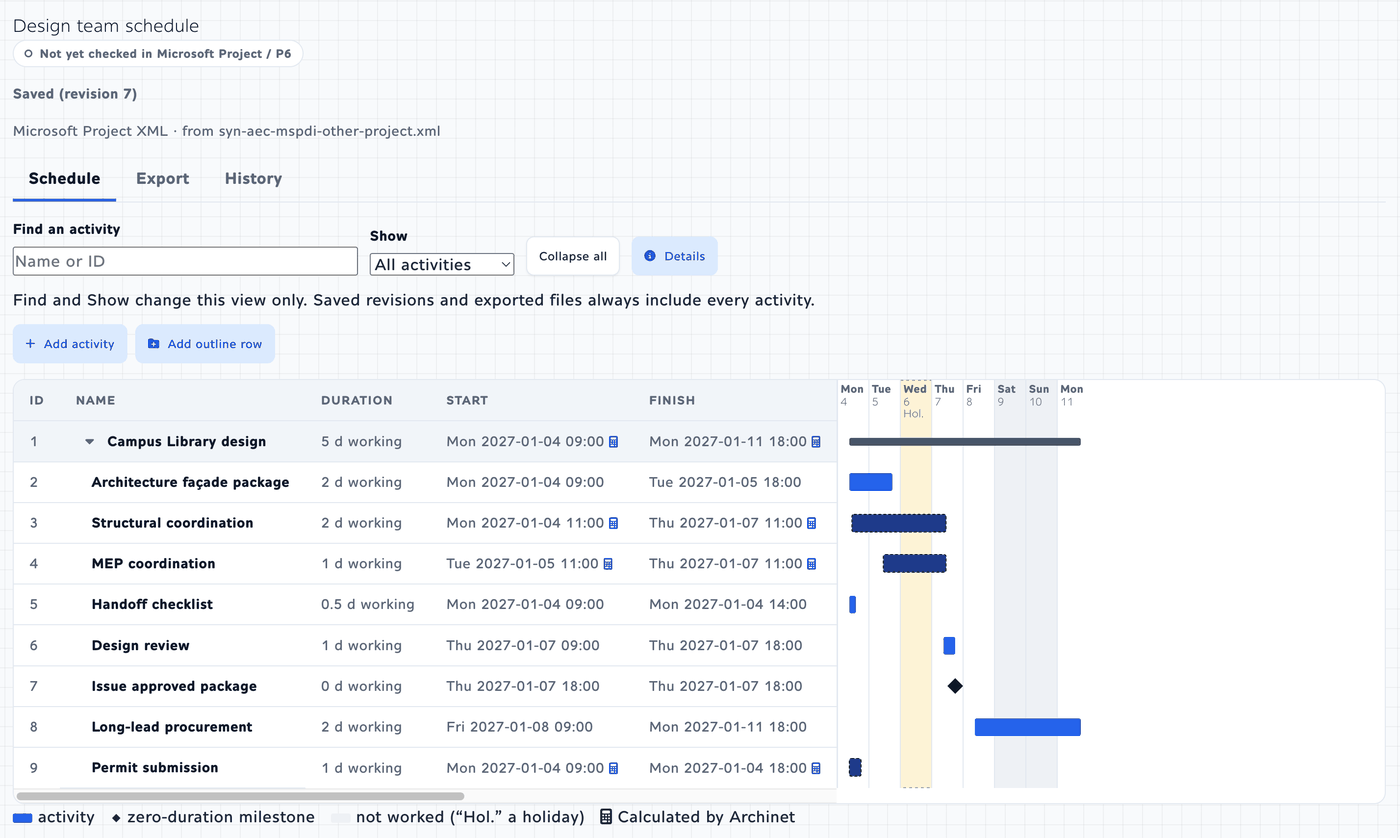
- The list: one row per activity, with its ID (Activity ID in a P6 schedule), Name, Duration, Start, Finish, Milestone, % complete, Actual start, Actual finish and Calendar. Activities sit under their outline rows (the WBS in P6). The arrow beside an outline row closes and opens it, and Collapse all closes them all.
- The timeline: a bar for each activity, a diamond for a milestone with no duration, and shading for the days that are not worked. The timeline only shows: selecting a row in the list marks its bar and brings it into view.
- Find an activity looks for a name or an ID (in a Microsoft Project schedule also the Unique ID that Details shows). Show switches between All activities and Milestones only. Both change what you see, nothing else: Saved revisions and exported files always include every activity.
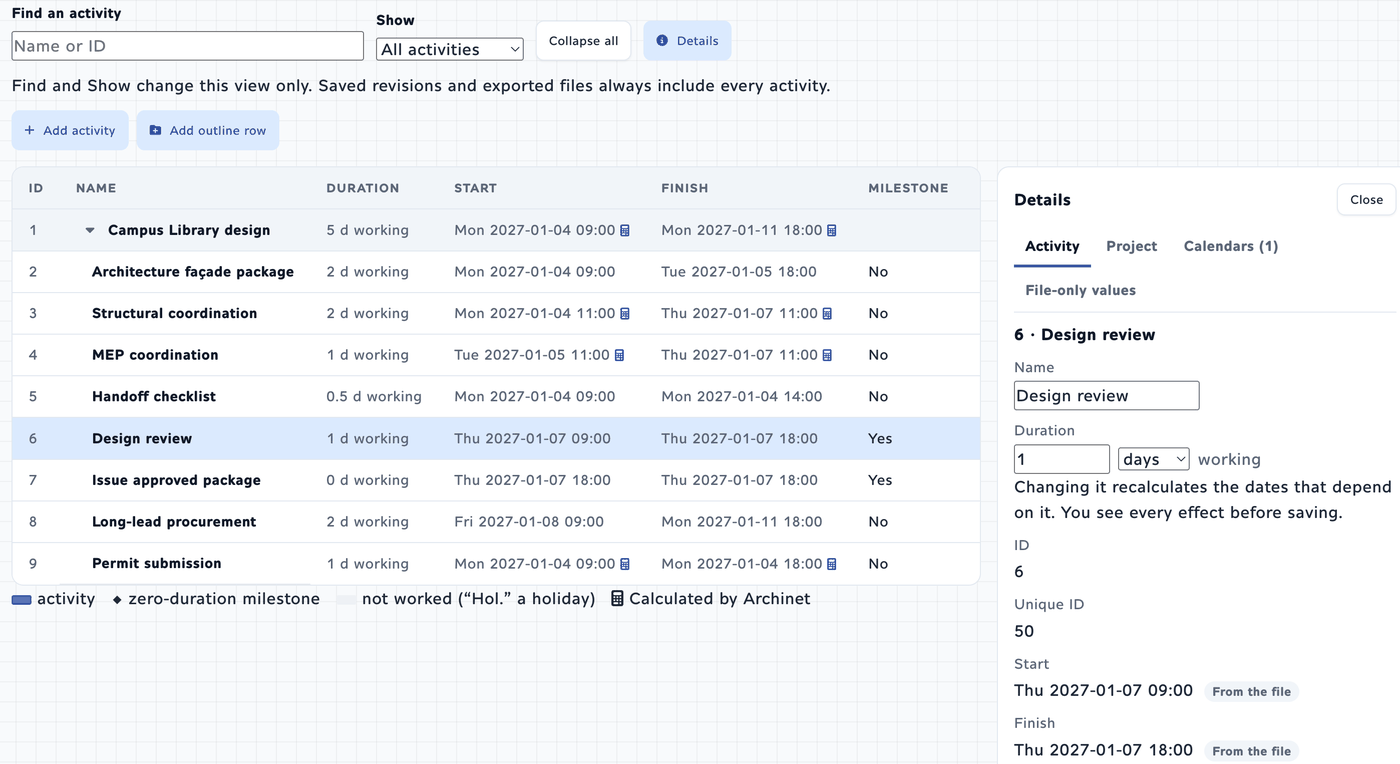
- Details: select a row and choose Details, press Enter, or double-click the row. Details has four tabs. Activity shows the activity’s values, its constraint and its Predecessors and successors with each link’s type and lag. Project shows the project’s start, finish, status date and calendar. Calendars shows each calendar’s working days, working times and exceptions. File-only values lists values Milestones does not use itself but keeps from the file and writes back unchanged.
Where a value came from
In Details, a value says where it came from: From the file, Edited in Archinet with the revision, or Calculated by Archinet. In the list, a small calculator beside a date marks a date that Archinet calculated; the line under the list explains the marks.
How dates and durations are written
- A schedule date reads like Mon 2027-01-04 09:00. It is shown as the file has it and is never converted to your time zone.
- A duration reads like 2 d working. You type durations in hours, days or weeks of working time; a duration the file holds in another unit, or in elapsed time, is shown as the file has it.
- A value the file does not hold reads not set.
- The times of events, such as when a file was uploaded or a revision saved, are shown in your browser’s own time zone.
On a phone, List and Timeline take turns on the screen, and Details fills it; Back to activities returns to the list.
Edit & save
Project administrators and Milestones editors can change the current revision of a schedule that is not archived. Changes are collected first, previewed, and saved together as one new revision.
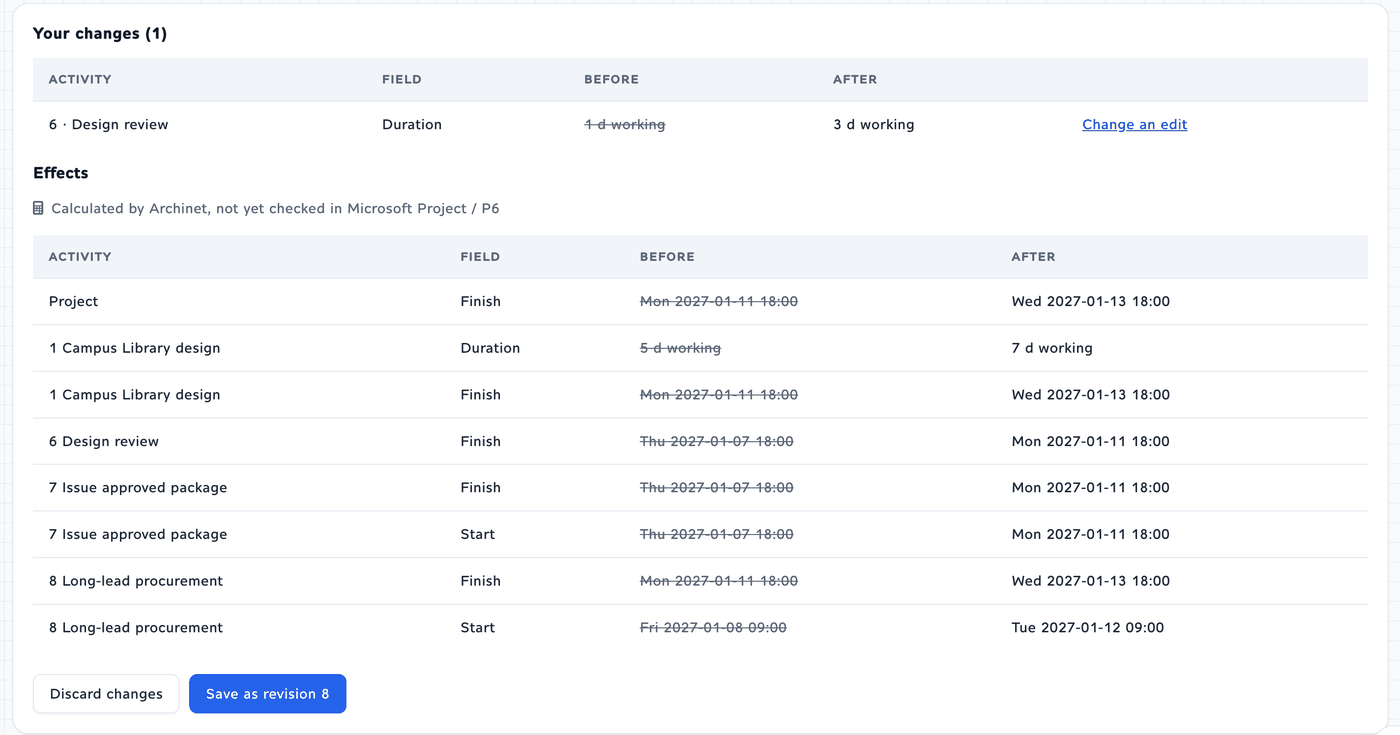
- Make your changes (the list below says where). Each one joins Your changes under the schedule, with its Before and After. Nothing is saved yet: the changes are a draft, kept in this browser tab.
- Select Preview effects. Archinet works out what your changes do to the rest of the schedule.
- Read Effects. Under the line Calculated by Archinet, not yet checked in Microsoft Project / P6, a table lists every value that moves, with its Before and After. When no date moves, it says No date moves. In the list, the rows concerned are marked Changed, Moves, Added or Removed.
- Select Save as revision … with the next number. To change something first, use Change an edit beside the change. Discard changes asks first, then drops the draft.
What you can change, and where
- Name and Duration: in Details, on the Activity tab, type over them. A duration is working time in hours, days or weeks. The page reminds you: Changing it recalculates the dates that depend on it. You see every effect before saving.
- Calendar, constraint and progress: lower on the Activity tab, then Apply to draft. A Constraint can be None, Start no earlier than or Finish no earlier than, with its date. Progress is % complete (a whole number from 0 to 100), Actual start and Actual finish.
- In a Microsoft Project schedule you can also tick Milestone and set Scheduling to Automatic or Manual, with a Typed start and Typed finish. In a P6 schedule you can set the Activity type to Task Dependent, Start Milestone or Finish Milestone.
- Add, move, delete: Add activity is above the list; Move and Delete activity are in Details. A delete joins the draft at once, and the preview lists what goes with it under Also removed.
- Links: in Details, Add link, and Edit or Delete on a link. A link has a type (Finish to start, Start to start, Finish to finish or Start to finish) and a Lag in working time; a negative lag is a lead. Edit changes the type and the lag. To change which activities a link joins, delete it and add another.
- Outline rows: Add outline row is above the list. The Outline rows panel under the schedule has Rename for each row, and Delete for an empty row that was made in Archinet.
- Calendars: in Details, on the Calendars tab: Add calendar, and Edit or Delete on a calendar. You set its name, Working days, Working time on those days and its Nonworking and working dates, one date at a time.
- Project dates: in Details, on the Project tab: the Project start and the Status date (Data date in P6), then Apply to draft.
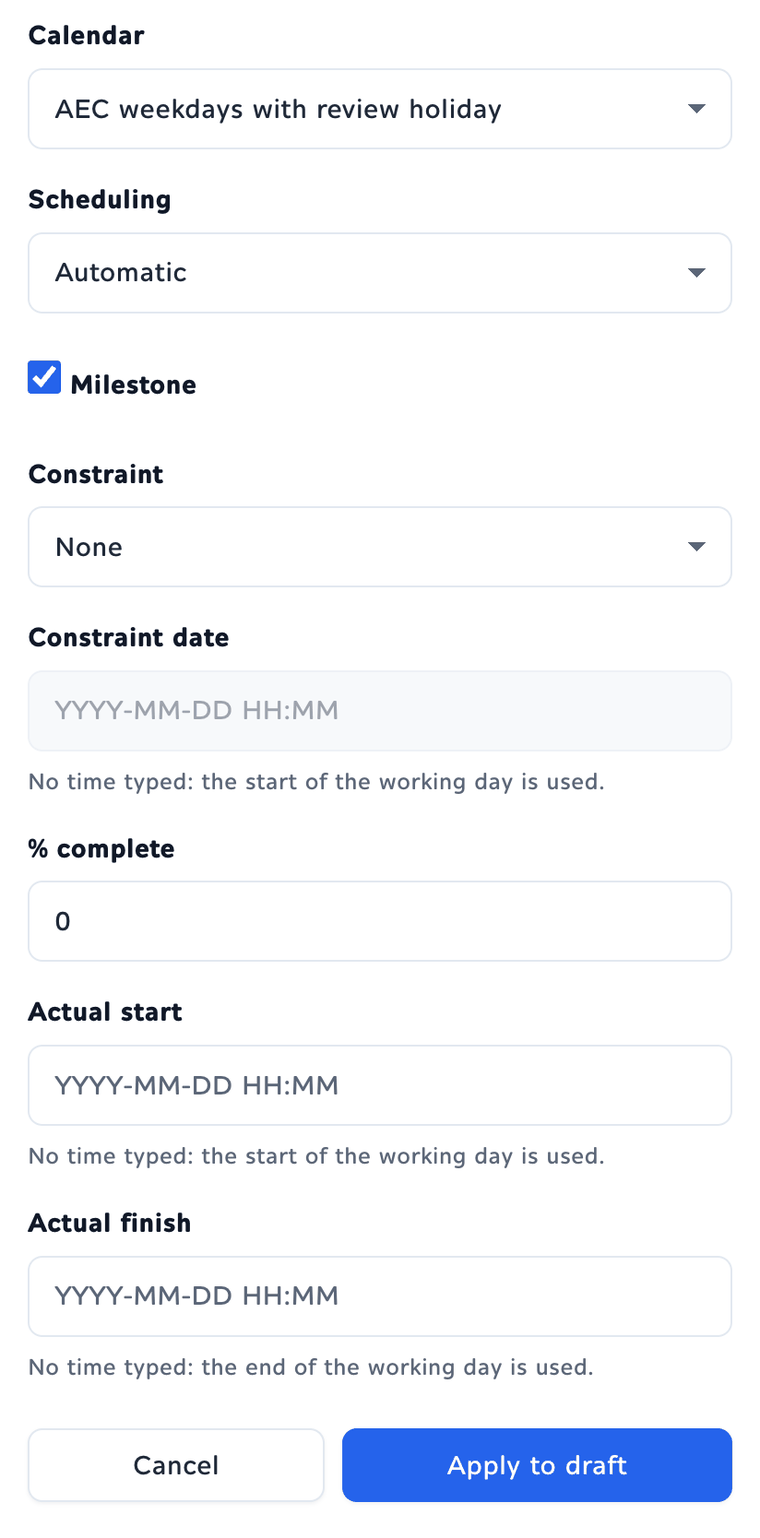
Dates are typed as YYYY-MM-DD or YYYY-MM-DD HH:MM. With no time typed, a start takes the start of the working day and a finish takes its end.
What the preview tells you
- Calculated by Archinet: a date Archinet worked out from the durations, links, calendars, constraints and progress in the schedule. After you save, these dates carry the calculator mark in the list and read Calculated by Archinet in Details. Dates your changes did not touch stay From the file.
- Kept from the file, not recalculated: in a P6 schedule, the project’s Finish on the Project tab can read this after an edit. The finish date stored in the file was not simply the latest finish of its activities, so Archinet keeps the file’s date instead of replacing it.
- Left out: some values in a file are results that Project or P6 worked out, not things anyone typed. The preview names them: late dates, float or slack, the critical flag, variances, the over-allocated flag, work and cost totals, and others like them. Your edit would make them out of date, so they are not kept in the new revision or in files made from it. The preview lists each one it leaves out.
- Also removed: what goes with a deleted activity, such as its links and its assignments.
- Filled in by Archinet: a value Archinet added so that your change is complete, such as an actual date that goes with a % complete you typed. Type the real date to change it.
- Values Archinet cannot check: when the schedule holds items from the original file that Archinet keeps exactly as written and cannot check, a note above your changes gives their number and says Open the exported file in Microsoft Project or P6 to confirm.
When a change is refused
If Archinet cannot make a change, the preview says Archinet can’t make this change, so it can’t be saved. Nothing has changed; your edit is still here. and gives the reason for each change concerned. Change the edit takes you back to it; Discard changes drops the draft. Reasons that begin Archinet cannot yet calculate are limits of this version (see Limits today).
Other things to know
- Someone saved first: if another person saves a revision while you are editing, your save says Someone saved revision … first. Your changes are kept; apply them again to that revision. Each of your changes then has Apply again, beside what the schedule holds now. When you have applied every one, your draft moves onto the new revision and you can preview and save. Discard my changes drops them all.
- Leaving: opening another page with unsaved changes asks Leave with unsaved changes? Choose Stay on this schedule, or Discard changes and leave.
- A revision with no change: with nothing in the draft, Save as a new revision in Details saves a copy of the current revision, marked saved without changes. Use it to mark a point in time.
- Export: a file is always made from a saved revision. Unsaved changes are not in it.
Create a schedule
People who can import can also start a schedule in Archinet, with no file. The form has six parts, and nothing is saved until the last step.
- On the project’s Milestones page, select Create a schedule.
- 1. Product: choose Microsoft Project (Microsoft Project XML) or Primavera P6 (XER or P6 XML). Export writes this format, so choose the one your scheduling program opens.
- 2. Schedule: type the Schedule name (its name in Archinet), the Project start and the Status date (Data date in P6). The Project name in the file and the Project ID are optional. A P6 schedule also has a Lag calendar, which cannot be changed after the schedule is saved.
- 3. Calendars: the Project default calendar starts with a five-day week. Set its Working days, its working time and its Nonworking dates. Add a calendar makes another.
- 4. WBS: Add a WBS level for each outline row you want.
- 5. Activities: Add activity, then type its Name, Duration and, if work has started, % complete. More opens the rest: its WBS row, calendar, type or scheduling, constraint and actual dates. A schedule can be saved with no activities and filled in later.
- 6. Relationships: Add relationship and choose the Predecessor, the Successor, the Type and the Lag.
- Select Review the new schedule. Archinet calculates the dates and shows each activity’s Start and Finish under Calculated by Archinet, not yet checked in Microsoft Project / P6.
- Select Save as revision 1, or Back to editing to change something.
What you type is kept in this browser tab until you save. Cancel asks Leave without saving? before it discards the new schedule.
Update from a newer file
When a newer file of the same Project or P6 project arrives, update the schedule with it. The schedule keeps one history, and the changes you made in Archinet are not lost.
- Upload the newer file to the project, then select Import a schedule file and choose it.
- Under 2. Where should it go?, choose Update an existing schedule and pick the Schedule to update.
- Select Check file, then Review the preview. The page Review the update opens.
- Open Applied without a choice to read the differences that need no decision. What only the file changed is taken from the file. What was changed only in Archinet is listed under Kept from Archinet: changed here, not in the file, and stays.
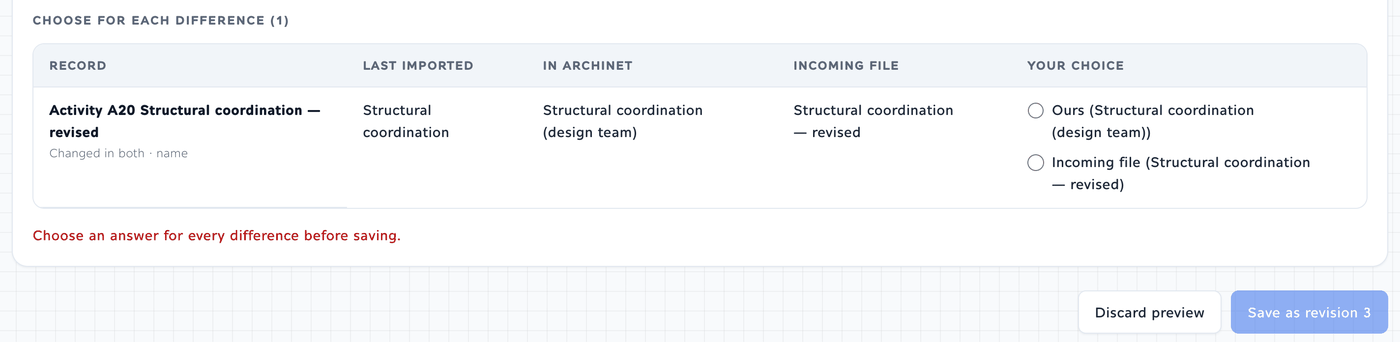
- Under Choose for each difference, decide the rest. Each row names its field in plain words, such as Name or Finish, and shows the value Last imported, the value In Archinet and the value in the Incoming file. Choose one answer in Your choice for every row.
- Select Save as revision … with the next number. Discard preview leaves without saving.
Dates after an update
- The file alone: when nothing was changed in Archinet since the last import, the update takes the file as it is. Nothing is recalculated, and the file’s dates are kept exactly.
- Date changes on both sides: when the update mixes date changes made in Archinet with changes in the newer file, Archinet recalculates the dates that depend on them, as it does after an edit. The preview lists every date that moved under Dates Archinet recalculated, with Before and After, and, as after an edit, the values it leaves out and the assignments that move with their activity. These are the dates that are saved.
- When Archinet cannot calculate them: if the update reaches something Archinet cannot calculate yet (the cases listed under Limits today), the update is not refused. It is saved as Archinet and the file give it, and the preview carries a notice: Archinet could not recalculate the dates after this update, so they are saved as Archinet and the file give them and some may not fit their links. The reasons follow, then Open the exported file in Microsoft Project or P6 and reschedule it there to bring the dates into line. After the save, the note stays with the schedule. Its page says, under the header, The dates in this schedule were not recalculated after the update in revision …, so some may not fit their links. The reasons are under Why, and the History and Export tabs say so too. The note stays through later edits, and through later updates that keep Archinet’s dates. It clears when the schedule is updated from a file taken whole, so that every date comes from the file: for example the exported file, rescheduled in Project or P6 and brought back. A name changed in Archinet does not stop that. A duration or a link changed in Archinet after the export, and kept in the update, does: the note then stays.
- A real error still blocks the update: when the combined schedule has an error, such as a loop of links, the update is stopped with the reason, and nothing is saved.
The choices
- Changed in both
- Ours (the value in Archinet) or Incoming file
- Moved
- Ours (its place in Archinet) or Incoming file
- Not in the incoming file
- Keep it in the schedule, or Remove it from the schedule
- Removed before, back in the file
- Bring it back (as the same activity it was before), or Leave it out
- Same ID in Archinet and in the file
- These are two different activities: keep both, or They are the same activity: choose between them
An activity, link, WBS row or calendar added in Archinet takes the next free ID. When the newer file adds a different one of its own under the same ID, and nothing holding yours was ever exported, both are kept: under Applied without a choice yours is listed as kept as a separate activity (or link, row, calendar), with its new Unique ID in Microsoft Project, and in P6 its new Activity ID when the file’s took the old one; yours is then offered like anything else the file does not hold. When yours was exported, the file may be sending it back: if its name (and in P6 its Activity ID, or for a link its two ends) still match, it is the same record; otherwise the preview asks Same ID in Archinet and in the file.
Under a choice that takes something out, the preview lists what goes with it. When a choice is not offered, a line says what depends on the record. Until every row has an answer, Save stays off and the page says Choose an answer for every difference before saving. Nothing is saved until you select Save.
When the file does not fit
- Not the same project: This file holds a different project from this schedule. Import it as a new schedule instead. The button Import as a new schedule instead does that.
- No project ID in the file: the update goes ahead with a note: This file carries no project ID, so Archinet cannot check that it belongs to this schedule. Review the changes before you save.
- Someone saved first: if the schedule gains a revision while you review, Save says so and offers Check the file again against revision …
- An archived schedule cannot be updated. Unarchive it first.
Export & download
Export writes a file from a saved revision, in the schedule’s own format: a schedule that came from Microsoft Project XML is written as Microsoft Project XML, a P6 XML schedule as P6 XML, an XER schedule as XER. Project administrators and Milestones editors can make a file; everyone who can view the schedule can download the files already made.
- Open the schedule and select the Export tab.
- Choose the Revision. The current one is chosen for you.
- Select Check before generating. The check makes nothing. It names the File, its Format and the revision it comes From, lists what is Kept as it is and Kept in another form, and says Nothing that can’t be written was found.
- Select Generate the file.
- When it says File ready, select Download the file.
About this file on the result says how the file was checked: Written from saved revision …; read back by Archinet and equal to it, how many values were copied back unchanged, and Not yet checked in Microsoft Project (or Primavera P6). It also gives the file’s size and its SHA-256 checksum. For a revision that carries the note of an update whose dates Archinet could not recalculate, the check and About this file also say Dates not recalculated after the update in revision …
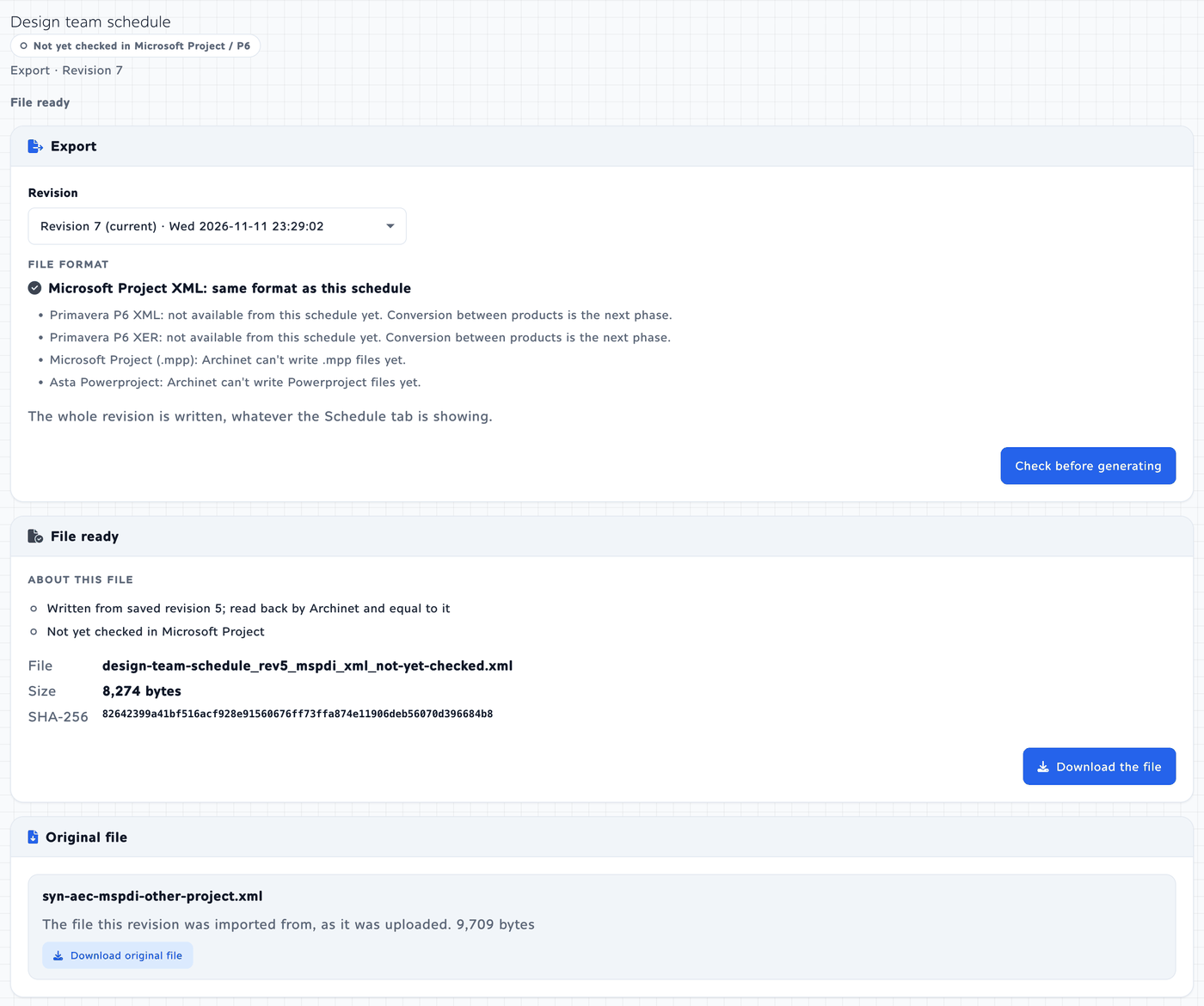
- The whole revision is written, whatever Find and Show are showing on the Schedule tab. Unsaved changes are not included.
- The file’s name is made from the schedule’s name, the revision and the format, and ends in
_not-yet-checked, for exampledesign-team-schedule_rev5_mspdi_xml_not-yet-checked.xml. The two XML formats also carry the words in a comment at the top of the file. - Other formats: the Export tab lists them as not available from this schedule yet. Conversion between products is the next phase. Archinet cannot write .mpp or Powerproject files.
- Blocked: no file made means the check found something it cannot write in this format. It lists each item and says No file can be made from this revision in this format until these are changed.
- Original file: under the export, Download original file gives you the file a revision was imported from, exactly as it was when it was imported.
- If you can only view: the tab is a Downloads list: the files already generated from the revision, each with Download, and the original file.
History
The History tab of a schedule has up to three lists.
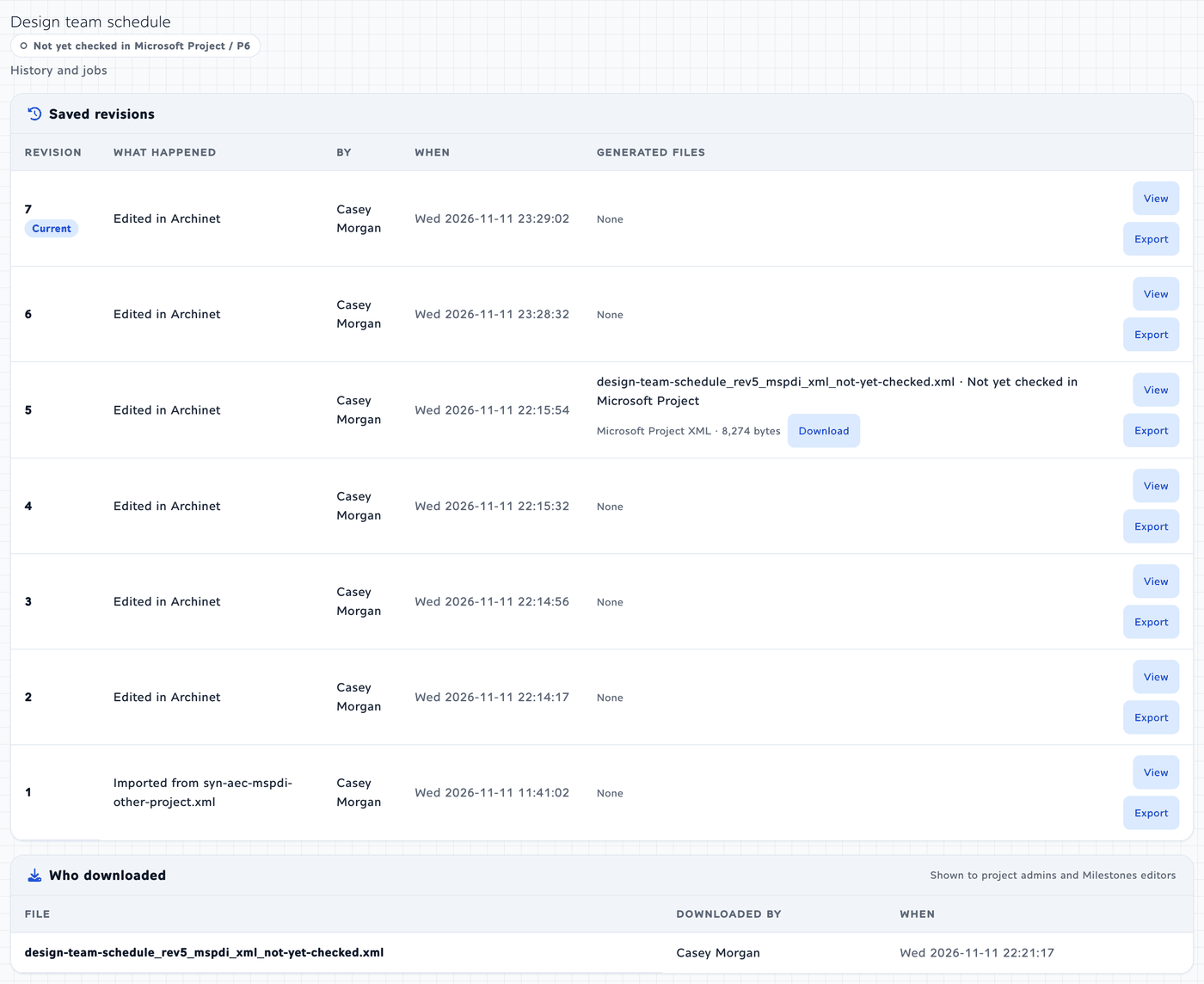
- Saved revisions, the newest first, with the Current one marked. Each row says What happened (for example Imported from a file, Updated from a file, Edited in Archinet, Created in Archinet or Saved without changes (checkpoint)), By whom and When, and lists its Generated files, each with Download. The row of an update whose dates Archinet could not recalculate adds dates not recalculated. View opens that revision. Export, for people who can export, makes a file from it.
- Who downloaded, shown to project administrators and Milestones editors: each download of a generated file or an original file, with the person and the time.
- Jobs: the imports, edits and files for this schedule, each with its state, such as Ready to review, Saved as revision …, File ready, Can’t import this file or Didn’t finish. Your own unfinished work has Return to it. Cancel, for the person who started it and for project administrators, stops one that has not finished; it does not undo a revision that was already saved. Details gives the reasons for one that was refused.
An earlier revision opens read-only, under the line You’re viewing revision …, not the current revision (…). It is read-only. Export this revision opens the Export tab for that revision, and Back to current returns to the current one. Earlier revisions cannot be edited or put back as the current one.
Who can do what
- Everyone on the project can open Milestones, read a schedule and its saved revisions, and download its files. A schedule shows only to people who can see the file it was imported from: one imported from a Limited Access file shows to the people that file was shared with. A schedule created in Archinet shows to everyone on the project.
- Project administrators can also import, create, edit, update, export and archive, and see who downloaded. Site administrators count as project administrators on every project.
- Milestones editors are project members whom a project administrator has given the same rights for that project’s schedules. The upload role is not needed and does not give them.
- Active projects only: importing, creating, editing and updating need an active project.
Add a Milestones editor
Project administrators see Who can edit schedules at the bottom of the project’s Milestones page. Choose a person under Add a project member and select Add editor. Remove beside a name takes the right away at once; adding the person again gives it back. Only members of the project can be editors.
For site administrators: Milestones settings
Site administrators see Milestones settings on a project’s Milestones page. Nothing changes until you select Save settings.
- Milestones is on for every project: the setting that projects without their own setting follow. Changing it asks first: Turn on Milestones for every project? or Turn off Milestones for every project?
- Milestones is on for this project: this project’s own setting. Under it, the page says This project follows the setting for every project. or This project has its own setting.
- Formats people can import and export: the three formats, each on or off for this project, with at least one on. Turning a format off stops new imports and exports in it; saved schedules, revisions and generated files stay available.
Turning Milestones off deletes nothing: schedules and files are kept, and come back when it is turned on again. On a project where it is off, a site administrator sees the switch Turn on Milestones for this project, and the list of projects on the Milestones page also shows the projects where it is off, marked Off.
Limits today
These are the limits of this version. When you meet one, the page says so in words, and nothing is saved or written.
- Formats read and written
- Microsoft Project XML, Primavera P6 XML, Primavera P6 XER
- Not read or written
- Microsoft Project .mpp, Powerproject .pp
- Export
- The schedule’s own format only
- Projects in one file
- One
- Largest file
- 25 MB
- Largest schedule
- 50,000 activities, links and assignments together; a Primavera P6 XER file: up to 75,000. A P6 XER schedule of roughly 10,000 activities or more, depending on its content, can be too large to import
- A preview is kept for
- 24 hours
- Longest duration or lag
- 43,800 working hours
Schedules
- A schedule cannot be renamed after its first save, and cannot be deleted. It can be archived.
- An earlier revision cannot be edited or made current again. You can view it and export it.
- Milestones reads a file kept on Archinet’s own server. A document kept only in cloud storage must be uploaded again.
Editing
- Durations and lags are typed in working hours, days or weeks, not in elapsed time or as a percentage.
- The constraints you can set are Start no earlier than and Finish no earlier than. Other constraints that came with the file are kept and shown.
- The activity types you can choose in a P6 schedule are Task Dependent, Start Milestone and Finish Milestone.
- Progress is % complete, Actual start and Actual finish. An actual date cannot be later than the status date (the data date in P6).
- An outline row that came with the file cannot be deleted, and no outline row can be moved.
- Resource calendars are kept from the file and cannot be edited. Calendar dates are typed one at a time; repeating exceptions cannot be typed.
- Resources, assignments and costs cannot be typed in Milestones. What the file holds of them is kept, apart from the calculated totals an edit leaves out.
What Archinet cannot calculate yet
An edit that makes Archinet recalculate dates is refused, with the reason, when the dates depend on something this version does not calculate. A change that moves no date, such as a new name, is not affected. An update from a newer file that reaches the same cases is not refused: it is saved with a notice instead (see Update from a newer file). The reasons include:
- an activity whose dates in the file do not follow from its links, calendar and constraint;
- a Level of Effort, Resource Dependent or WBS Summary activity;
- a link to an activity in another project;
- a date constraint other than the two above on an activity that has to move;
- a duration or lag in elapsed time, or a lag that is a percentage;
- an activity whose work is split into parts;
- a calendar based on another calendar, with a repeating exception, or with a different working week for a range of dates;
- in a Microsoft Project schedule: a link or a constraint on a summary row, a repeating activity, and a schedule planned backward from its finish date.
Each refusal of an edit names the activity or the link concerned. The change stays in your draft, and nothing is saved.
If something doesn’t work
There is no Milestones button on the project’s page.
Milestones is off for that project; its Milestones page says Milestones isn’t turned on for this project. A site administrator can turn it on (Milestones settings).
I can open a schedule, but it says View only.
Editing is for the project’s administrators and its Milestones editors. Ask a project administrator to add you under Who can edit schedules. A schedule is also read-only when it is archived, when you are looking at an earlier revision, and when the project is not active.
My file is not in the import list.
The list shows files whose names end in .xml, .xer, .mpp or .pp: tick Show all files in this project for the rest. A file marked Still being filed has been uploaded but not posted: finish posting it. A Limited Access file shows only to the people it was shared with.
“Archinet can’t read Microsoft Project .mpp files yet.”
In Microsoft Project, choose File, Save As, and XML Format (*.xml) as the type. Upload that file and import it (Get a file from Project or P6).
“This file is not Microsoft Project XML, Primavera P6 XML or P6 XER.”
The file’s contents are not one of the three formats, whatever its name. Save or export it again from Project or P6. A Powerproject .pp file is not read either: export the schedule as XML from Powerproject.
“This file holds more than one project (…). Save one project per file and import that file.”
Export each project to its own file, then import the one you want.
“This schedule is too large to import.” or “This file holds more than 50,000 activities, links and assignments together.” (75,000 for a Primavera P6 XER file)
The file is over 25 MB, or the schedule is larger than Milestones can hold today. Tell us about the schedule.
“This file is kept only in cloud storage …”
Milestones reads only files kept on Archinet’s own server in this version. Upload the file to the project again, then choose the new upload.
“Milestones is not turned on for this file format in this project.”
A site administrator has turned that format off for the project, and can turn it on again in Milestones settings.
“This file can’t be imported yet. Milestones can’t keep everything in it …”
The file holds something Milestones cannot keep, and it refuses the file sooner than lose that content silently. The preview lists it under What can’t be kept. Send us that list.
“Archinet can’t make this change, so it can’t be saved.”
Read the reason under it. Your edit is still in the draft: select Change the edit to try another value, or Discard changes. A reason that begins Archinet cannot yet calculate is a limit of this version (Limits today).
“Archinet could not recalculate the dates after this update …”
The update mixed date changes made in Archinet with changes in the newer file, and reached something Archinet cannot calculate yet; the notice gives the reasons (Limits today). The update can still be saved: its dates are then as Archinet and the file give them, and some may not fit their links. To bring them into line, export the schedule, open the file in Microsoft Project or P6 and reschedule it there, or change the activity that the notice names. The note stays on the schedule, through later edits too, until the schedule is updated from a file taken whole, such as the exported file rescheduled in Project or P6 and brought back.
“This update can’t be saved. With the changes made in Archinet and the file’s together, the schedule has an error that has to be put right first.”
The schedule that the update would save has an error, such as a loop of links; the reasons are listed under the message. Nothing has changed. Try another answer under Choose for each difference, or select Discard preview, put the error right in Archinet or in the file, and check the file again.
“Someone saved revision … first. Your changes are kept; apply them again to that revision.”
Another person saved while you were editing. Select Apply again beside every change; your draft then moves onto the new revision, where you preview and save. Discard my changes drops them all. For an update, select Check the file again against revision …
“This preview is more than 24 hours old, so it cannot be saved. Run the check again.”
Select Check the file again; for an export, select Check before generating again.
“This schedule is archived. Unarchive it first; your changes are kept.”
Someone archived the schedule. A project administrator or a Milestones editor can select Unarchive on it.
“This schedule cannot be archived while … is in progress.”
An update, an edit or an export of the schedule has not finished. Finish it, or cancel it on the schedule’s History tab, then archive. The person who started it and project administrators can cancel it.
“This generated file is no longer available.”
The file cannot be fetched from storage. A project administrator or a Milestones editor can select Generate again to make it again from the same revision.
A save or a file gets no answer: “We still can’t confirm whether …”
The page lost touch with the server and does not know whether the save went through. It never sends a save twice by itself. Select Check again. Where the page offers Save or Try saving again, that sends the same save, so one that went through is not made twice.
“Your session has ended. Sign in again, then come back to this page.”
Sign in again in another tab, then come back. Unsaved changes in the tab are kept.
“This is not available.”
The address names a project, a schedule or a revision that does not exist, or that you cannot see. Open Milestones from the project’s page.
“This didn’t finish, and Milestones has no plain explanation for it. Reference: …”
Something went wrong that Milestones has no words for. Nothing was saved. Send us the reference with what you were doing.
Still need help?
Tell us the project, the schedule’s name, what you were doing and the message you saw, with its reference if it has one.