
PROCORE + ARCHINET · PILOT
Your documents.
In Procore.
Send an Archinet document into a folder of a Procore project’s Documents tool, or copy a Procore file into an Archinet project. Copies use your own Procore sign-in or, where your firm has one set up, your firm’s Procore account for viewing and copying into Archinet. Every copy leaves a receipt in Archinet.
Today the live site is connected to Procore’s Developer Sandbox, a test company that Procore gives app developers. That is why sends read Sent to Procore (sandbox) and pages show a Sandbox badge. Your company’s own Procore account can be used only after one of its Procore Company Administrators installs one of Archinet’s Procore apps (see For administrators).
Open the Procore page The pilot is open to a few people. If the Procore page says it is being piloted, ask your Archinet administrator to add you. Your usual project and document access still applies.Connect. Choose a folder. Confirm.
- Open a document on its Document Details page and choose Send to Procore.
- If asked, choose Connect Procore, sign in on Procore’s page and allow Archinet Projects to use your account.
- Open a company, a project and a folder, then choose Send here.
- Check the review and choose Copy to Procore. The receipt opens when the copy is done.
What it does
The integration copies single files between Archinet and the Documents tool of a Procore project: its folders, files and file versions. It works on your existing Archinet documents, and nothing happens on its own: each copy is one file that you choose, review and confirm.
- Send to Procore: copy an Archinet document of any file type into a Procore folder, as a new file or as a new version of a file with the same name.
- Copy into Archinet: copy one version of a Procore file into one of your Archinet projects, through Archinet’s usual upload, with its usual choices of access and notifications.
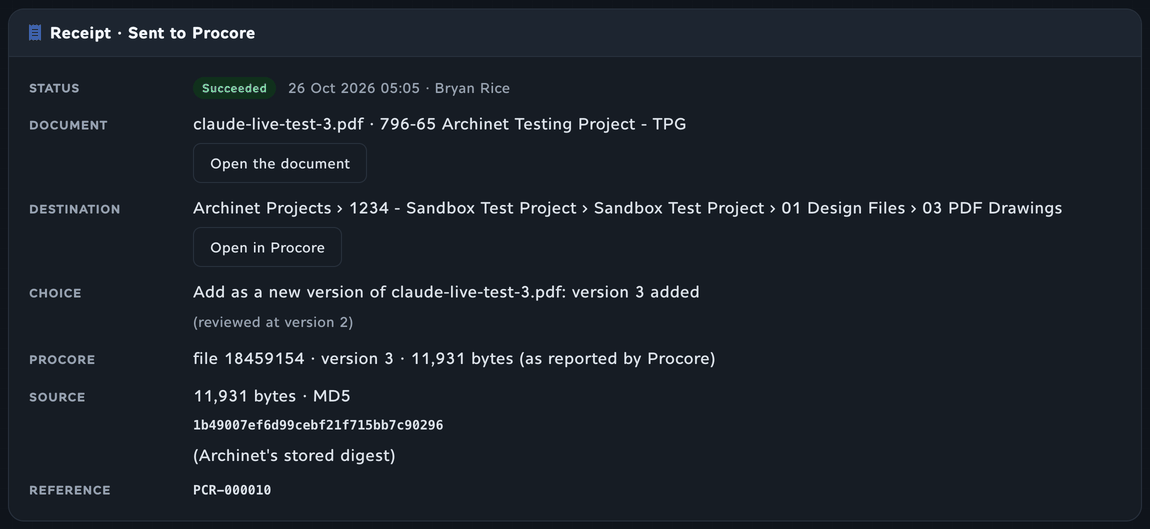
- Receipts: every copy that starts gets a receipt numbered PCR- with six digits, which records who copied what, where and when.
You find it in three places:
- Document Details page: Send to Procore, with a Sent to Procore badge once the document has been sent.
- Project page: Procore™ Transfer opens the Procore browser for that project, to copy a Procore file into it or to set the project’s default folder. It appears on active projects, on a computer screen.
- The Procore page (/procore/): your Procore connection and your recent copies. There is no menu entry for it during the pilot; use the buttons above or the link on this guide.
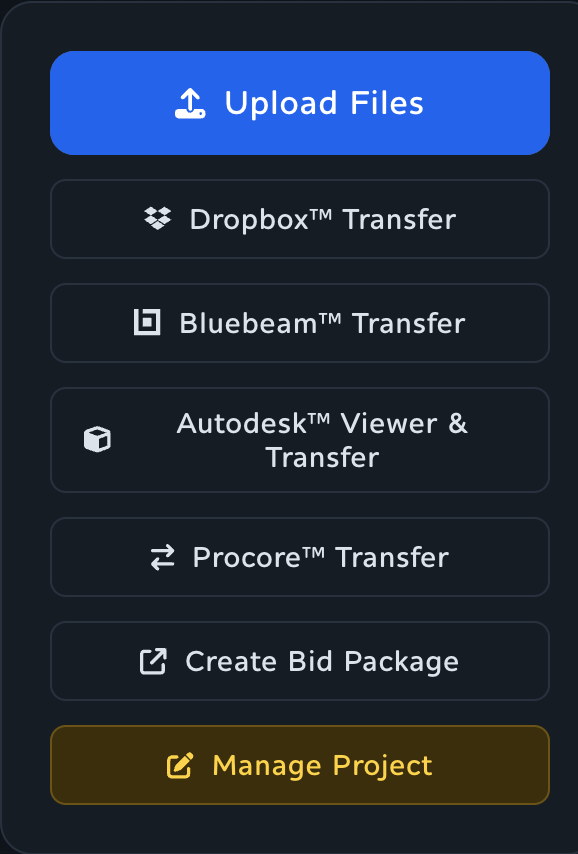
Sending and copying need the upload or administrator role in Archinet, and roles are checked again at every step. Procore’s permissions still apply on the Procore side: you see only what your Procore account may see, and you add files only where Procore lets you.
Two ways in: connect your Procore account
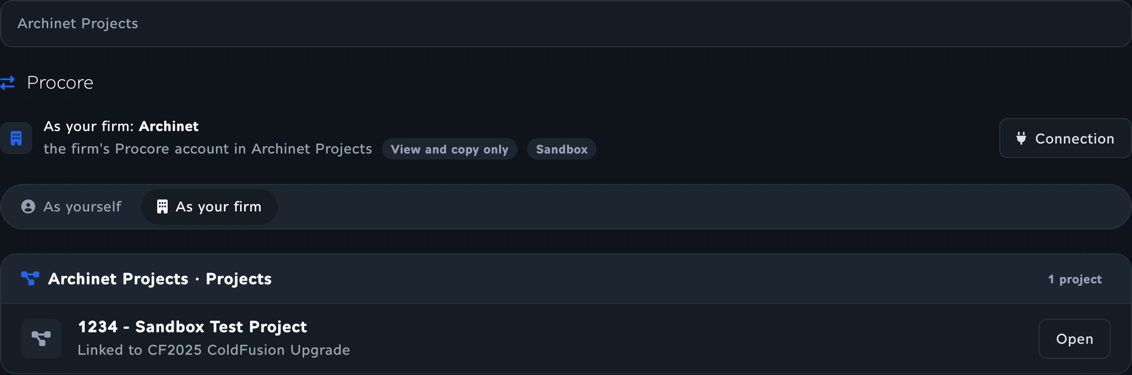
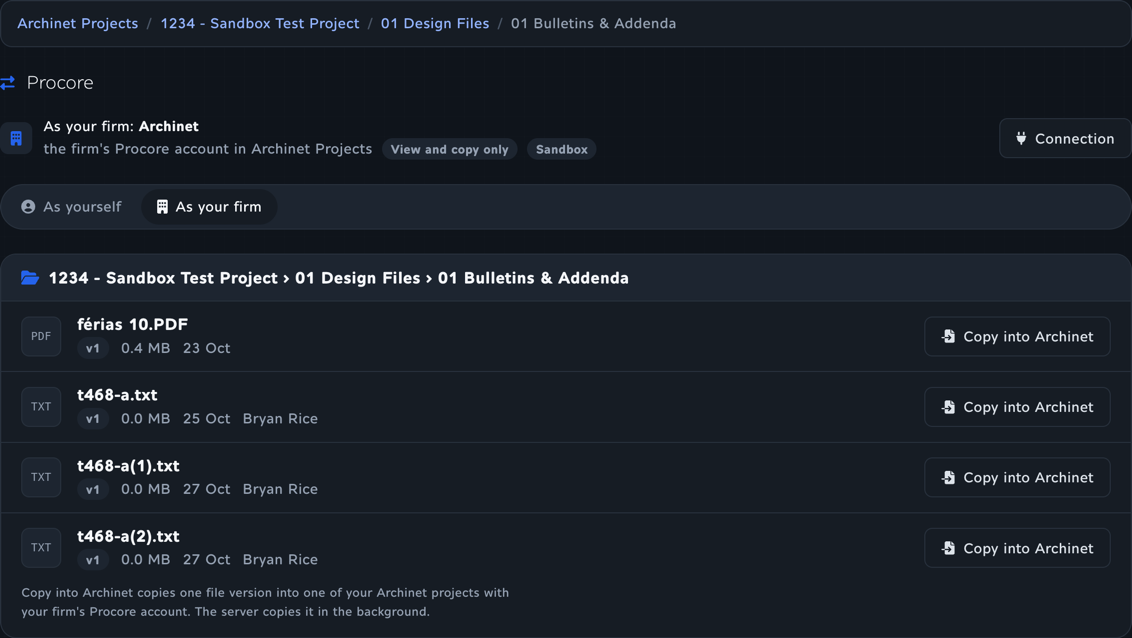
Archinet reads from Procore in one of two ways, and every page that does says which, in words and with an icon: as yourself, with your own Procore sign-in, or as your firm, with your firm’s Procore account where one is set up. Sends to Procore always go as yourself.
| As your firm (building icon) | As yourself (person icon) | |
|---|---|---|
| Shown as | “As your firm: your firm”, the firm’s Procore account in company, with a View and copy only badge | “As yourself: your name”, your own Procore sign-in |
| Who has it | People with the procore or administrator role in Archinet, when a site administrator has set up their firm’s Procore company and turned the firm account on for it | Anyone on the pilot who connects their own Procore sign-in |
| What it can do | Browse the Procore projects linked to your own Archinet projects, and copy their files into your Archinet projects, always in the background | Everything your Procore account can see, plus sending documents into Procore, recorded in Procore as you |
| What it cannot do | Send anything to Procore; open another company, a Procore project not linked to one of your Archinet projects, or Private folders and files | Reach companies and projects your Procore account is not part of |
| Which Procore app | Only Archinet Projects (Firm), which carries the firm account | The app your company installed: Archinet Projects or Archinet Projects (Firm) |
| Who sets it up | Your company’s Procore Company Administrator installs the app and chooses which projects the firm account may see; an Archinet site administrator checks it, links your firm to that company and turns it on | You connect, once, on the Procore page |
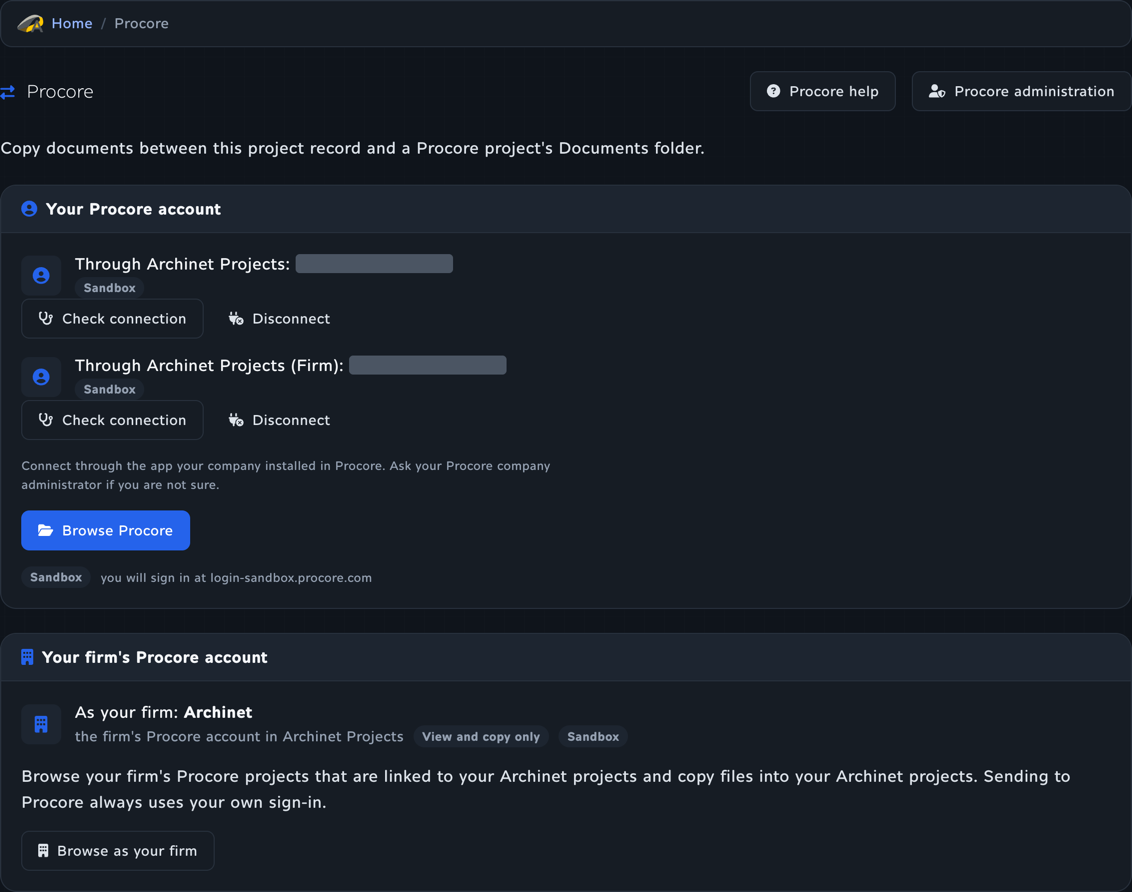
The firm account needs no Procore sign-in of your own. When it is available to you, the Procore page shows a second panel, Your firm’s Procore account, with Browse as your firm; the connect page in the Procore browser offers the same link. Procore knows only the firm account; Archinet’s receipt records who copied each file.
Connect as yourself
As yourself, Archinet works with Procore as you: it sees only what you can see in Procore, and Procore records you as the person who adds each file.
- On the Procore page, under Your Procore account, choose Connect Procore. If you start from Send to Procore or Procore™ Transfer without a connection, the same button appears on that page and brings you back to it.
- Sign in on Procore’s own page. While the pilot uses the sandbox, the page notes you will sign in at login-sandbox.procore.com. Your Procore password stays with Procore.
- Procore asks whether Archinet Projects may use your account. Allow it.
- You return to Archinet, which says Your Procore account is connected.
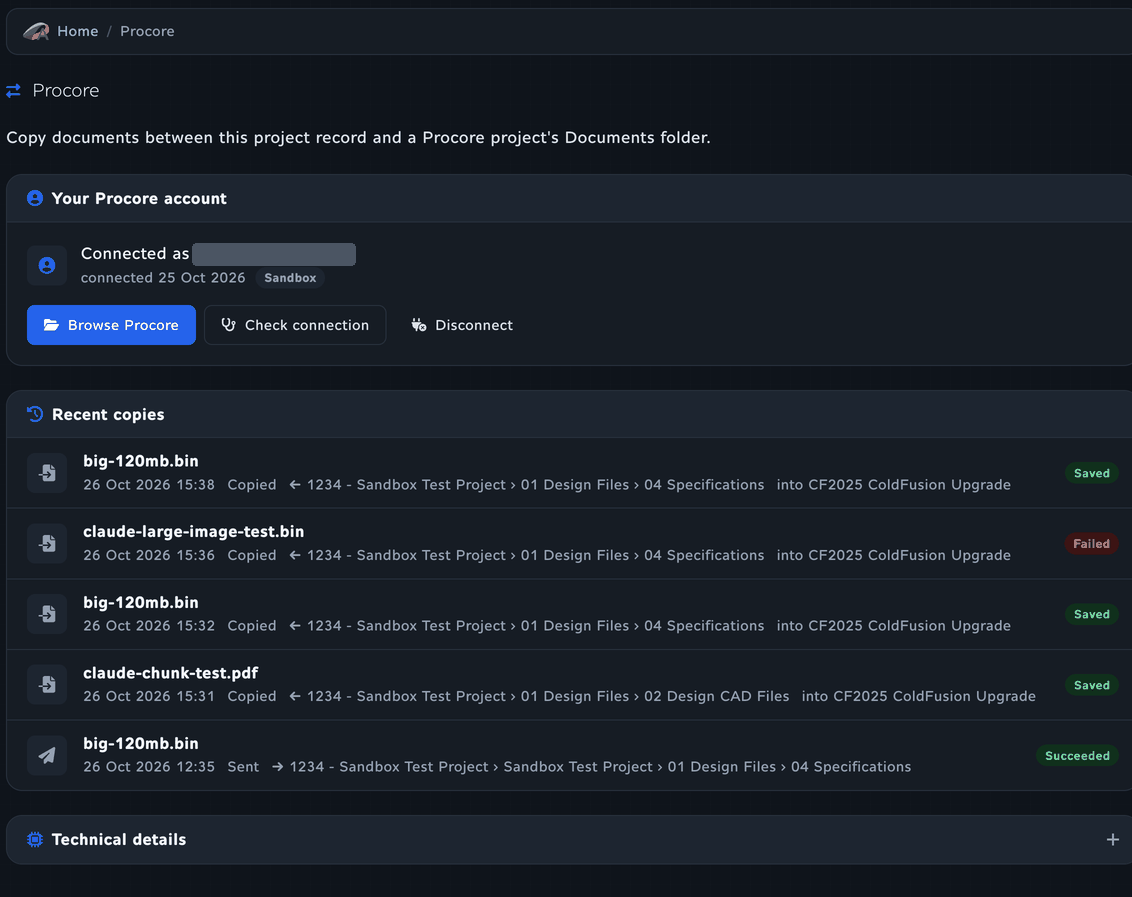
The panel then reads Connected as your name. If Procore returns no name for your account, as its sandbox did for the pilot account, your Procore login (an email address) is shown instead. If you cancel on Procore’s page, Archinet says Procore sign-in was cancelled. Nothing changed.
Check, reconnect and disconnect
- Browse Procore opens your Procore companies.
- Check connection asks Procore whether your sign-in still works. Archinet renews your sign-in by itself while you use it.
- Reconnect needed means Procore no longer accepts Archinet’s connection for you: it was revoked, it expired, or the server’s Procore settings changed. Choose Reconnect Procore. Your earlier copies and receipts are kept.
- Disconnect asks first: Disconnect Procore? Archinet stops using your Procore sign-in at once and asks Procore to revoke its access. A copy that is already running may still finish and is recorded; large copies still waiting in the queue do not start.
Disconnecting removes nothing else: receipts, Archinet documents, files already in Procore and project default folders all stay. If Archinet says Procore’s revocation could not be confirmed, you can remove the app in Procore yourself. Disconnecting does not affect your firm’s Procore account.
When both of Archinet’s apps are switched on, Your Procore account shows one line per app (Through Archinet Projects, Through Archinet Projects (Firm)), each with its own Connect, Check connection and Disconnect. Connect through the app your company installed in Procore; ask your Procore Company Administrator if you are not sure.
Browse Procore
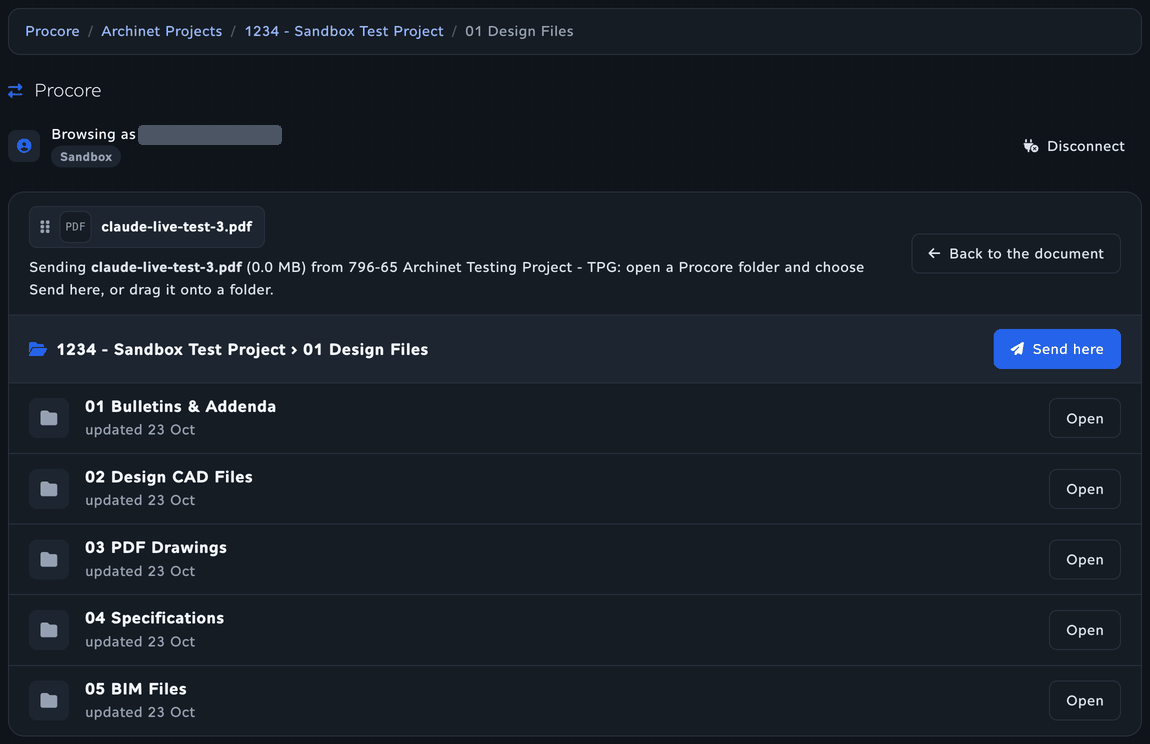
The Procore browser shows one level at a time and reads it from Procore when you open it: your companies, then a company’s projects, then a project’s folders, then one folder’s contents. Choose Open to go one level down, and the breadcrumbs at the top (Procore › company › project › folder) to go back up. The line under the title says whose Procore account you are using: As yourself: your name, or As your firm: your firm.
- Companies: only companies in the pilot can be opened. Any other company reads Not in the pilot.
- Projects: each with its Procore status, for example Active. A company with more than eight projects has a Filter projects box; long lists show 100 projects per page, with Newer and Older.
- Folders come first, with Private and Read only badges where Procore marks them, and the date they were last updated.
- Files follow, each with its type, its current version (for example v3), a Private badge when it is private, its size in MB, the date and the person who added that version.
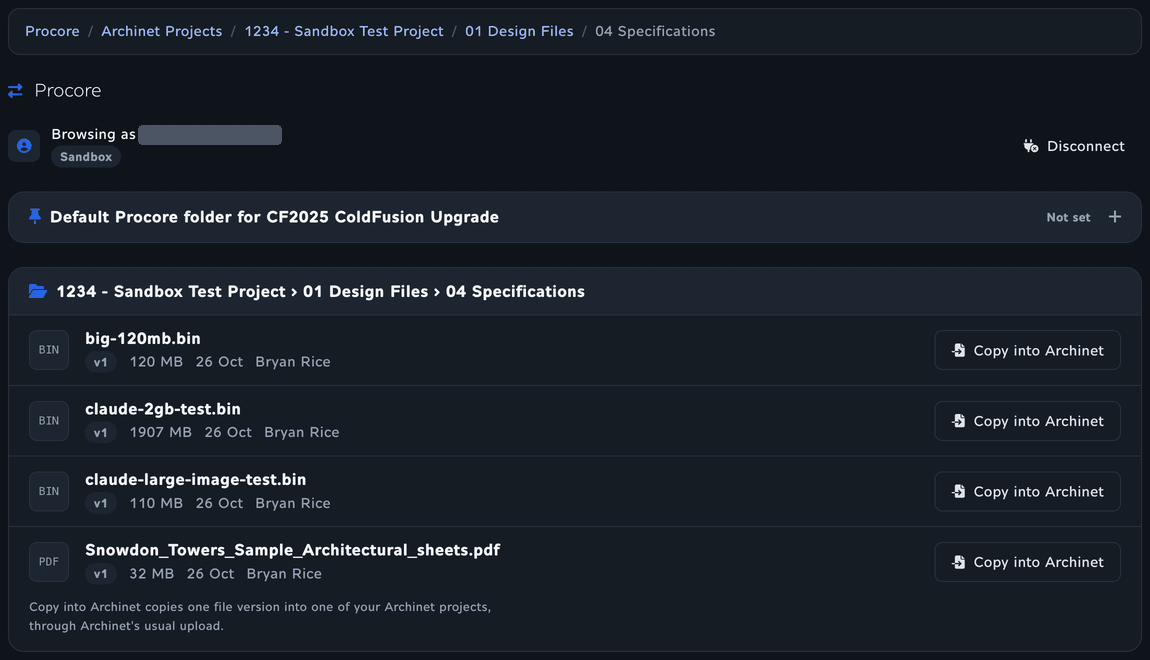
Private folders and files appear only when Procore lets you see them, for example as an Admin on the Documents tool or when you are listed in their permissions. An empty folder says This folder is empty. If Procore lists no companies or projects for you, check that you signed in with the right Procore account and that you are in the project’s Directory in Procore.
Browsing as your firm
- One company: the browser opens straight at your firm’s Procore company; there is no list of companies.
- Only linked projects: you see the Procore projects linked to one of your own Archinet projects through that project’s default Procore folder (see A project’s default folder), each with Linked to the Archinet project. With none, the page says a project administrator links one by setting the project’s default Procore folder. A Procore project that is not linked cannot be opened as the firm.
- No Private items: folders and files Procore marks Private are never shown as the firm, and a Private folder, or a folder inside one, cannot be opened by a link. As yourself, you still see your own Private items as Procore allows.
- The mode switch: if you may use both ways in, a switch under the identity line reads As yourself | As your firm. It keeps the company, project and folder when the other way may open them, else opens that way’s first page.
- Sending: as the firm there is no Send here. The tray says sending always uses your own Procore sign-in and offers Send as yourself.
Send a document to Procore
Sending needs the upload or administrator role in Archinet and, in Procore, permission to add files to the folder (Standard or Admin on the Documents tool). Any file type can be sent.
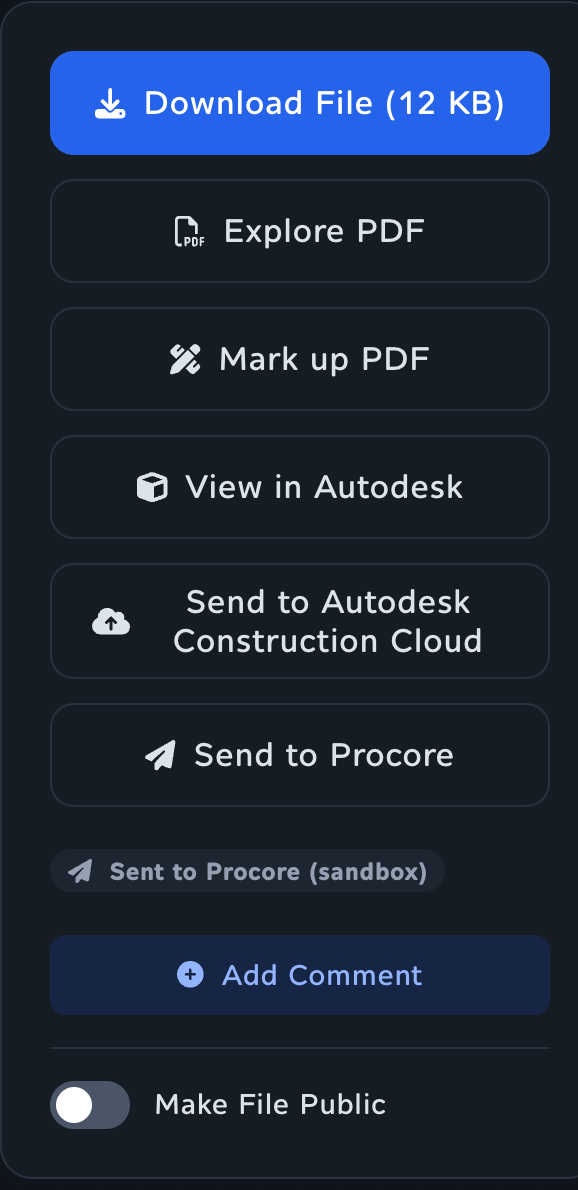
- On the Document Details page, choose Send to Procore. The Procore browser opens with the document waiting in a tray at the top: Sending file (size) from project: open a Procore folder and choose Send here. If the project has a default Procore folder, the browser opens straight in it.
- Open the company, the project and the folder you want.
- Choose Send here in the folder’s heading. On a computer with a mouse or trackpad you can instead drag the document from the tray onto a folder in the list (dragging has not yet been tried in the pilot). Archinet checks the folder in Procore and opens a review.
- The review shows From (the document, its size and project), To (company › project › folder), As (your Procore sign-in) and Result: A new file named file will be added. Choose Copy to Procore.
- Keep the page open while the file is sent. The receipt opens when it finishes and says file added to project › folder., with Open in Procore beside it.
A review is valid for 15 minutes; after that, start again from the document. Cancel returns to the folder and Back to the document leaves without sending. A folder Procore marks as read only shows Read only instead of Send here.
What Procore and Archinet record
- In Procore, the file is added by you: Procore shows your name as the person who added it, and a new version gets the next version number.
- In Archinet, the document stays as it was. Its page gains a Sent to Procore badge for the latest successful send (Sent to Procore (sandbox) while the pilot uses the sandbox). Pointing at the badge shows the date and who sent it; the sender also sees the Procore project and folder. Everyone who can open the document sees the badge; pilot users can follow it to the receipt.
- A send is not a download: the document’s download count and download list do not change, and nobody in Archinet is emailed. Archinet always records who sent what, where and when on the receipt.
Same name: new version or keep both
When the folder already holds a file with the same name (capitals ignored), its row shows a Same name badge, the button reads Send here…, and the review asks what to do. It shows the existing file, its version, size, date and who added it, then three choices:
| Archinet’s choice | What happens in Procore |
|---|---|
| Add as a new version (vn) of that file | Your document becomes the next version of the existing file, the same as Procore’s Upload as new version. It becomes the current version; earlier versions stay in the file’s version history. Available only when the names match exactly, capitals included, and Procore described the file’s latest version; otherwise it reads Only for a file with exactly the same name and a known latest version. |
| Keep both: Procore gives the new copy a distinct name, shown on the receipt | A new file is added next to the existing one, which is not changed, like Procore’s Rename and Upload. Procore chooses the new name; in the sandbox it has been the name with (1) before the extension, for example claude-live-test-3(1).pdf. |
| Do not copy | Nothing is copied. This is selected at first. |
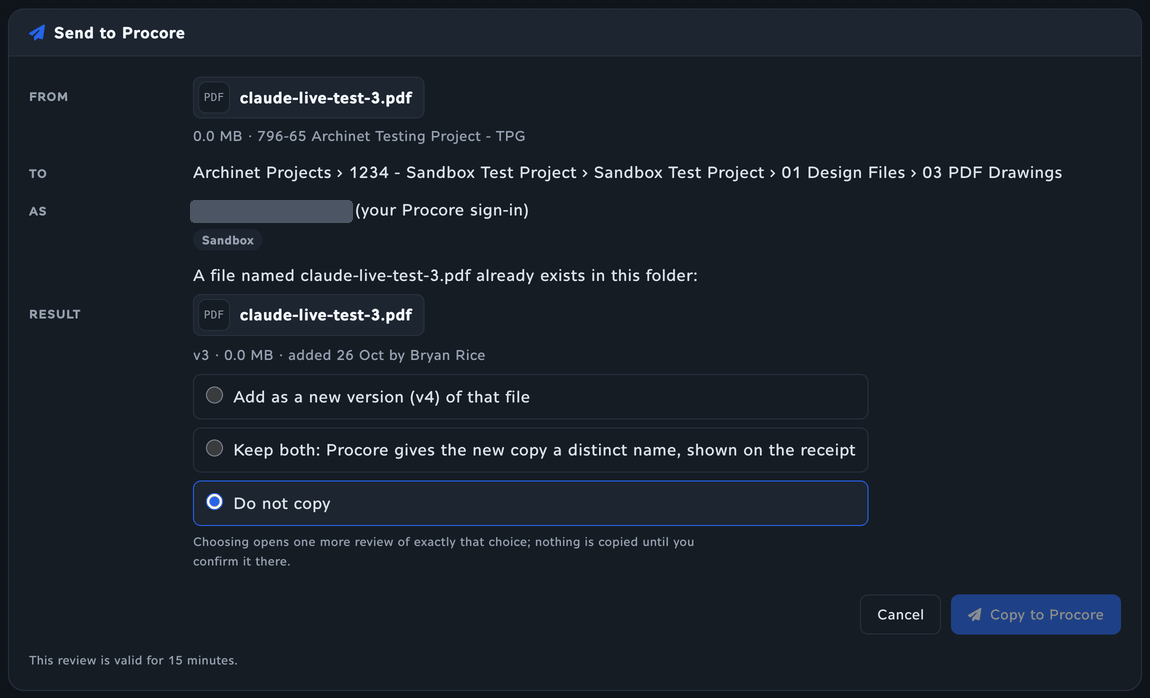
The button follows your choice: Add new version… or Copy and keep both…. Choosing opens one more review of exactly that choice, and nothing is copied until you confirm it there with Add new version or Copy and keep both.
If someone adds a version of that file in Procore between your review and your confirmation, nothing is copied. The receipt reads Failed: The file changed in Procore while you were reviewing. Check the new version before choosing again. Nothing was copied., with Review again.
A project’s default Procore folder
An Archinet project can have a default Procore folder. Send to Procore on any of its documents then opens straight in that folder instead of at your companies. It only chooses where the browser opens: each member still uses their own Procore sign-in and permissions, and it gives nobody access in Procore.
- On the project page, choose Procore™ Transfer. The panel Default Procore folder for project shows Set or Not set.
- Open the Procore folder you want in the browser below the panel.
- Choose Use the folder I am viewing. The panel then says Sends from this project open in that folder, and who set it and when.
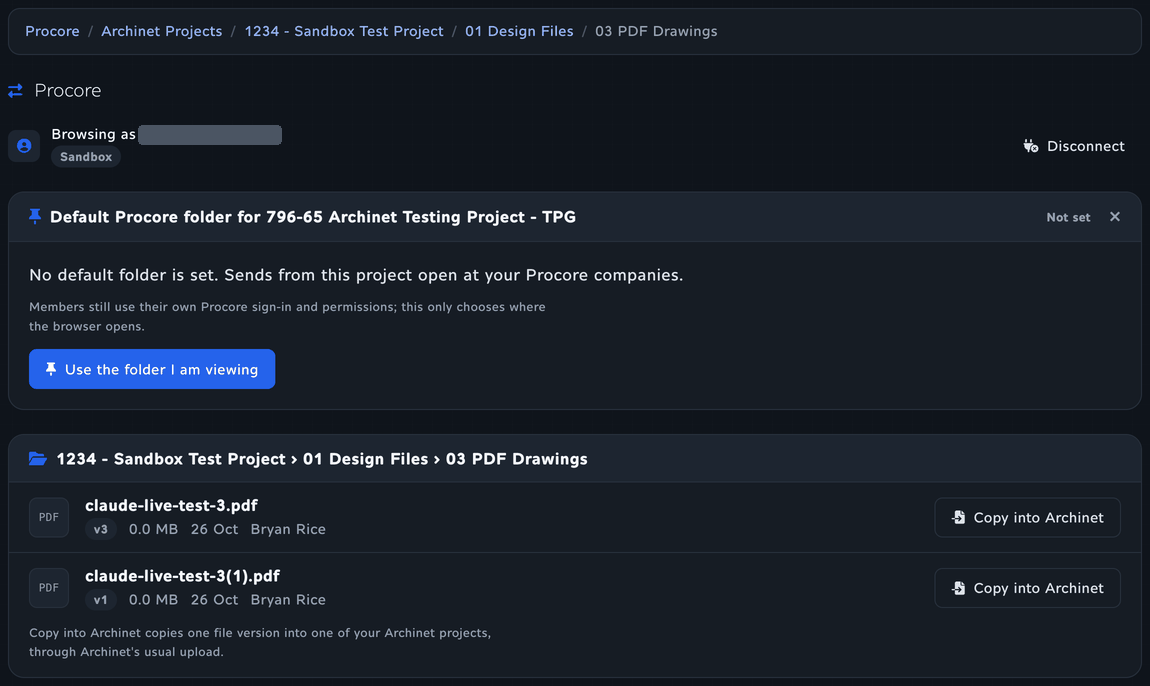
Project members see the panel. Only the project’s administrators in Archinet (the project manager and the project’s other administrators) and site administrators can set it or choose Clear, which asks first; clearing changes nothing in Procore and no receipt. A read-only folder cannot be the default. If your own Procore sign-in cannot open the default folder, a send starts at your companies and the tray says so.
While your firm’s Procore account is on for that Procore company, the default folder also links its Procore project for the firm: people at your firm with the procore role can then browse that project as the firm, and the panel says so.
A default set while the pilot uses the sandbox stays with the sandbox; production Procore starts with none.
Copy a Procore file into Archinet
Copying needs the upload or administrator role in Archinet and, in Procore, permission to view and download the file (Read Only on the Documents tool is enough, per Procore’s permissions; not yet tried with a Read Only account). The copy becomes an ordinary Archinet document through Archinet’s usual upload.
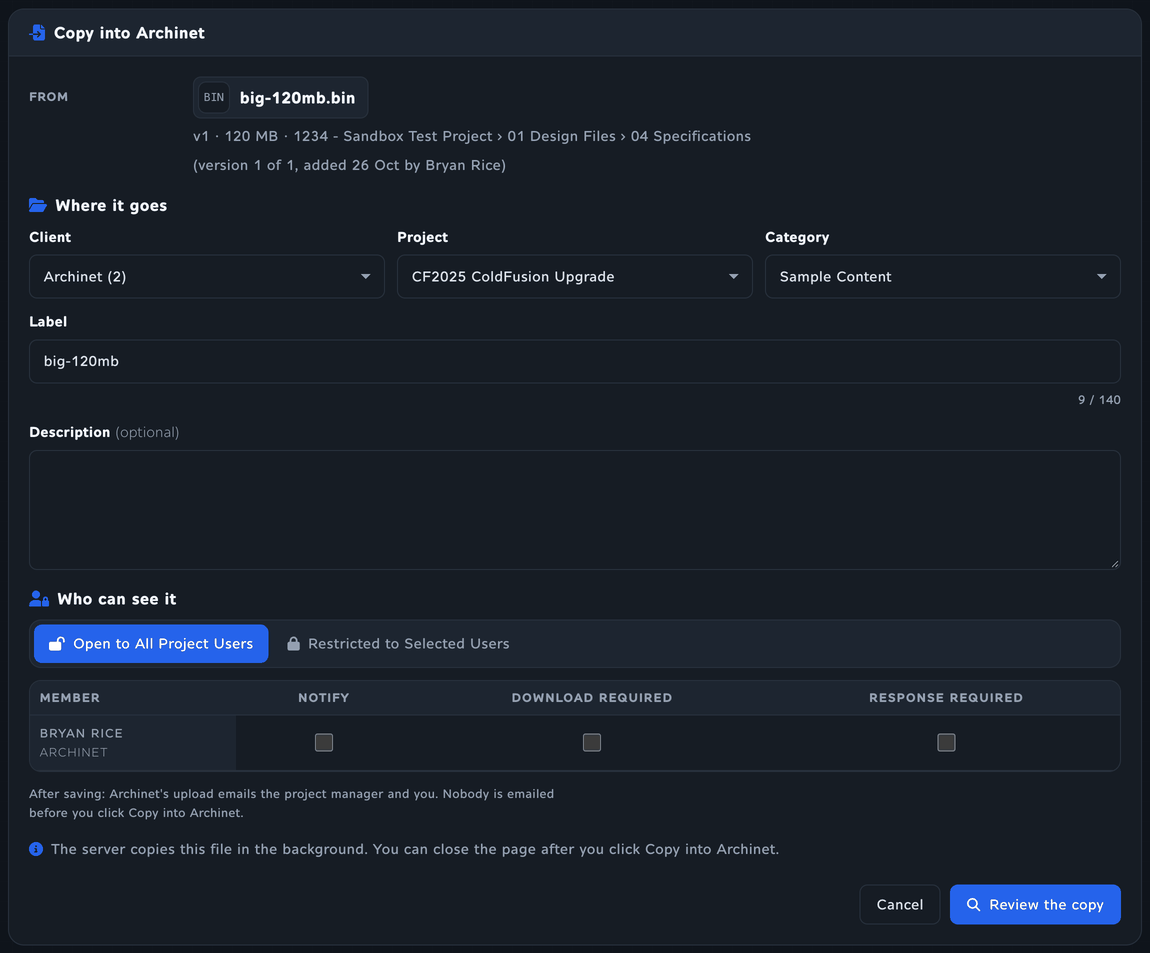
- Open a Procore folder, from Browse Procore on the Procore page or from a project’s Procore™ Transfer (which chooses that project for you), and choose Copy into Archinet on a file.
- The form shows the file under From, with its version, size and folder. Choose another version lists the file’s versions, newest first.
- Under Where it goes, choose the Client, the Project (only your own active projects are listed) and the Category. The Label starts as the file name without its extension (up to 140 characters); the Description is optional.
- Under Who can see it, choose Open to All Project Users or Restricted to Selected Users, and tick members to Notify, with Download required or Response required if needed.
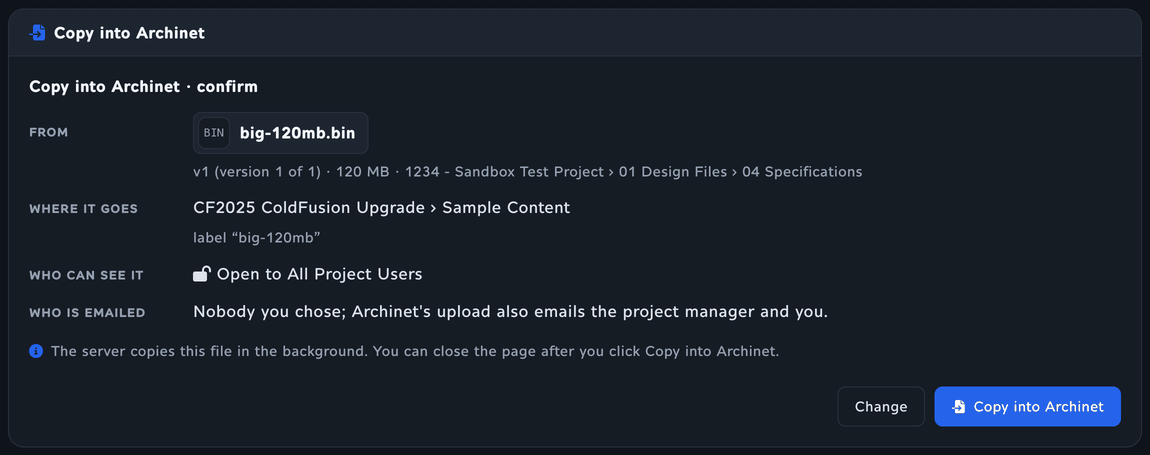
- Choose Review the copy. The confirm page repeats where it goes, who can see it and who is emailed. Choose Copy into Archinet, or Change to go back.
Restricted documents and email
- With Restricted to Selected Users, only the people you notify can open the document (and you always can), along with Archinet site administrators and the project’s administrators, who can open every document in the project; the project manager can change the list later. Ticking Download required or Response required also ticks Notify, and unticking Notify clears both, so nobody is asked to download a document they cannot open.
- After saving, Archinet’s upload emails the project manager and you, plus the people you chose to notify. Nobody is emailed before you choose Copy into Archinet. A large copy finished by the server sends the same email.
While it copies
A file up to 100 MB streams through your browser in parts, with a progress bar and the steps Fetching the file from Procore, Saving into Archinet and Checking. Keep the page open until it finishes: if you leave, the copy stops and its receipt shows what happened. When it is done it says file added to project › category as document number., with Open the document and Back to the folder. Larger files are copied by the server instead (see Large files).
If the document was saved but Archinet’s upload did not confirm it cleanly, the result reads Saved with warning: The document was saved, but the notification email may not have been sent. Tell the recipients yourself. A document copied from Procore carries no Procore badge.
Copying as your firm
- Who: the procore or administrator role for the firm account, and the upload or administrator role for the copy, both read from your Archinet account each time.
- Always in the background: whatever its size, a copy as your firm is made by the server, never through your browser. The form and the confirm page say The server copies this file in the background. You can close the page after you click Copy into Archinet., and the confirm page adds As: your firm (firm’s Procore account). After you confirm, the page shows Queued and View receipt.
- Checked again: before it starts, the server checks that the firm account is still on for the company, that your firm and roles have not changed, that the Procore project is still linked to one of your projects, and that the file is not Private (nor in a Private folder). Just before it saves, it checks the firm account, your firm and roles, the link and the destination project again. If anything changed, nothing is saved and the receipt says why.
- The uploader is you: the Archinet document is uploaded in your name, with the usual email. The receipt names the firm account that read the file.
Large files
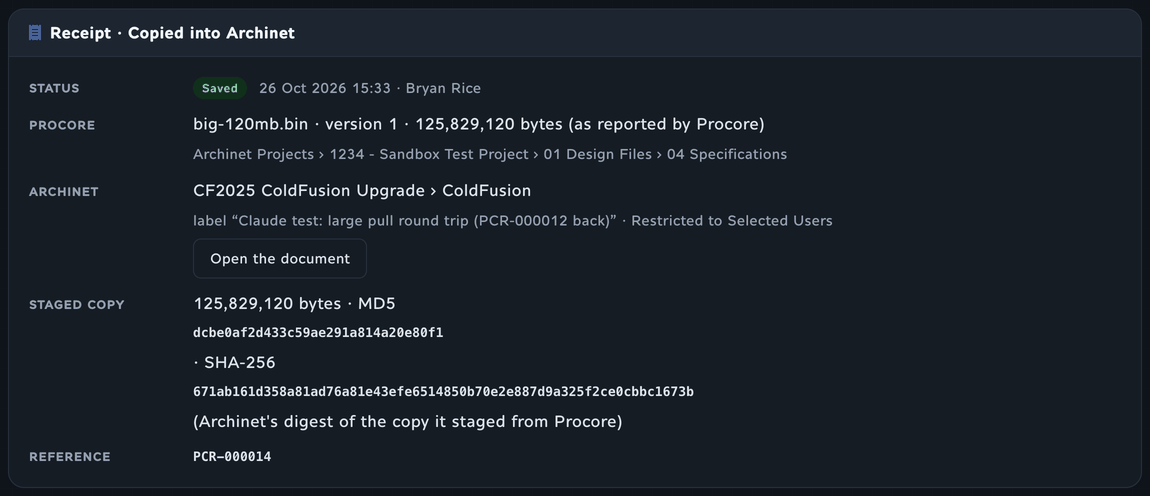
The size of the file decides how it is copied, in both directions. Sizes are in MB as Archinet shows them, where 100 MB is 104,857,600 bytes.
| Size | What happens |
|---|---|
| Up to 100 MB | The copy runs while you wait. Keep the page open; the receipt (or, for a copy into Archinet, the result) appears when it finishes. |
| Over 100 MB, up to the server’s large-copy limit (about 2 GB today: 2,000,000,000 bytes, shown as 1,907 MB) | The server copies it in the background. A send’s review says This file is large, so the server copies it in the background.; the Copy into Archinet form says The server copies this file in the background. You can close the page after you click Copy into Archinet. After you confirm, the page says the file is queued and its receipt shows Queued; you can close the page, and the receipt keeps the result. |
| Over the large-copy limit | Refused: file is size; copies through Archinet are limited to limit for now. |
The large-copy limit is a server setting (about 2 GB today) and may change; the refusal always names the limit in force. The server starts large copies one at a time and checks for new ones every minute, so a copy may wait in the queue before it starts. Copies as your firm wait in the same queue, whatever their size. A large copy that waits too long, or that is cut short by a server restart, is not resumed: its receipt says what happened, and you can start again.
Receipts
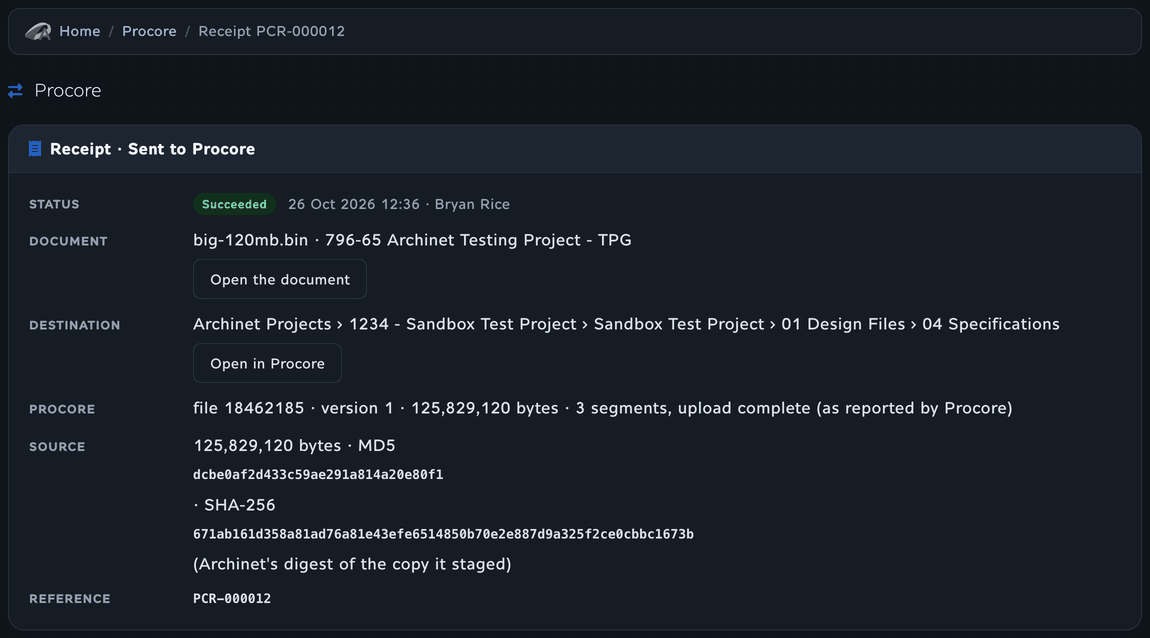
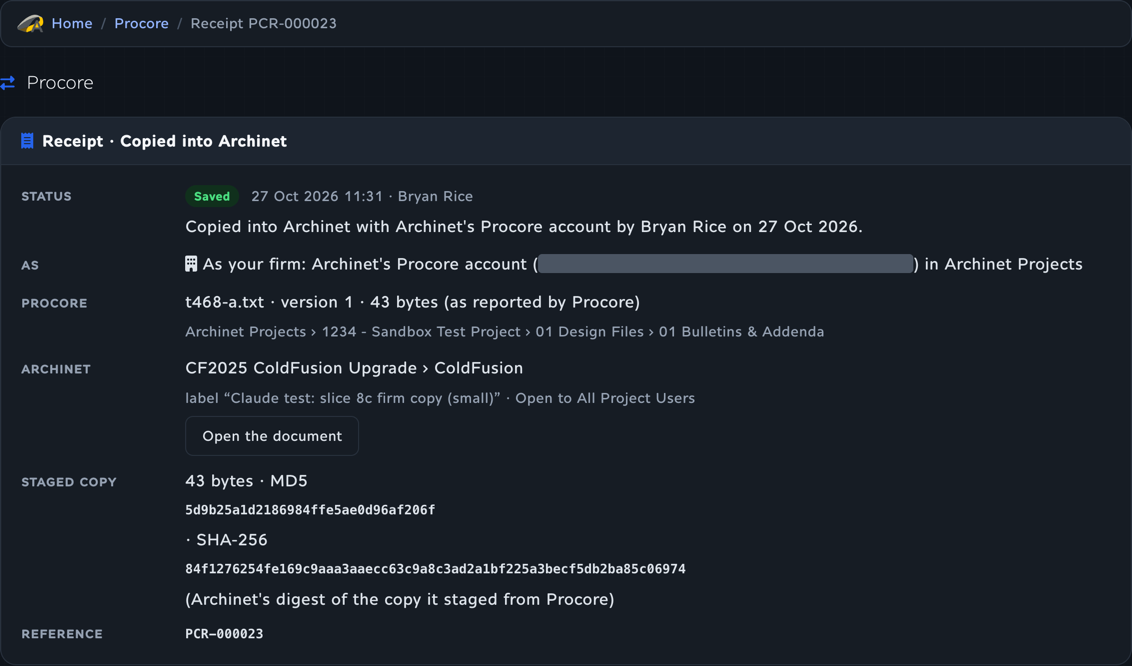
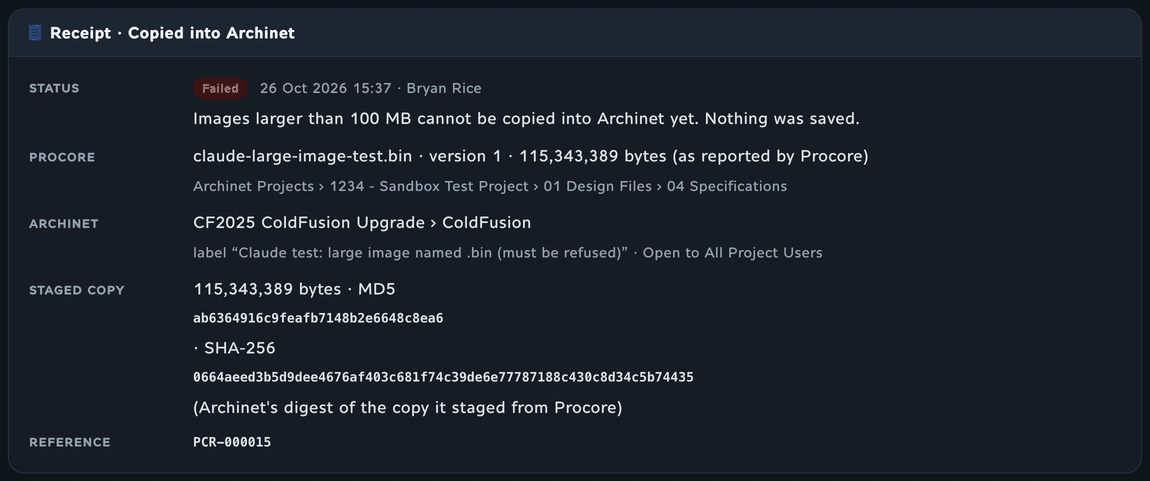
Every copy that starts gets a receipt, whether it finished or not: Receipt · Sent to Procore or Receipt · Copied into Archinet, with a reference such as PCR-000012. Its status line shows a badge, the date and time, and who made the copy. Receipts are never deleted. A refusal while you review or confirm is shown on the page and leaves no receipt.
| Badge | What it means |
|---|---|
| In progress | The copy is running. A large copy shows its current step, for example Copying on the server: part i of n, and the time by which it should finish. |
| Queued | A large copy waiting for the server to start it. You can close the page; the receipt keeps the result. |
| Succeeded | A send is in Procore. The receipt names the Procore file and version. |
| Saved | A copy into Archinet is saved as a document, with Open the document. |
| Saved with warning | The document was saved, but Archinet’s upload did not confirm it cleanly, so the notification email may not have been sent. Tell the recipients yourself. |
| Failed | A definite refusal, with the reason. Nothing was copied (a send) or nothing was saved (a copy into Archinet). |
| Needs verification | The outcome is not known: Procore or Archinet may have received the file, but Archinet could not confirm it, or the copy passed its deadline. Check the folder in Procore, or the category in Archinet, before copying again. |
| Not copied | The server did not finish a large copy before its deadline, and nothing was copied. Start again whenever you like. |
Each receipt has an As row: As yourself (your Procore name), or As your firm: firm’s Procore account (firm account) in company. A successful copy as your firm also reads Copied into Archinet with firm’s Procore account by person on date. Someone else who opens the receipt reads As the person who copied it or As their firm: firm’s Procore account. On the Procore page, Recent copies add the way in after the direction, for example Copied · as your firm.
- Where to find them: a send opens its receipt; a copy into Archinet links to it from Recent copies (and with View receipt for large copies); the Procore page lists your five most recent copies under Recent copies; the Sent to Procore badge on a document links to the receipt of its latest send. There is no full list of receipts yet.
- Who can see them: pilot users only. You see every detail of your own copies. A successful copy can also be opened by anyone in the pilot who can open the Archinet document. For a send, the Procore side then reads A Procore folder (details hidden) unless their own Procore account can see that folder; for a copy into Archinet it always reads A Procore file (details hidden). Other pilot users see This receipt does not exist, or it is not yours to see.
- Open in Procore opens the Procore folder, not the file itself.
- While a copy runs, the receipt updates itself every few seconds and reloads once when the copy ends.
- Technical details, collapsed at the bottom, holds identifiers and times used while the integration is finished. You can ignore it unless support asks for it.
Limits and messages
When Archinet or Procore refuses a step, the page or the receipt says why, in words like these. A refused copy says whether anything was copied.
| Message | What to do |
|---|---|
| Procore transfer is being piloted with a few people. Ask Bryan to be added. | You are not on the pilot list yet. Ask your Archinet administrator to add you. |
| Sending to Procore needs the upload role in Archinet. (or Copying into Archinet needs…) | Ask an Archinet administrator for the upload role. |
| Your Procore connection has expired or was revoked. Reconnect to continue. | Choose Reconnect Procore, then repeat the step. |
| Procore says you do not have permission to read this folder. | Ask the Procore project’s administrator for access to the folder in Procore. |
| Procore says you do not have permission to add files to this folder. | Adding files needs Standard or Admin on the project’s Documents tool in Procore. |
| This folder is read only. | Choose another folder. |
| file is size; copies through Archinet are limited to limit for now. | The file is over the server’s large-copy limit (about 2 GB today; see Large files). |
| Images larger than 100 MB cannot be copied into Archinet yet. Nothing was saved. | Copy a smaller version of the image, or download it from Procore directly. |
| file already exists in folder. Nothing was copied. | A file of that name appeared after your review. Choose Send here again to see the same-name choices. |
| The file changed in Procore while you were reviewing. Check the new version before choosing again. Nothing was copied. | Choose Review again on the receipt. |
| A new version can only be added to a file with exactly the same name, and Procore did not describe that file’s latest version. Choose Keep both instead. | Choose Keep both, or rename the document first. |
| This review has expired. Start again from the document. | Reviews last 15 minutes. Start again. |
| This document changed since you reviewed the copy. Start again. (or This Procore file changed…) | Start again so the review shows the current file. |
| Procore is limiting requests right now. Try again in N seconds. | Wait; the Try again button counts down. |
| Procore did not answer. Try again in a few minutes. | Procore is busy or down. Try later. |
| Archinet does not store files of this type, so file cannot be copied. | Archinet’s upload refuses that file type. |
| Archinet stores a file only when its name ends in an extension of one to five letters or digits, so file cannot be copied. | Rename the file in Procore with an extension, then choose it again. |
| Archinet’s upload renames a file whose name starts with a dot, so file cannot be copied under its own name. Rename it in Procore, then choose it again. | Rename the file in Procore so its name does not start with a dot. |
| This project has no document categories, and Archinet’s upload needs one. | Choose another project, or ask the project manager to add a category. |
| Everyone asked to download or respond must also be notified, or a restricted document would not be shared with them. Check the lists and review again. | Tick Notify for everyone asked to download or respond. |
| Your Archinet session has ended: sign in again. | Sign in to Archinet and open the receipt to see what happened. |
| This page is out of date. Reload it and try again. | Reload the page. |
Other messages end with Nothing was copied or Nothing was saved and say whether to try again. If one does not, or if it repeats, contact support with the receipt number.
What it does not do
- Only the Documents tool. It does not touch Drawings (drawing revisions or sets), Specifications, Submittals, RFIs, Photos, Models, Procore’s separate Document Management tool, or company-level documents.
- No deletes. No document, file, version or receipt is ever deleted, in Procore or in Archinet; Clear on the default-folder panel removes only that setting. Nothing is moved, and no folders or projects are created.
- No automatic sync. Each copy is a one-off that you start. Later changes on either side are not copied; send again to add a new version. There is no folder watching, no webhooks and no automatic retry.
- One file at a time. No multi-select or bulk copies; dragging works for sending only.
- No sending as the firm. Your firm’s Procore account, where it is set up, only views and copies into Archinet; every send uses your own sign-in. Membership is not mirrored between Archinet and Procore.
- Not yet: a menu entry, a full list of receipts, and your company’s production Procore account (see For administrators).
On a phone or tablet
- Send to Procore and the Sent to Procore badge appear on the Document Details page on small screens too.
- Procore™ Transfer appears on the project page only on a computer-sized screen. On a phone, open the Procore page, choose Browse Procore and use Copy into Archinet on a file; the form lets you choose the project.
- Dragging the document onto a folder needs a mouse or trackpad. On a touch screen, open the folder and choose Send here.
- A copy into Archinet up to 100 MB runs through your browser, so keep the page open until it finishes.
For administrators: going to production
During the pilot, Archinet is connected to Procore’s Developer Sandbox, a test company that Procore creates for the app’s developer, with sample data; it is not a real company’s account. To work with a real company’s Procore account, two sides must be ready: the company installs the app in Procore, and Archinet’s server is switched to production Procore.
Which app a company installs
Archinet has two Procore apps. A company installs one of them:
- Archinet Projects: each person connects their own Procore sign-in. There is no firm account.
- Archinet Projects (Firm): the same per-person sign-in, plus a firm account that Archinet can use to view and copy files into Archinet. Procore creates the firm account at install, as a user in the company’s Directory named after the app.
What a Procore Company Administrator does
The app must be installed once in each Procore company before anyone there can browse or copy files. People can still connect their sign-in, but Procore refuses that company’s project list until the app is installed. A Company Administrator (someone with Admin on the company’s Directory tool) installs it:
- In Procore, open Company Tools › Admin › App Management.
- Choose Install App, then Install Custom App.
- Enter the 36-character App Version ID that Archinet provides for production, choose Install and confirm.
With Archinet Projects (Firm), the administrator also approves the firm account’s permissions (Documents, read only, at project level) and chooses its permitted projects on the app’s Permissions tab in App Management. Use that tab’s list, not a permissions template, which would override the permissions the app asks for. Leave the permitted projects empty and the firm account sees nothing. With Archinet Projects, Archinet uses no firm account: after the install, each person connects with their own Procore sign-in, as in Two ways in. Until the app is installed, Procore refuses to list that company’s projects, and Archinet adds The Archinet Projects app is not installed in company. A Procore company administrator installs it under Company Tools › Admin › App Management.
If the app is later uninstalled, Procore refuses Archinet’s requests for that company: browsing and copying stop with Procore’s permission messages. Files already sent stay in Procore, documents already copied stay in Archinet, and every receipt is kept. A person can also end their own connection in Procore under My Profile Settings › My Connected Apps.
What Archinet needs
- Procore’s production gate. Before the app can be installed in a customer’s production company, Archinet’s developer organization must be verified with Procore, and the app version promoted to production. Which developer type Archinet registers as (Customer, Private Developer or Marketplace Partner) is still to be decided.
- Server settings. An Archinet administrator sets the Procore settings on the server, including the large-copy limit (about 2 GB today); see procore/README.md.
- Pilot lists. Only people on the pilot user list can open the Procore pages, and only companies on the pilot company list can be opened. For production, the company list must name the production companies.
The Procore administration page (site administrators)
Archinet site administrators manage the integration on Procore administration, a button on the Procore page. Every change there is recorded, with who made it and when, and nothing is deleted. Its sections:
- Server: the server’s switches and limits, read only, and when the background copier last ran.
- Apps: Archinet’s Procore apps, each turned on or off, and which one people connect through by default.
- Companies: each Procore company’s options: as yourself (sends and copies into Archinet separately), large background copies and their size limit, Check firm account (Procore confirms the company by name), and As your firm, which can be turned on only within a day of a successful check.
- Firms: map an Archinet firm to the Procore company it uses, also only after a successful check. Mapping is per firm; several firms may share one company.
- People: the pilot lists of people and companies, the procore role (granted and removed here), and everyone’s Procore connections, with Disconnect this person.
- Transfers: every copy, with filters, any receipt in full, and Export these as CSV.
- Background copies: the queue, with Stop this queued copy for one that has not started.
- Changes: the record of every change made on the page.
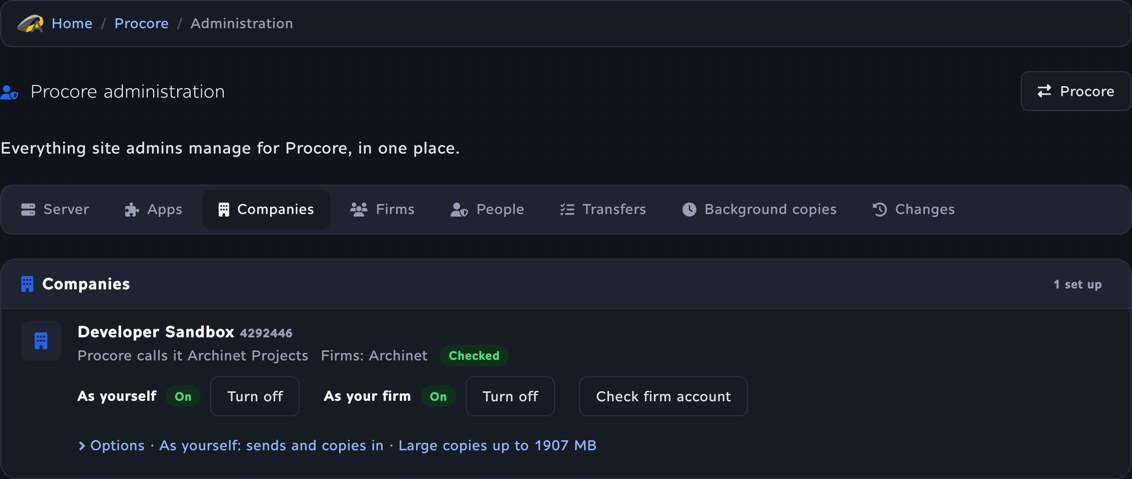
To set up a firm: the company installs Archinet Projects (Firm) with its permitted projects; a site administrator runs Check firm account on the company, maps the firm, and turns As your firm on; people with the procore role can then browse the projects linked to their own Archinet projects. After every update of the app in Procore, run Check firm account again for each company.
Switching it off
- For one company, at once: on Companies, turn As your firm off, or as yourself off. A copy waiting in the queue is then refused before it saves anything. Turning an app off on Apps stops everything through that app.
- For the whole server: two server settings are kill switches: PROCORE_USER_MODE=off stops as yourself everywhere, and PROCORE_FIRM_MODE left unset or set to off stops as your firm everywhere. A change needs a server restart, which signs everyone out. Receipts always stay readable.
What changes when the server switches to production
- Everyone’s panel reads Not connected. Each person chooses Connect Procore and signs in with their production Procore account; a sandbox connection cannot be used in production.
- The Sandbox badges disappear. A document keeps its Sent to Procore (sandbox) badge until it is sent to production Procore.
- Project default folders and the Recent copies list start empty for production; the sandbox ones stay with the sandbox. Old receipts keep their sandbox links.
- Firm mappings are per environment and are never copied from the sandbox. Each company’s As your firm reads off until a site administrator checks it and turns it on again.
Still need help?
Include the receipt number (PCR-…), the document or Procore folder, the exact message and what you were doing. Do not send your Archinet or Procore password.