
BLUEBEAM + ARCHINET · USER GUIDE
Your project PDFs.
Connected.
Move PDFs between Archinet and Bluebeam Studio Projects, remember the projects you use together, and send updated drawings as new Bluebeam revisions.
Open Bluebeam integration Sign in to Archinet with your own account. You also need access to the projects in Bluebeam.Connect your Bluebeam account
The integration uses your own access on both sides. A project being available in Archinet does not give you access to a Bluebeam project, or the other way around.
- Sign in to Archinet and open Bluebeam.
- Select Connect Bluebeam. On Bluebeam’s sign-in page, sign in and authorize Archinet Projects.
- When you return to Archinet, check the displayed Bluebeam name and email address. The account should show Connected.
- Choose Browse Studio Projects, Linked projects or Create Studio Project to continue.
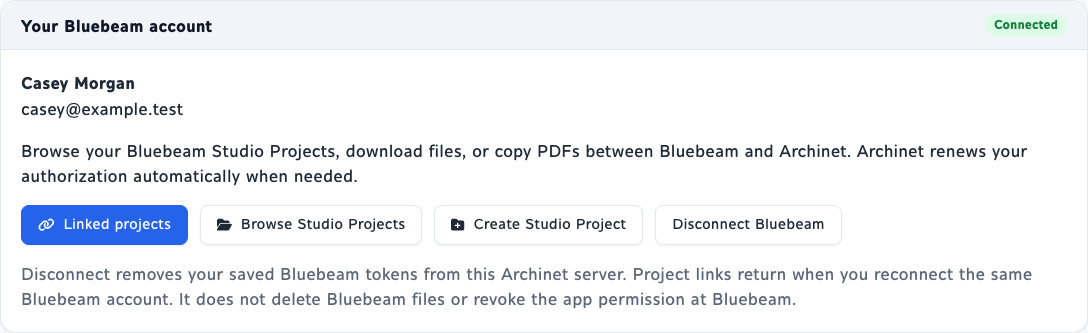
Your Bluebeam password stays with Bluebeam. Archinet renews the authorization when needed while you use the integration. If renewal is no longer possible, the account page asks you to Reconnect Bluebeam.
Browse Studio Projects and download files
- Choose Browse Studio Projects and open a project available to your connected account.
- Open folders to find your files. Use Project root or the parent-folder link to move back up, and the page controls when more results are available.
- Choose Download beside a file to save it to your computer. Downloading alone does not add the file to Archinet.
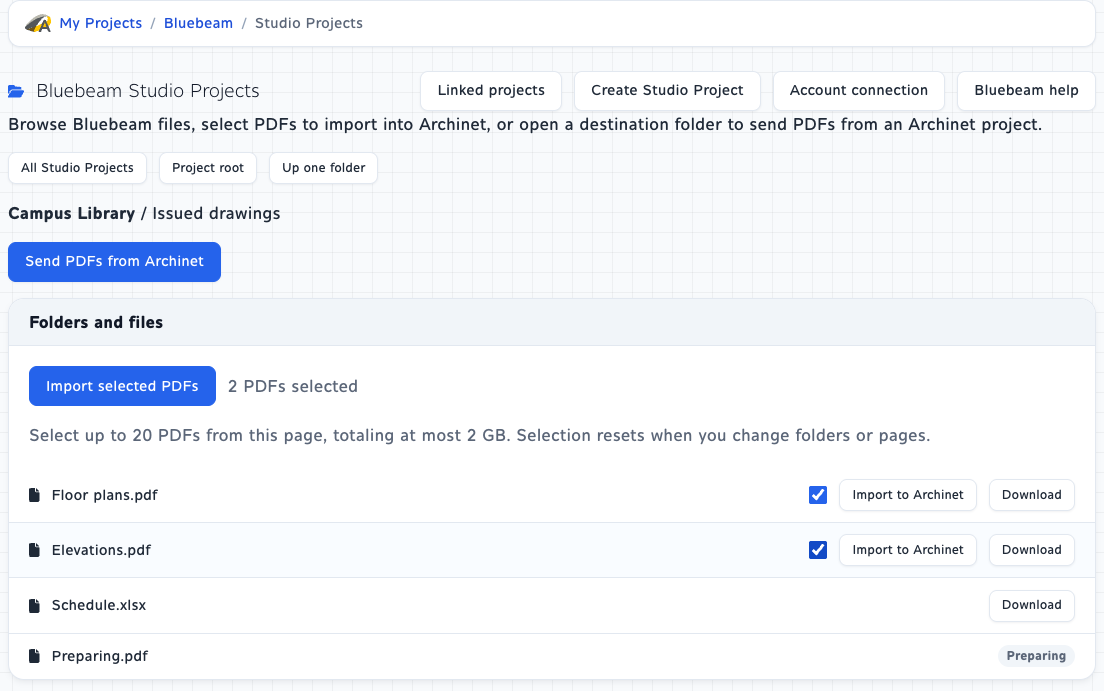
To copy PDFs into Archinet, select their checkboxes and choose Import selected PDFs, or choose Import to Archinet beside one PDF. To send PDFs the other way, first open the intended Bluebeam destination folder, then choose Send PDFs from Archinet.
PDF selections apply only to the current folder page. Moving to another folder or page clears them. Downloads can include other file types; transfers between the two systems are PDF-only.
Create a Bluebeam Studio Project
Start here when your Archinet project needs a new destination in Bluebeam.
- Choose Create Studio Project.
- Select an accessible Archinet project, then choose Choose project.
- Review the suggested Bluebeam project name. You can edit it, up to 60 characters.
- Select Create project and choose PDFs. After creation, select the PDFs to send to the new project’s root folder.
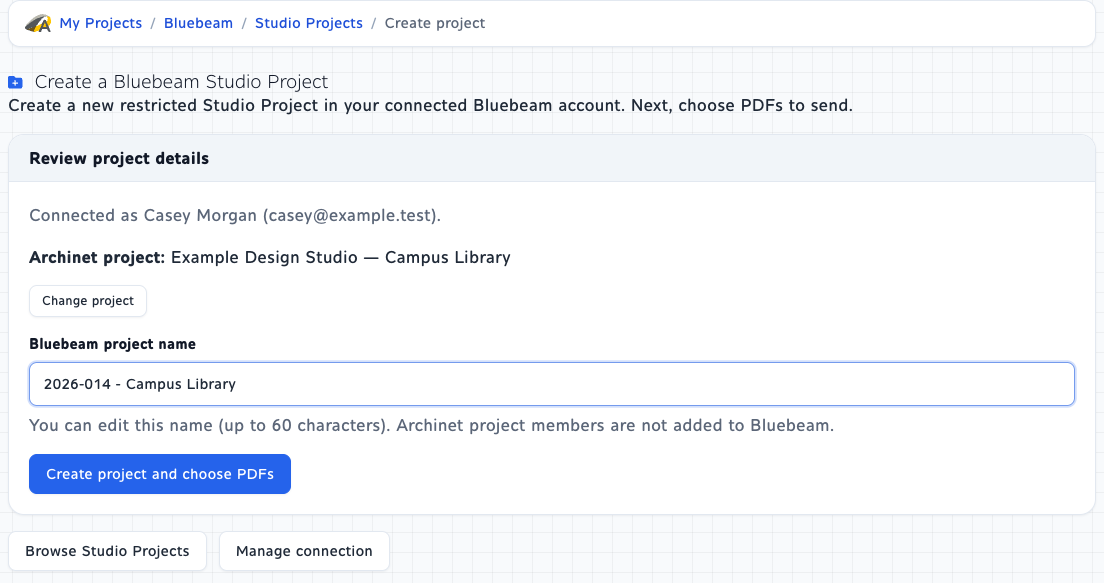
The new Studio Project is restricted. Archinet project members are not added to it automatically; manage Bluebeam membership and permissions in Bluebeam. Creation also remembers the project pair unless you already saved a different destination.
If you leave before sending any PDFs, the empty Studio Project remains. If creation succeeded but the PDF selector did not load, use the continuation link or find the project under Browse Studio Projects instead of creating it again.
Send new PDFs from Archinet
- In the Bluebeam browser, open the destination project and folder, then choose Send PDFs from Archinet.
- Select the Archinet project and choose Show PDFs. A linked project may already be selected.
- Keep Send new PDFs selected. Check up to 20 PDFs with different filenames from this project.
- Check the Bluebeam destination, then choose Send selected PDFs to Bluebeam. Leave the page open while it works.
- Read the result for each file before starting another transfer.
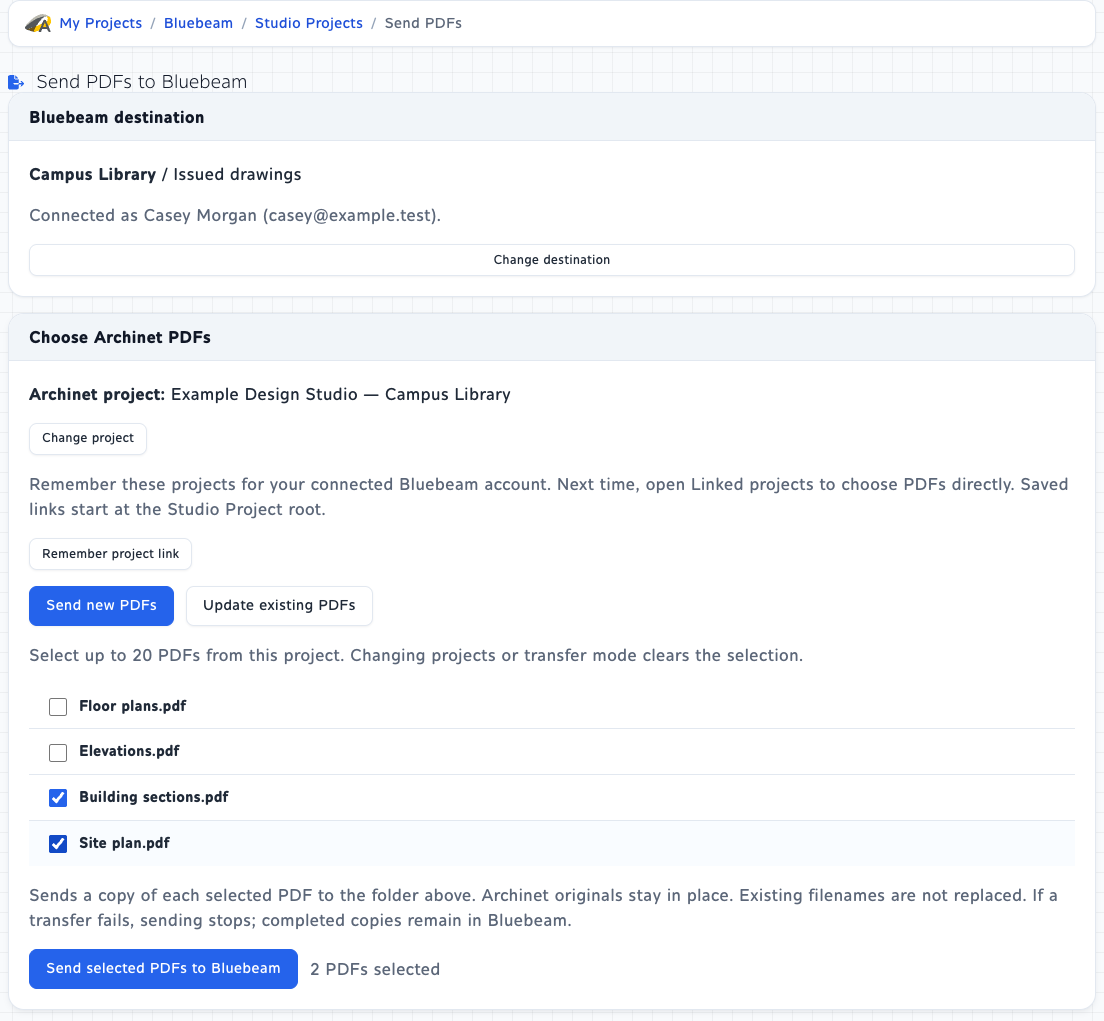
Archinet originals stay unchanged. The Bluebeam project and folder permissions determine who can access the copies. Changing the Archinet project or transfer mode clears your PDF selection.
Update existing Bluebeam PDFs
Use this when an updated Archinet PDF should become the next revision of a file already in Bluebeam.
- Open the Bluebeam folder containing the existing files, choose Send PDFs from Archinet and select the Archinet project.
- Choose Update existing PDFs.
- Review the Updates filename and Current revision ID beside each available PDF. The match uses the full filename, including .pdf, ignoring letter case, in this folder only.
- Select up to 15 PDFs, with one Archinet document per Bluebeam file, then choose Upload new revisions.
- Review the results. In Bluebeam, open the file’s Revision History to see its earlier revisions.
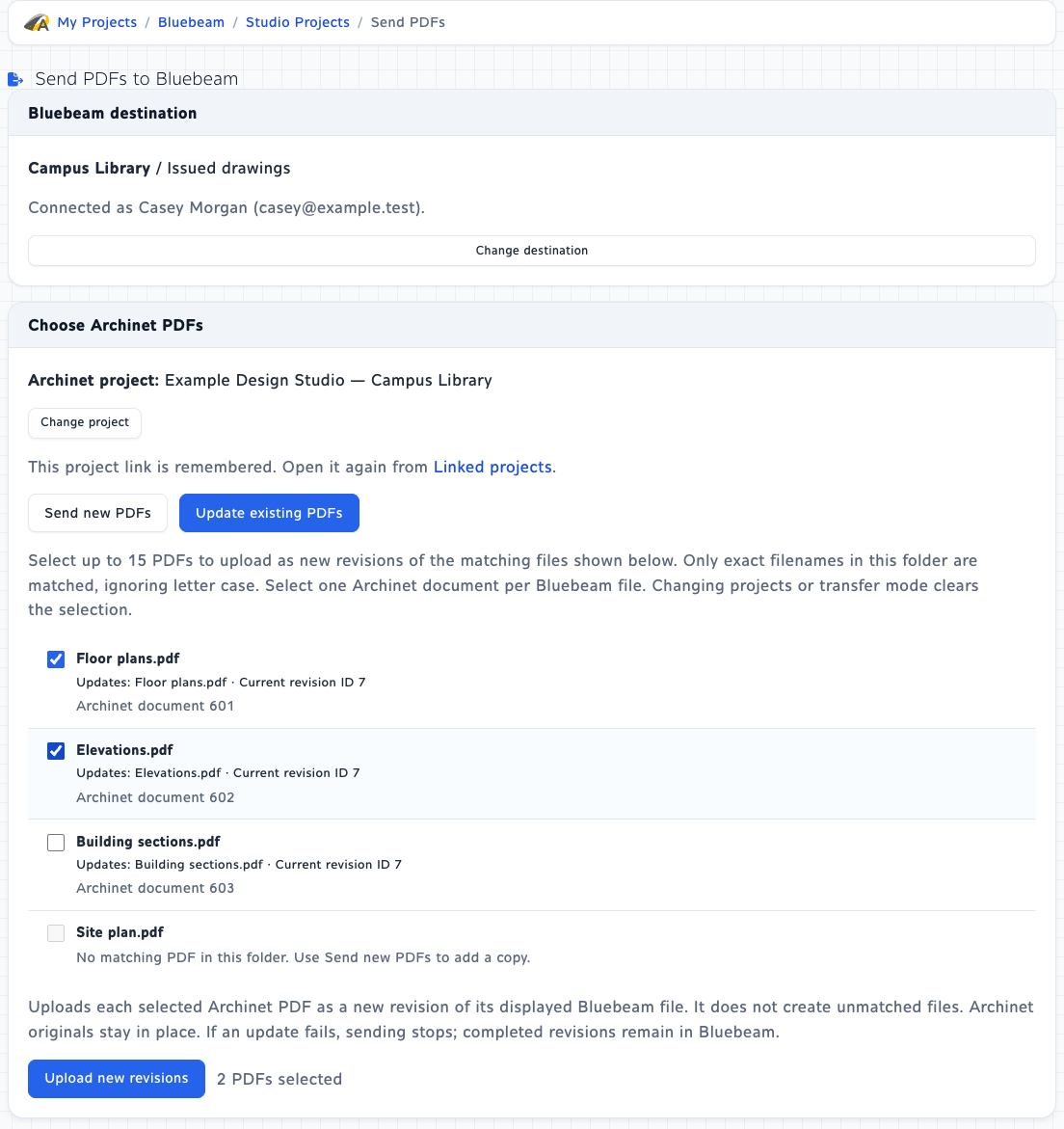
The Bluebeam file keeps its identity and earlier revisions. Archinet checks out the file, uploads the PDF and checks in the new revision with the comment Updated from Archinet.
A PDF is unavailable when there is no unique filename match, it is checked out (even by you), it is in a Studio Session, or your account cannot write to it. A changed filename is not automatically recognized as an updated drawing. Resolve the reason shown or choose the correct folder before continuing.
Import Bluebeam PDFs into Archinet
Imports create ordinary Archinet project documents, with the same access, notification and download or response requirements as a normal upload. You need permission to upload to the destination project.
- Browse a Studio Project folder. Choose Import to Archinet for one PDF, or select up to 20 PDFs on this page and choose Import selected PDFs.
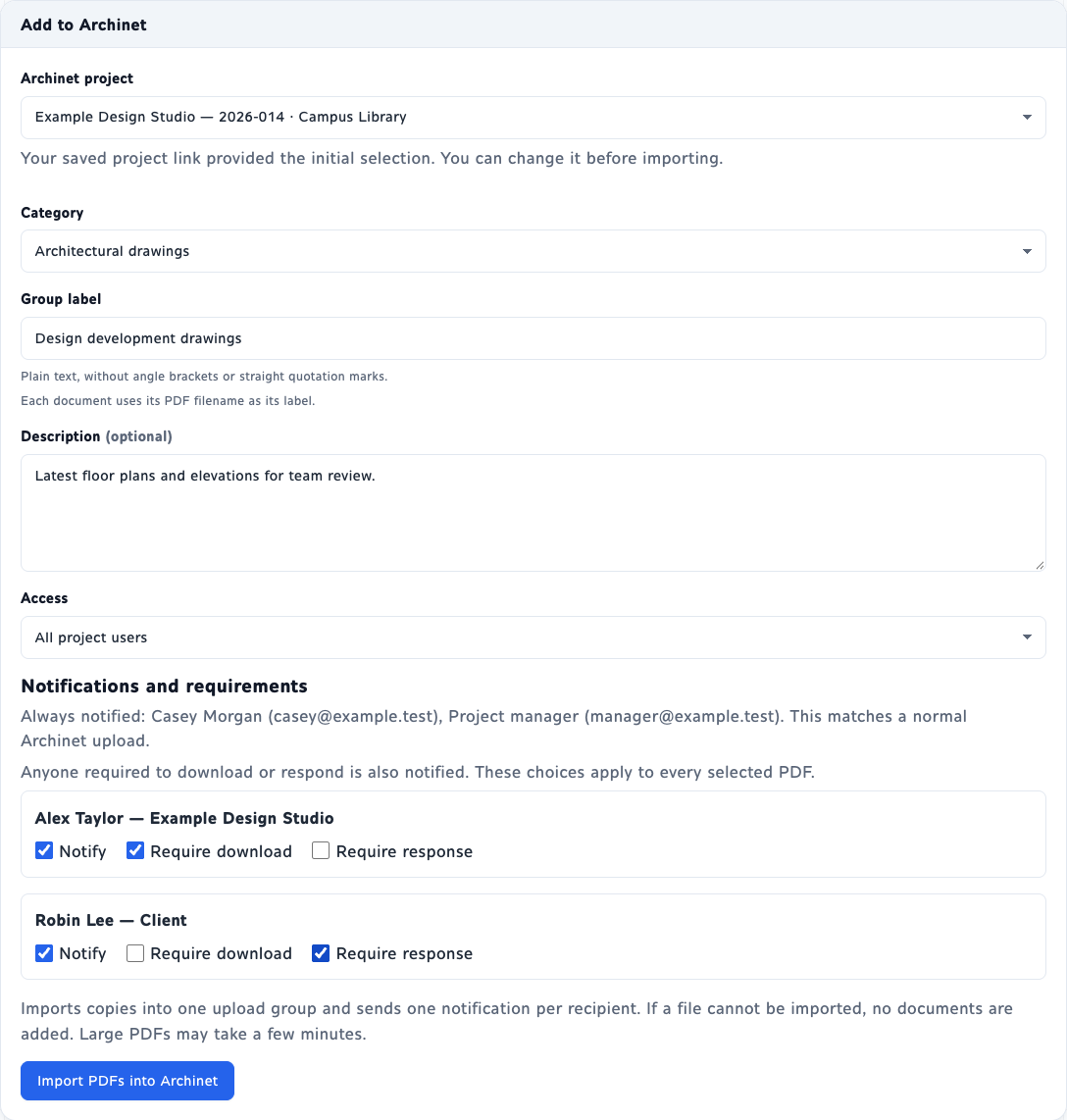
- Review the Selected Bluebeam PDFs. Select the destination Archinet project and wait for its options to load. A saved project link may preselect it; you can change it.
- Choose a Category, enter a Label or Group label, and add an optional Description.
- Review Access and Notifications and requirements using the choices below.
- Choose Import PDF into Archinet or Import PDFs into Archinet. Leave the page open until the result appears, then choose Open document or Open upload group.
| Choice | What it does |
|---|---|
| Access | All project users is the default. Choose Notified users only to restrict access to the uploader and notified recipients, with normal project-administrator access still applying. Review the recipients before importing. |
| Notify | Include the member in the upload notification. The Always notified line shows the automatic recipients from the normal upload workflow. |
| Require download | Add a download requirement for the member on every imported PDF. Selecting it also selects Notify. |
| Require response | Add a response requirement for the member on every imported PDF. Selecting it also selects Notify. |
| Group label | For multiple PDFs, this names their upload group. Each individual document gets a label based on its PDF filename. Category, description, access and requirements apply to every PDF in the batch. |
A batch sends one combined notification per distinct email address, with links to the group and individual documents. If saving succeeds but notification delivery cannot be confirmed, the result shows a warning; check the saved documents before importing again.
Remember the projects you use together
Save a project pair to avoid choosing both projects each time.
- Open the Studio Project’s Send PDFs from Archinet page and select the Archinet project.
- Choose Remember project link. If this Archinet project already points to a different Studio Project, review the destination and choose Replace saved link to change it. Saving a link does not transfer files.
- Next time, open Linked projects. Choose Send PDFs to open the PDF selector, or Browse Bluebeam to browse the linked Studio Project.
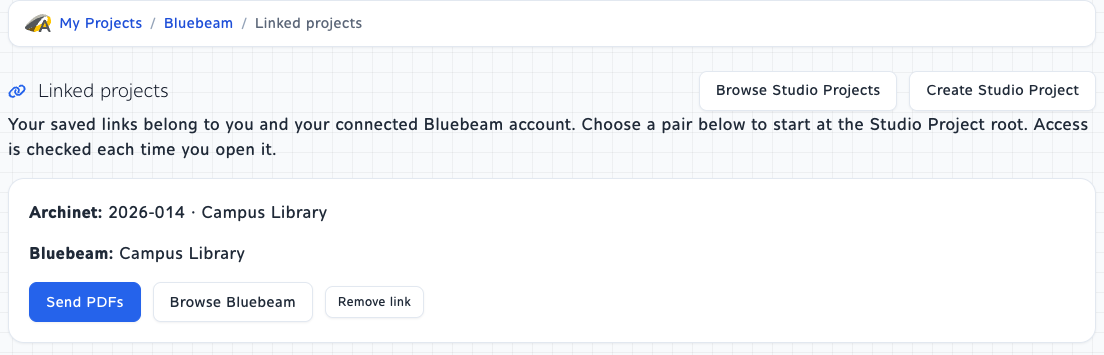
Links belong to your Archinet user and connected Bluebeam account. Each Archinet project can have one saved Studio Project for that account. They are not shared with other users and do not grant access to either project.
Shortcuts start at the Studio Project root; a particular folder is not remembered. When importing, one matching accessible Archinet project can be selected automatically, but the destination stays editable.
Remove link removes only the shortcut. Neither project nor any of its files is deleted. Disconnecting preserves valid links, and reconnecting the same Bluebeam account brings them back.
Reconnect or disconnect
Open Account connection to check which Bluebeam account is saved.
- Reconnect Bluebeam: sign in and authorize access again when the page asks you to. Confirm the returned account before continuing.
- Disconnect Bluebeam: remove Archinet’s saved authorization for your user. This does not delete Bluebeam files, sign you out of Bluebeam or revoke the app’s permission at Bluebeam.
- Change accounts: disconnect, connect again and sign in with the intended Bluebeam account. Each account has its own saved project links.
Connected shows the saved account verification. Access to projects and files is checked again when you use them.
When something needs attention
My project or PDF is missing
Check the connected Bluebeam account, project permissions and selected folder. Use the page controls to see further results. Archinet lists only projects and PDFs your signed-in user can access; imports also require upload permission. A saved link cannot restore access that was removed.
If Studio access is denied even though your account has permission, ask your Archinet administrator to check the integration’s Bluebeam API access. Individual users do not enter developer credentials in this module.
A PDF cannot be selected for a revision
Read the reason beside it. The full filename must match exactly apart from letter case, and only the current Bluebeam folder is searched. Duplicate matches, checked-out files, files in a Studio Session and files without write access are blocked. Finish or release your existing checkout in Bluebeam before returning to a fresh selection.
Only some PDFs were sent
Transfers to Bluebeam run one at a time and stop at the first failure. Files marked Sent remain in Bluebeam. Review Not sent, Check Bluebeam and Not attempted separately. Check the destination before selecting the unfinished files again; do not resend the whole batch without checking it.
The page says to check the destination, or the connection was interrupted
The operation may have finished even if Archinet did not receive its final confirmation. Check Bluebeam’s file list and revision history for sends, the Studio Project list for creation, or the Archinet project for imports. A retry from a new form can create another file, revision or import. For an uncertain revision, also check its checkout status.
My form expired, or I need to sign in again
Sign in and reopen the selection form. Confirm the account and destination, then select the PDFs again. Transfer selections expire and cannot be reused after submission. If you had already submitted, check the destination first.
There are too many files, or Bluebeam asks me to wait
Send up to 20 new PDFs, update up to 15 existing PDFs, or import up to 20 PDFs per batch. Imports also have a combined size limit just under 2 GiB. Bluebeam can temporarily limit requests, including requests made elsewhere with the same account. Allow time before reopening the form, and check any uncertain results before retrying.
The PDFs were imported, but there is a notification warning
Open the saved document or upload group and confirm the PDFs are present. A notification warning does not mean you should import them again. Contact support with the result message and the saved group or document link.
Still need help?
Include the project, file name, exact message and whether you were sending, updating or importing. Do not send your password.